Conguring Client Settings
Conguring System Settings
39
4.2.7 Deploying a System Image with a Created Snapshot
Your snapshots may be stored on a remote computer over the network or on a USB ash drive. Depending on where
your snapshot is located, you can deploy a system image either through a network or a USB ash drive.
NOTE
• For detailed information on how to take a snapshot, please refer to section “4.2.6
Taking Snapshots for Mass Deployment” on page 37.
With a Snapshot on a Remote Computer
To deploy a system image on your t170 with a snapshot on a remote computer, please do the following:
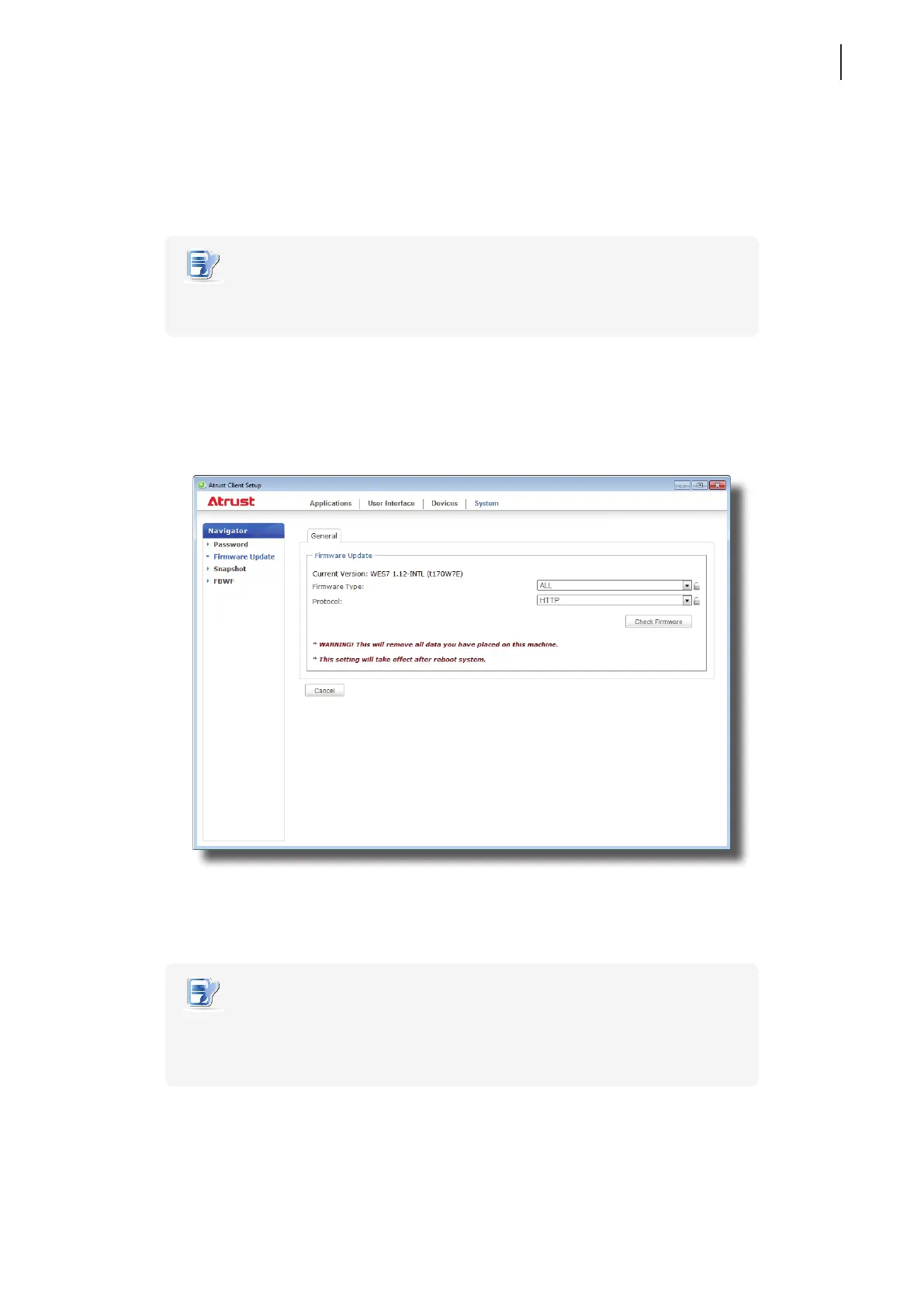
1. On Atrust Client Setup, click System > Firmware Update.
2. Under the Firmware Update section, click the Firmware Type drop-down menu to select Snapshot. The
system will automatically download the Snapshot list from the remote computer.
3. Upon completion, a message appears notifying you that the Snapshot list has been loaded.
NOTE
• Client snapshots stored on the remote computer are managed by Atrust Device
Manager. For more information on how to manage client snapshots with Atrust
Device Manager, please refer to the User’s Manual for Atrust Device Manager.
4. Click OK to continue.
5. Click drop-down menus to select the desired snapshot and other options.



 To Next Page