Conguring Client Settings
Conguring Service Access Settings
58
NOTE
• If you haven’t create any entry, the ICA Connection list will be empty.
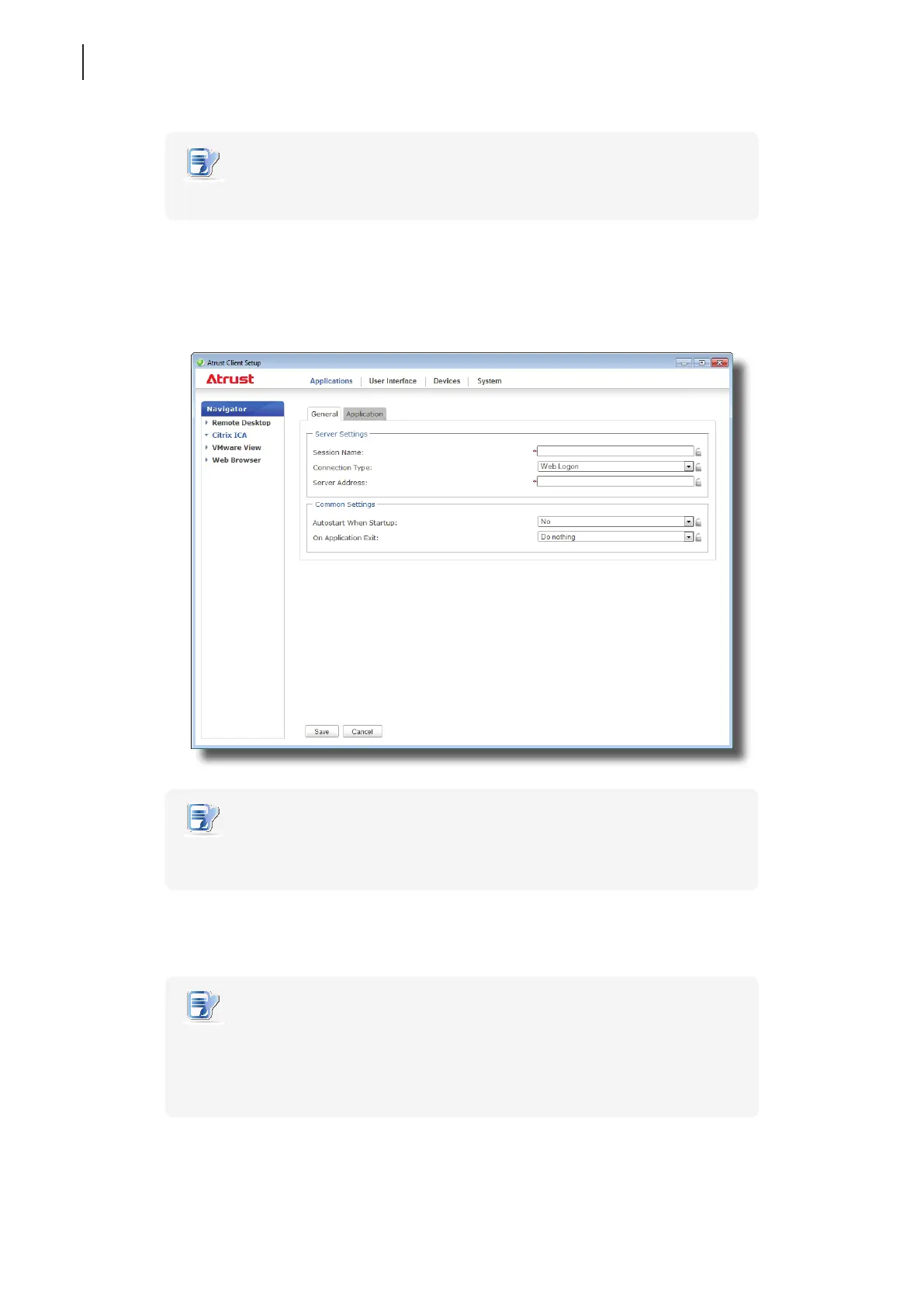
3. Click Add on the top of the ICA Connection list to create a new entry of ICA connection.
4. On General sub-tab, leave the connection type as Web Logon as default, and then type in the desired
session name and the IP address / URL / FQDN of the server where the Citrix Web Interface is hosted
under the Server Settings section.
NOTE
• The applicable or best suitable information type of the server side may vary with
your Citrix environment. Consult your IT administrator for more information.
5. Click Save to add this ICA connection entry. The access shortcuts are automatically created on the desktop
and Start menu.
NOTE
• Depending on your plan of service delivery and the conguration of your server(s),
you may need to congure other advanced ICA connection settings for service
access. For more information on other available settings, please refer to section
“4.5.8 Conguring Advanced ICA Connection Settings” on page 70.



 To Next Page