Media
- To avoid interruptions during playback, de-
activate the power saving function on the
media player or connect it to a charger.
- The loading times for the audio data depend
on the media player used and the number of
files that it contains.
- A maximum of 2,000 entries per directory
are displayed in the MMI.
- Songs downloaded for offline use using mu-
sic streaming services are stored on your
mobile device (such as a smartphone) and
may be DRM protected. The Wi-Fi audio
player will not play ORM protected files.
- Contact an authorized Audi dealer or au-
thorized Audi Service Facility for additional
information on the Wi-Fi audio player .
Online media and
Internet radio
Applies to: vehicles with Audi connect
You con playback and operate various online me -
dia services and Internet radio using the MMI.
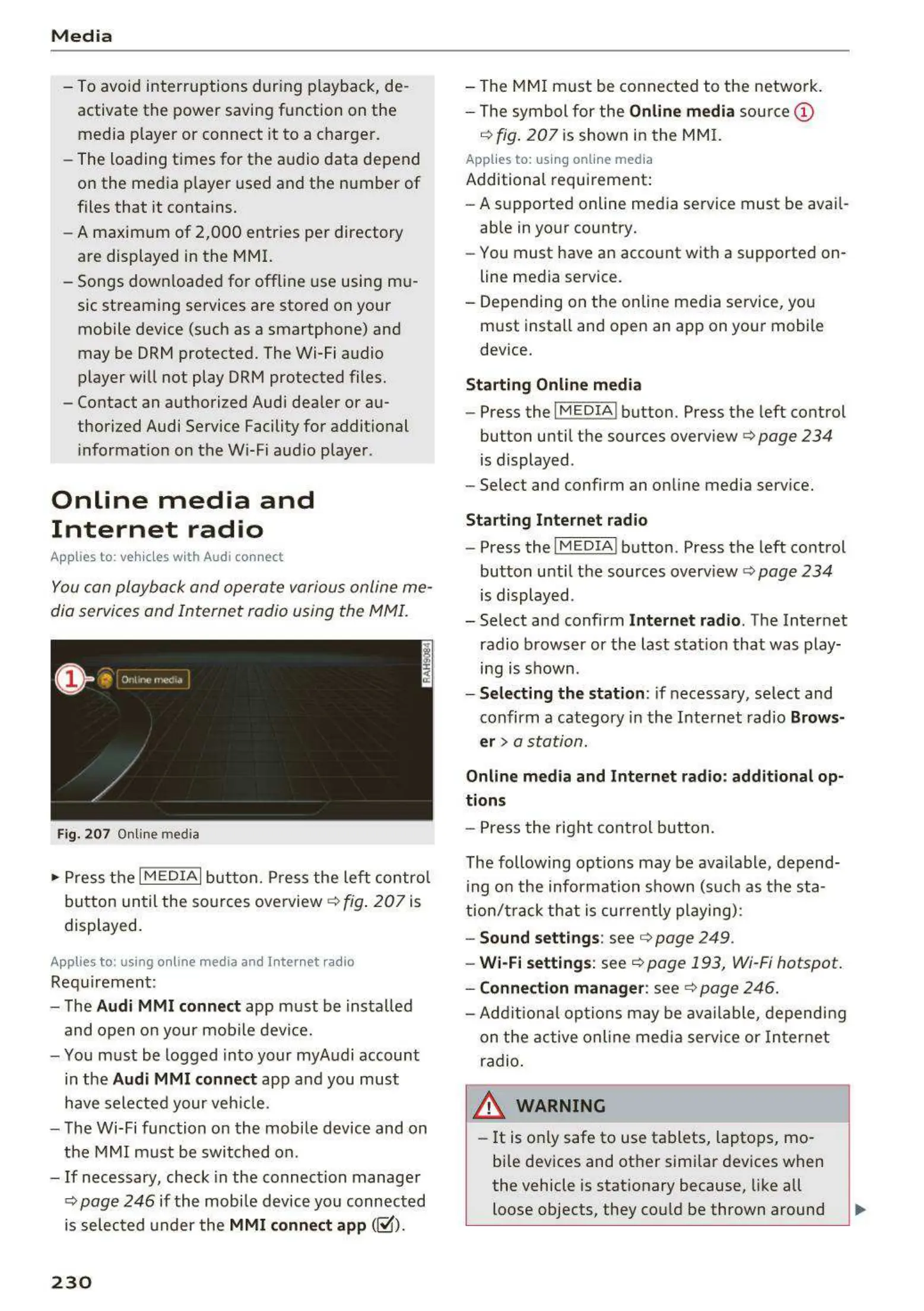
Fig. 207 Online media
.,. Press the I MEDIAi button. Press the left control
button until the sources overview
c> fig. 207 is
displayed.
Applies to: using online media and Internet radio
Requirement:
- The
Audi MMI connect app must be installed
and open on your mobile device.
- You must be logged into your myAudi account
in the
Audi MMI connect app and you must
have selected your vehicle.
- The Wi-Fi function on the mobile device and on
the MMI must be switched on.
- If necessary, check in the connection manager
<=> page 246 if the mobile device you connected
is selected under the
MMI connect app (~).
230
- The MMI must be connected to the network.
- The symbol for the
Online media source @
c> fig. 207 is shown in the MMI.
Applies to: using online media
Additional requirement:
- A supported online media service must be avail-
able in your country.
- You must have an account with a supported on-
line media service.
- Depending on the online media service, you
must install and open an app on your mobile
device.
Starting Online media
- Press the IM EDIA I button . Press the left control
button until the sources overview <=>
page 234
is displayed .
- Select and confirm an online media service.
Start ing Internet radio
- Press the IM EDIA I button . Press the left control
button until the sources overview <=>
page 234
is displayed .
- Select and confirm
Internet radio. The Internet
radio browser or the last station that was play-
ing is shown .
- Selecting the station : if necessary, select and
confirm a category in the Internet radio
Brows-
er>
a station.
Online media and Internet radio: additional op-
tions
- Press the right control button.
The following options may be available , depend-
ing on the information shown (such as the sta-
tion/t rack that is currently playing):
- Sound settings: see c> page 249 .
- Wi-Fi settings: see c> page 193, Wi-Fi hotspot.
- Connection manage r: see <=> page 246.
- Additional options may be available, depending
on the active online media service or Internet
radio .
,&. WARNING
- It is only safe to use tablets, laptops, mo-
bile devices and other similar devices when
the vehicle is stationary because, like all
loose objects, they could be thrown around
-



 To Next Page