57
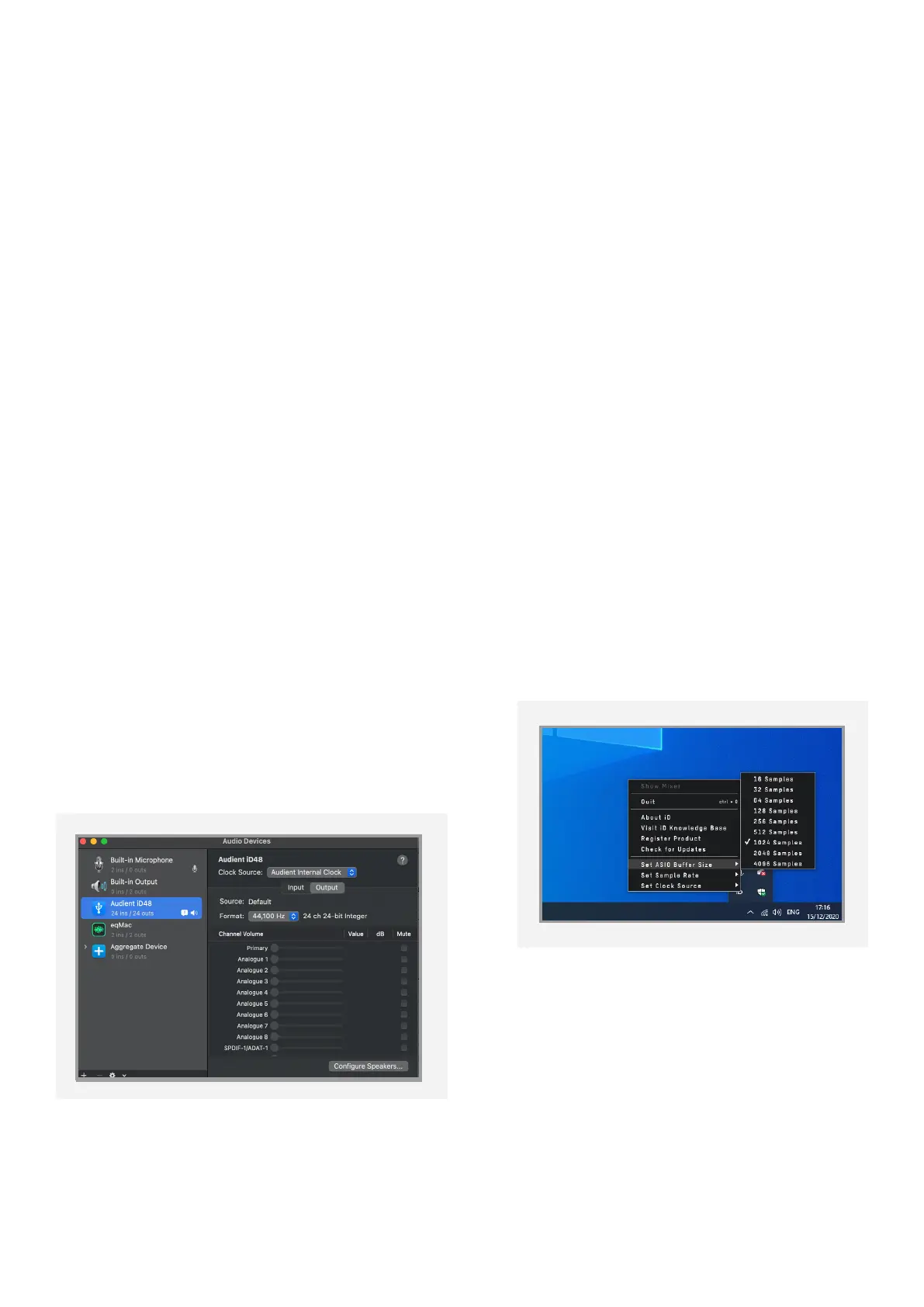
Double check that an appropriate clock
source is selected (Internal for master
operation), ADAT or S/PDIF clock for
external slave operation. Ensure that you
see the correct sample rate displayed in
the Format drop-down menu.
If you are using Windows, go to the iD
icon in the system tray and right click on it.
This will bring up some settings including
sample rate. Alternatively you can alter
these settings in the Setup tab of the iD
app.
Change the sample rate to match that of
the external ADAT device and session.
Troubleshooting
“I have clocking issues which include
iD48 not locking to external ADAT or
SPDIF devices or operating at the
incorrect rate compared to my session”
If there is an issue with syncing of an external
device, the Status LED in the System Panel
will be red or yellow. If the status light is red
then iD48 cannot detect a clock signal from an
external device, and yellow if it can detect a
signal at the wrong sample rate.
To change sample rate in macOS, go to Audio
MIDI Setup found by navigating to the folder:
Macintosh HD > Applications > Utilities > Audio
MIDI Setup
Ensure that Audient iD48 is seen as an audio
device (Window Menu > Show Audio Window).



 To Next Page