Chapter 4 Managing Email
116 Avaya Agent User’s Guide
Approving or Rejecting an Email
The email replies that you and other agents send, or a certain percentage of them, may be sent to an
Approver for Quality Assurance before the emails are sent to customers. You may be a designated
Approver, even if you are not a supervisor. This section assumes that you are a designated
Approver.
When you receive an email that needs Quality Assurance, the Email task list displays a Quality
Assurance icon. You should give high priority to an email needing Quality Assurance because the
customer is waiting for a reply and the approval process may take time.
When you click on an email contact that has been sent to you for Quality Assurance, the
Information Bar also alerts you to the fact that the email was sent to you for your approval or
rejection.
To handle an email sent to you for Quality Assurance:
1 Double-click the email contact in your Email task list.
Notice that the Information Bar informs you that this message needs Quality Assurance.
2 Look at the customer’s message at the bottom of the email.
3 Click the Quality Assurance button.
The email is displayed as a reply to the customer in Quality Assurance mode. Depending on the
way the Quality Assurance feature was set up by your administrator, the reply you compose to
the customer here may be sent for approval again or it may be sent directly to the customer.
4 Carefully read the agent’s reply to the customer’s email. Read any attachments as well. Look
for the following things:
w
Did the agent respond appropriately to all of the customer’s questions and problems?
w
Did the agent use polite language?
w
Did the agent use reasonably correct grammar and spelling?
w
Did the agent include company promotional information, if applicable?
w
If the email used any resources, are they entirely appropriate?
w
If the email has attachments, are they appropriate?
5 If your answer to all of the previous questions is yes and you do not see any other problems
with the email, do the following:
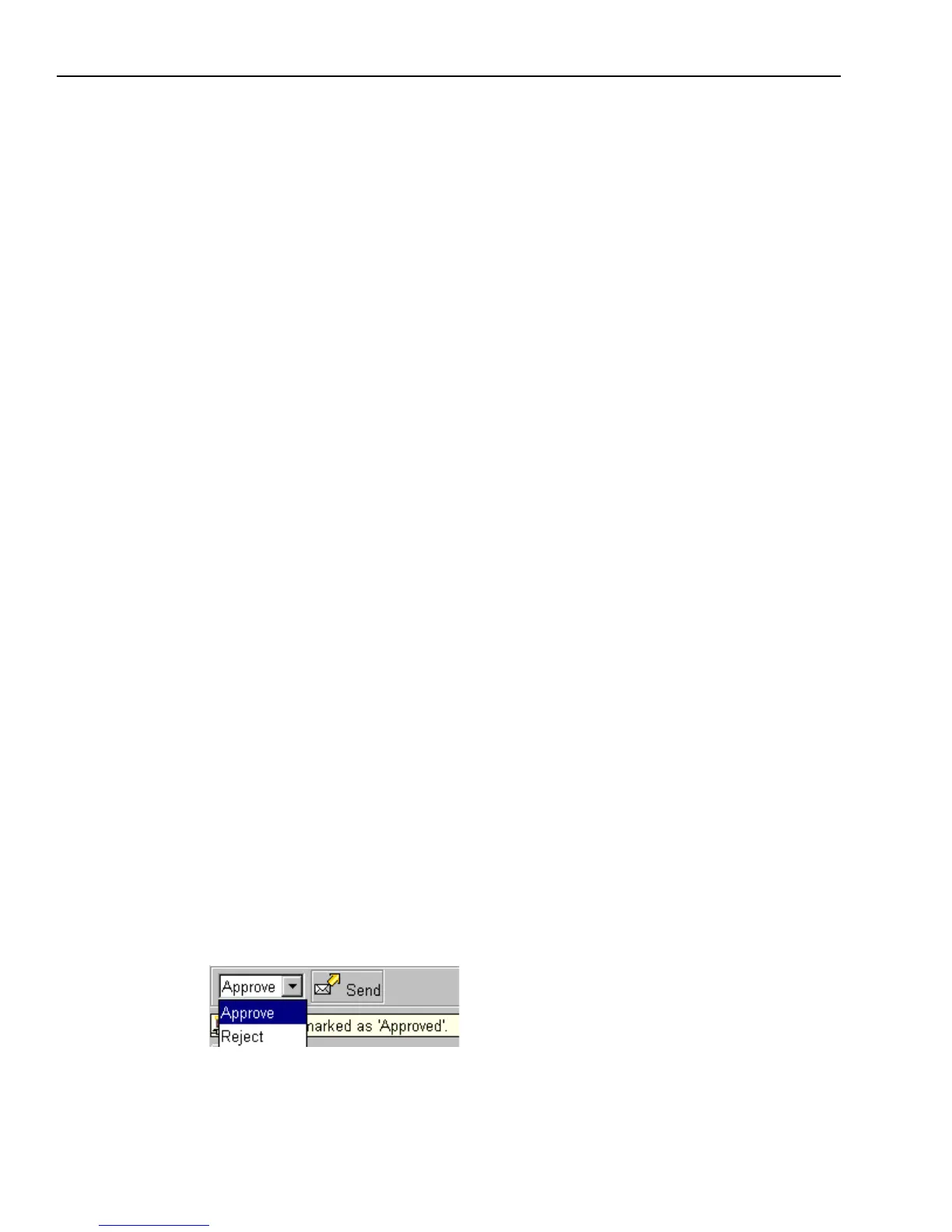
a Click Accept from the drop-down menu.



 To Next Page