45
Firmware Update
Update the camera’s firmware.
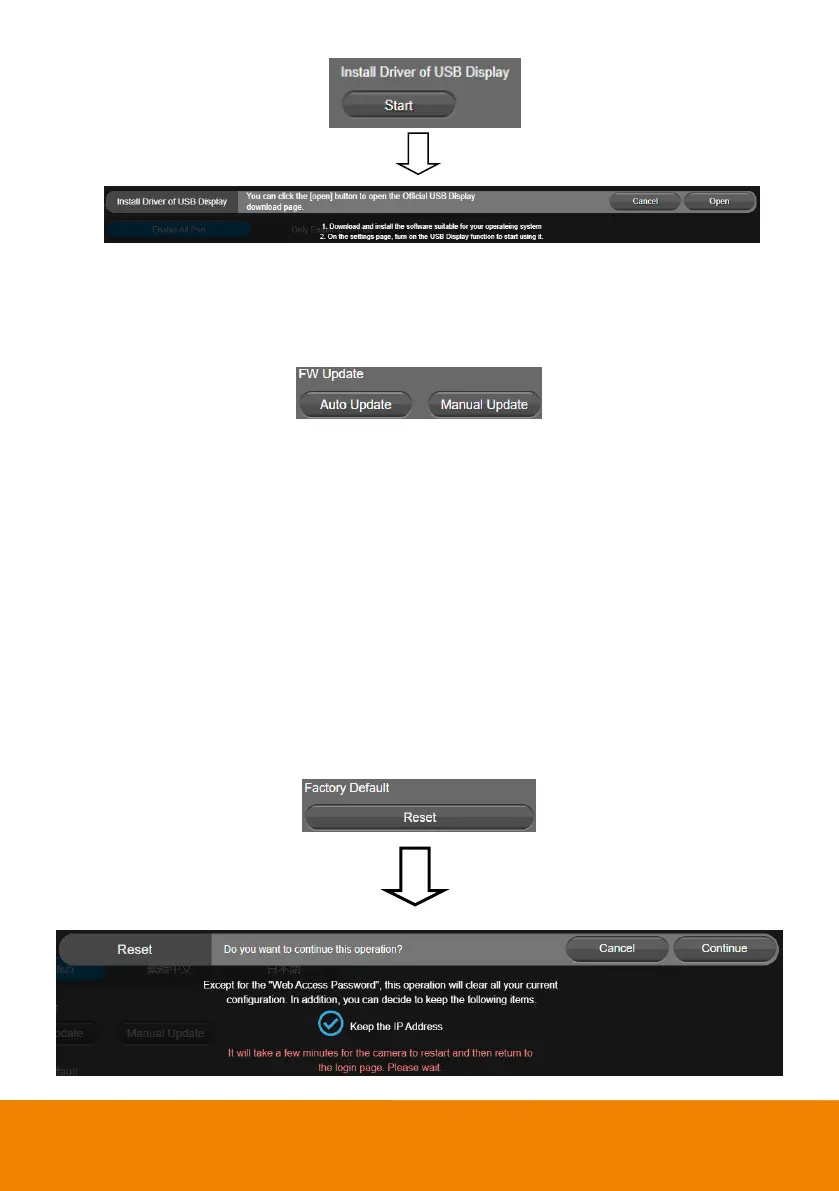
Select System > FW Update > Auto Update or Manual Update.
Auto Update: The system will check firmware version from AVer server and request to update.
Manual Update: To update the firmware from specific location.
After updating, the camera will reboot and the connection will be lost. Please wait for few minutes and
always keep the power cable connected. If unplugging the power during this process, it will cause
damage of the device.
Factory Default
Reset the camera back to factory default setting.
1. Select System > Factory Default > Reset.
2. User can choose to keep current IP address or back to default.
3. Select Continue to reset back to factory default.
[Note] When factory default is activated, the password of web page login will not be set to default. For
security concerns, to reset password of web page access, please download PTZApp 2 to reset it.



 To Next Page