Pro Tools | SYNC HD Guide12
When the SYNC HD is not the selected Clock
Source device, the
Clock Reference menu in the
SYNC Setup section switches to Loop Sync.
To choose a Clock Reference:
Select an available clock source from the
Clock Reference pop-up menu in the Session
Setup window.
The
Clock Source pop-up menu follows your se-
lection of the SYNC HD for Clock Reference by
automatically switching to the SYNC setting. (You
can also choose the SYNC HD as Clock Source
first, then select a Clock Reference.)
To choose a different Loop Sync device as the
Clock Source:
Select a different Loop Sync device and Clock
Source from the
Clock Source pop-up menu in
the Session Setup window.
When Clock Source is a Pro Tools
®
|HDI/O
When a Pro Tools audio interface is providing the
Clock Source, it will be the Loop Master. Clock
Source options are available directly from the
Clock Source menu, based on the configuration of
that interface in the Hardware Setup dialog.
Choices can include AES, S/PDIF, Optical, or
Word Clock.
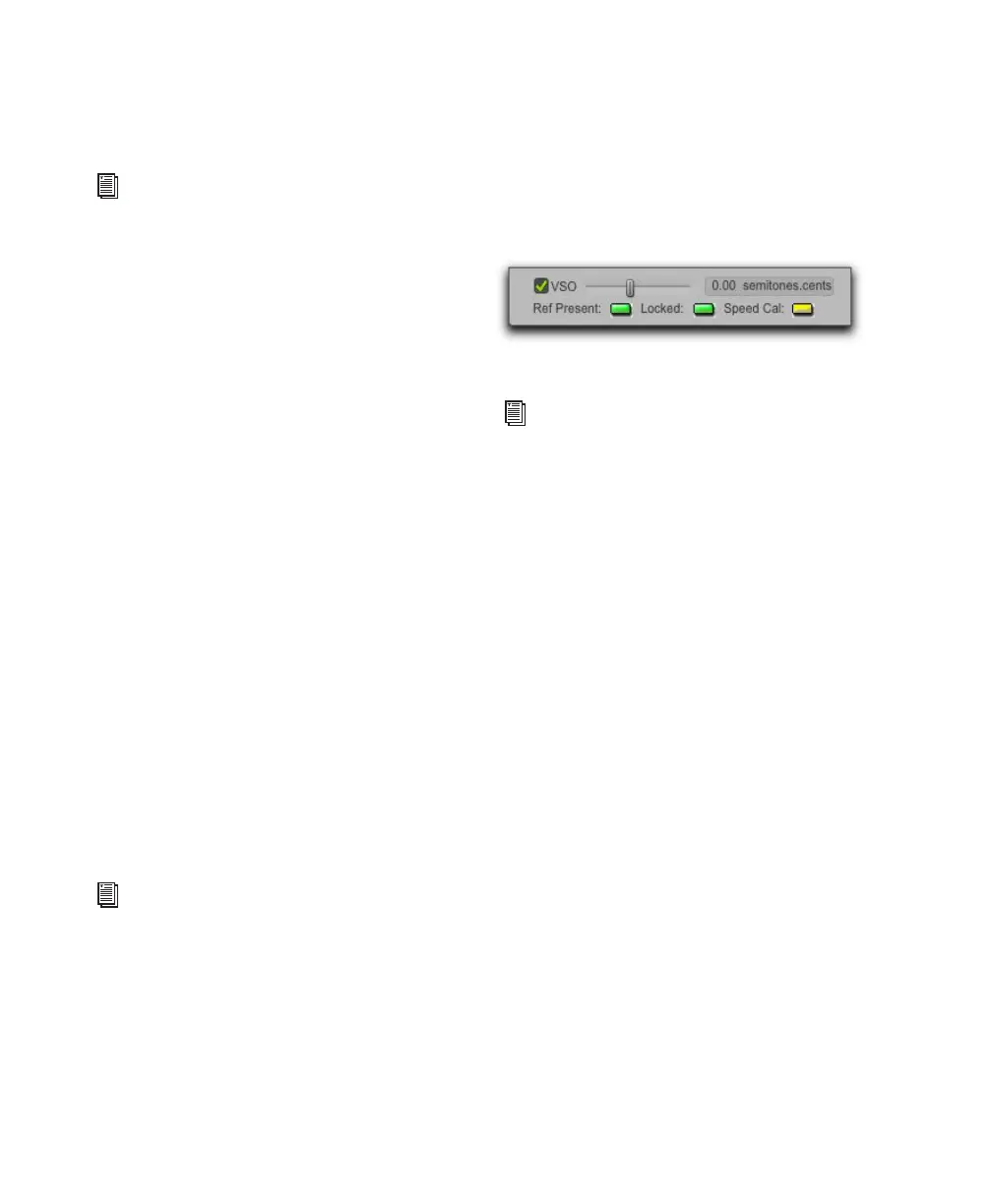
Sync Status Indicators
The Ref Present, Locked and Speed Cal indica-
tors in the Session Setup window display
synchronization status of the SYNC HD. The
Locked and Speed Cal indicators mirror the
same LEDs on the front panel.
Ref Present
The Ref Present indicator lights when
a valid video signal is present on the Video Ref
connectors.
Locked
The Locked indicator stays lit when the
SYNC HD is locked to the selected clock refer-
ence. The
Locked indicator flashes if the selected
clock reference source is missing or out of lockable
frequency range.
Speed Cal
The Speed Cal indicator lights to indi-
cate the status of the clock reference:
• Yellow Solid: SYNC HD is locked and the clock
reference is within 0.025% of the expected rate
• Yellow Flashing Fast: SYNC HD is locked, but
the clock reference is between 0.025% and 4%
faster than the expected rate
• Yellow Flashing Slow: SYNC HD is locked, but
the clock reference is between 0.025% and 4%
slower than the expected rate
• Red Flashing Fast: SYNC HD is locked, but the
clock reference is more than 4% faster than the
expected rate
For LTC clock reference, multiple choices
are available from the LTC sub-menu. See
“LTC and Clock Reference” on page 28.
See the User Guide that came with your
system for more information on configuring
audio interfaces.
Ref Present, Locked and Speed Cal Indicators
In Pro Tools HD, these indicators are also
displayed in the Transport and Edit windows.
For more information, see “Sync Status Indi-
cators” on page 44.


 To Next Page