21
A360 P
e r s o n A l Mi x e r Us e r GU i d e
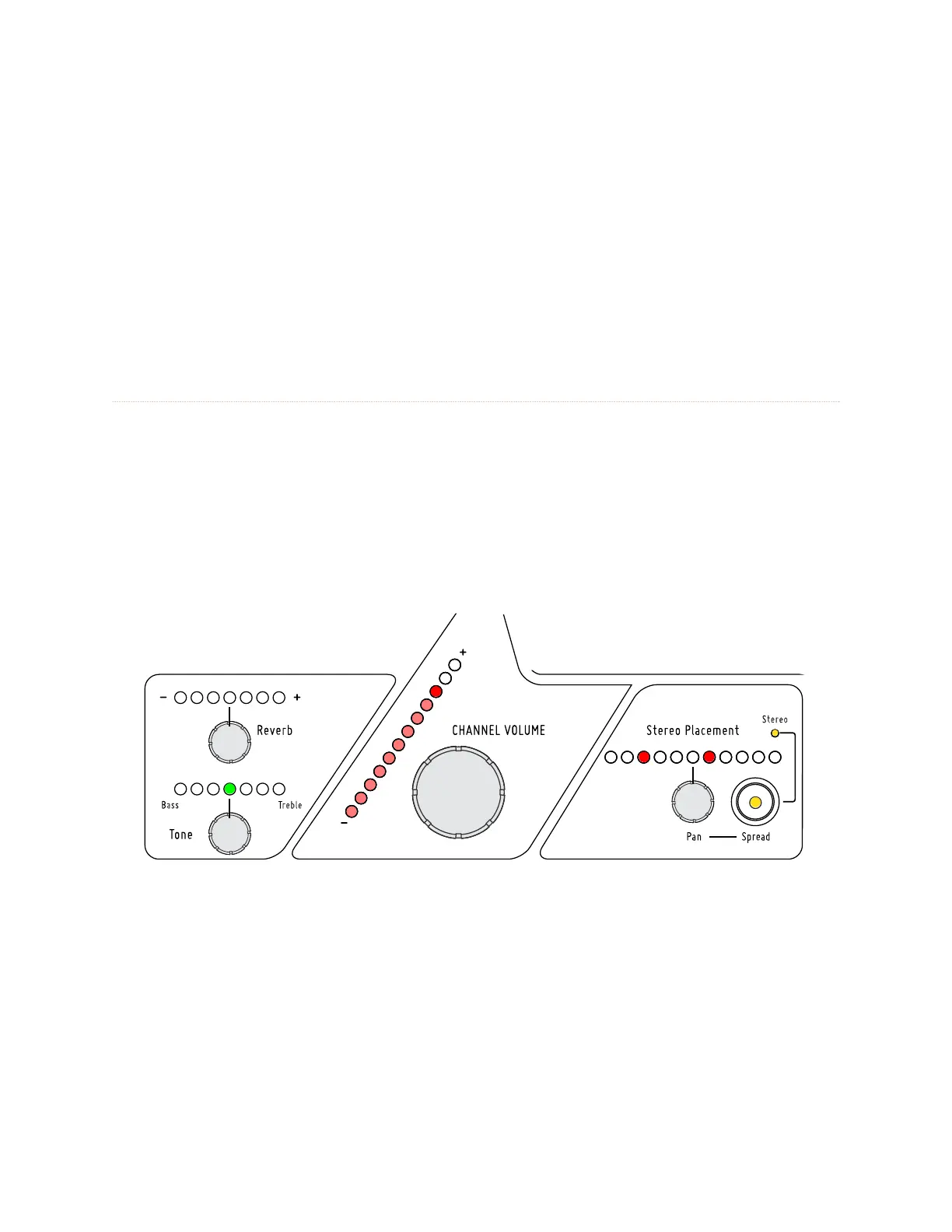
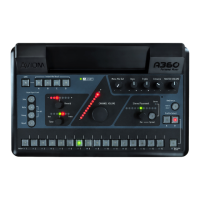
To add a bass boost to the selected channel, turn the to N e knob to the left. Two LED brightness levels are used for
the red LEDs to allow for the maximum number of boost amounts to be displayed. To remove a bass boost turn
the to N e knob to the right which will move the Tone LEDs back towards the green center (flat) position.
To add a treble boost instead of a bass boost, turn the to N e knob to the right; the red LEDs to the right of center
will light. Turn the to N e knob left and return the Tone LEDs to the green center (flat) position to remove a treble
boost that has been applied.
The Treble and Bass boosts are per-channel controls and are part of the overall digital mix. Adding excessive
amounts of these EQ parameters to each channel can reduce fidelity and cause clipping which will be indicated
with the Digital Signal/Clip LED to the left of the channel controls section of the mixer.
Channel Volume
Each channel’s level in the current mix is set with the Channel Volume knob and its current level is displayed on
the 12 LEDs associated with the control.
To set a mix channel level, select the channel to be changed and then turn the Ch A N N e l Vo l u m e knob. The red LEDs
indicate the current volume for the channel. As with the Reverb and Tone LEDs, two LED brightness levels are
used —low and high. Each LED turns on first at its low level and then at its high level. (Only one LED will ever be at
its maximum brightness.)
To turn a channel off, turn the Ch A N N e l Vo l u m e knob fully left until no LEDs are lit. To silence a channel temporarily,
use the Mute function.
Set each channel’s level with the Channel Volume control.
The Channel Volume setting for each of the 16 standard mix channels as well as for the Dual Profile Channel and
Ambience is saved with each Mix Preset.


 To Next Page