7.2 Scanning documents to a SmartPhone
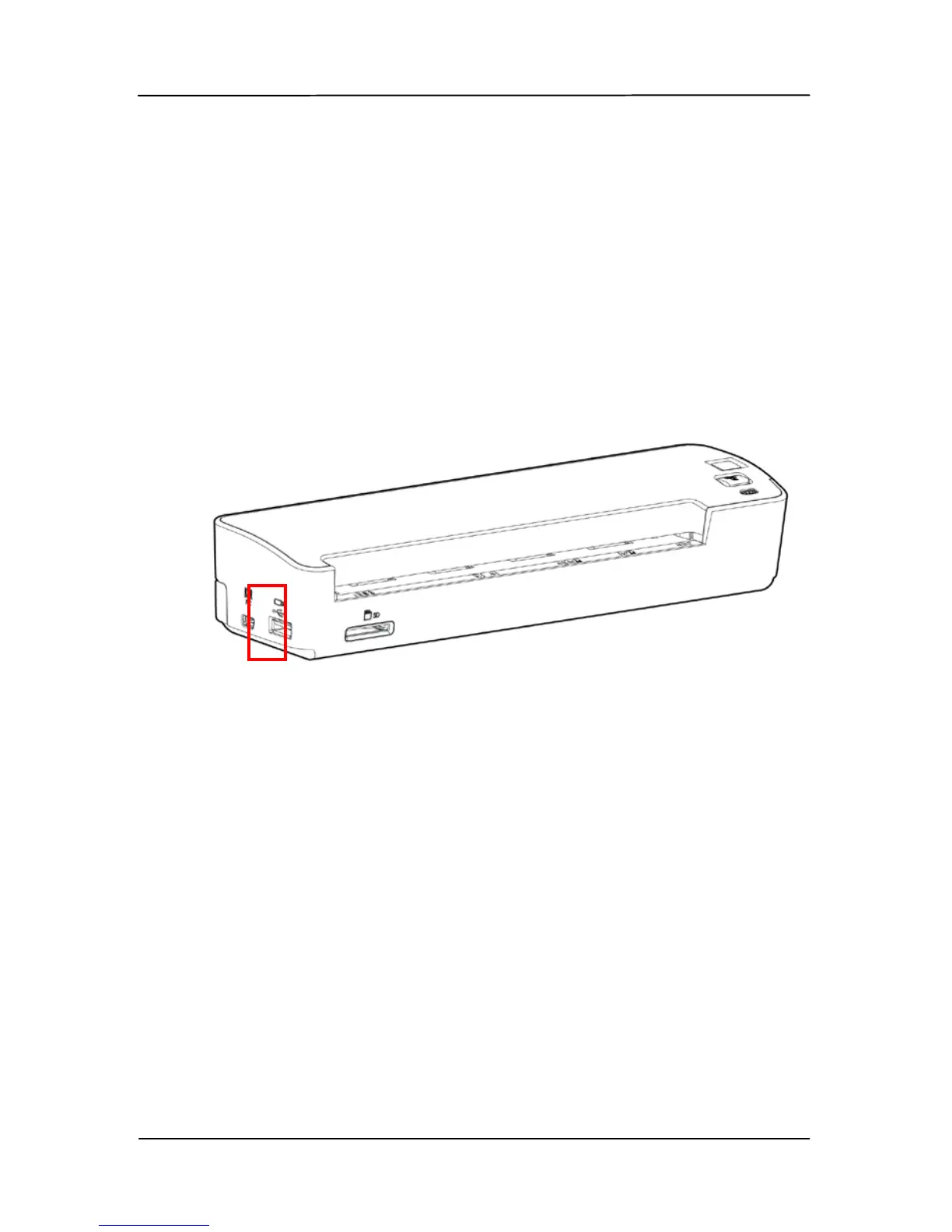
1. Unplug a memory card to your scanner and turn on your
scanner by turning the POWER knob to “1” ~ “5”.
2. Connect one end of the USB cable that came with your
SmartPhone to the USB Flash Drive port marked with a
USB icon on your scanner and connect the other end to
your SmartPhone which supports Android 2.3 & Symbian
S60.
3. On the screen of your SmartPhone, an enquiring of your
connection type will be prompted.
4. Choose “mass storage device” on your SmartPhone.
5. Insert your documents to the feeding slot of the scanner.
The scanner begins scanning. The scanned images are
stored in the folder of “DCIM\100PHOTO” or
“DCIM\100DOC” according to your file format.



 To Next Page