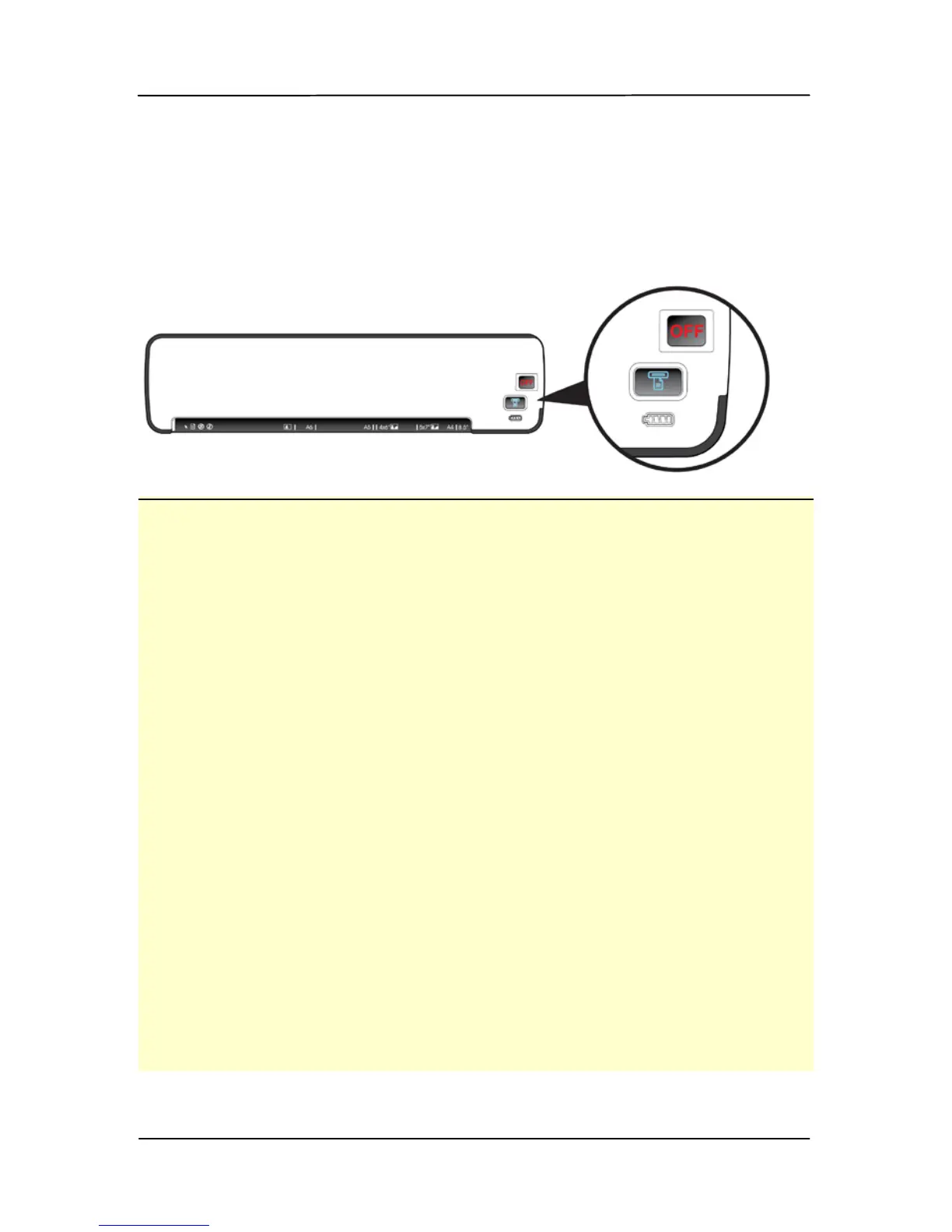
3.6 Turning off the scanner
After all originals are scanned, turn the POWER knob to “OFF”.
Now you can safely remove the memory card or flash card
from the scanner.
Important!
1. Insert only one page or one photo at a time, and insert
the next one only when the previous one is done.
Otherwise, the scanner may malfunction.
2. The paper detector is quite sensitive. Please do not push
your photo or card into the feeding slot or the top of your
image will be cut. Simply let go the photo (card) when it
begins to feed into the slot.
3. The acceptable paper size is 2”x 2” (64 x 64 mm) ~ 8.5”
x 11.7” (216 x 297 mm).
4. Do not use the following types of originals for scanning;
otherwise the scanner may malfunction or cause the
original to jam in the slot.
• Originals thicker than 1.25 mm
• Originals with either side shorter than 55mm
• Originals with lots of black or dark colors
• Originals with dark colors surrounding the edges
• Transparencies(filmstrips, celluloid, etc.)
• Printed images (pictures on newspapers, magazines,
etc.)
• Soft and thin materials (thin paper, cloth, etc.)
• Originals that exceed the acceptable size



 To Next Page