45
Configuration check
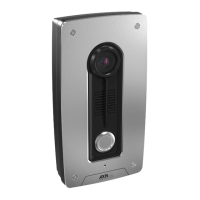
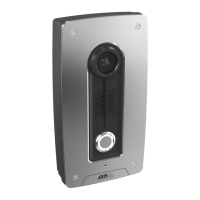
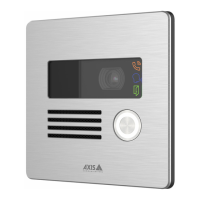
Interactive device image: Click the buttons in the image to simulate real key presses. This allows you to try
out configurations or troubleshoot the hardware without having physical access to the device.
Latest credentials : Shows information about the credentials that were last registered.
Show the latest credentials data.
The context menu contains:
• Reverse UID: Invert the byte order of the UID.
• Revert UID: Revert the byte order of the UID back to the original order.
• Copy to clipboard: Copy the UID.
Check credentials : Enter a UID or a PIN and submit to check the credentials. The system will respond in
the same way as if you used the credentials at the device. If both UID and PIN is required, start by entering
the UID.
Network
IPv4
Assign IPv4 automatically: Select to let the network router assign an IP address to the device automatically.
We recommend automatic IP (DHCP) for most networks.
IP address: Enter a unique IP address for the device. Static IP addresses can be assigned at random within
isolated networks, provided that each address is unique. To avoid conflicts, we recommend you contact your
network administrator before you assign a static IP address.
Subnet mask: Enter the subnet mask to define what addresses are inside the local area network. Any address
outside the local area network goes through the router.
Router: Enter the IP address of the default router (gateway) used to connect devices that are attached to
different networks and network segments.
Fallback to static IP address if DHCP isn’t available: Select if you want to add a static IP address to use as
fallback if DHCP is unavailable and can’t assign an IP address automatically.
Note
If DHCP isn’t available and the device uses a static address fallback, the static address is configured with a
limited scope.
IPv6
Assign IPv6 automatically: Select to turn on IPv6 and to let the network router assign an IP address to the
device automatically.
Hostname
AXIS A8207-VE Mk II Network Video Door Station



 To Next Page
 Loading...