Other IP Setup Methods AXIS Panorama PTZ User’s Manual
26
Using the AXIS IP Installer
AXIS IP Installer is a Windows program that is ideal for setting the IP addresses for
multiple Axis networking products on your network. Also allowing you to access the home
Web page of any Axis ThinServer device connected to your network, this freely distributed
software is available for download from www.axis.com.
Installing the AXIS IP Installer:
1. Download the latest AXIS IP Installer software to your workstation and run the
Setup_IPInstaller.exe program to start the installation.
2. The AXIS IP Installer - Setup dialog is displayed on the screen.
3. Follow the instructions as they appear on the screen.
4. Click Finish to complete the installation.
Setting the IP Address with the AXIS IP Installer:
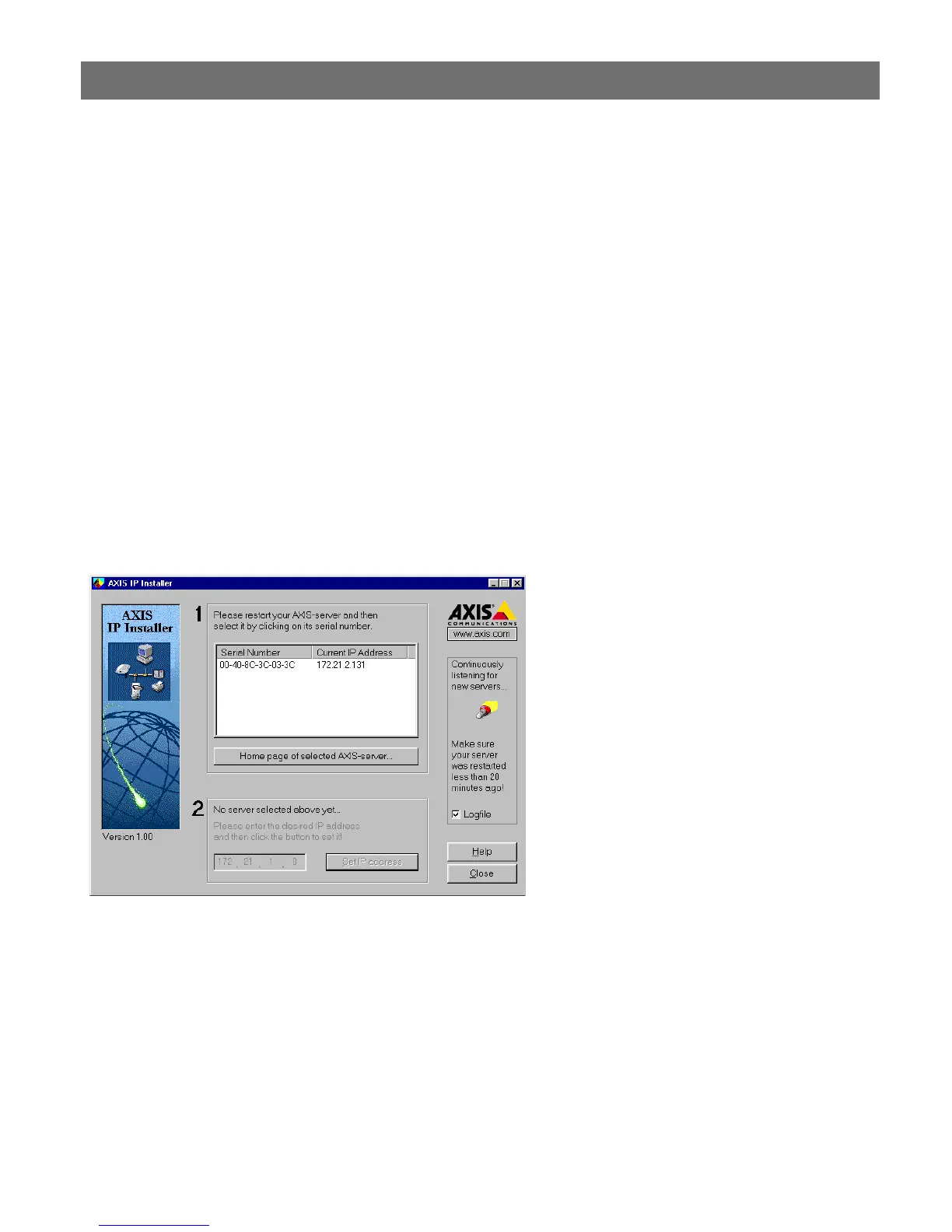
1. Run the AXIS IP Installer from the Start menu. The following window will appear:
2. Restart your AXIS Panorama PTZ.
3. Select the serial number of your AXIS Panorama PTZ in the list. The serial number is
identical to the unit’s MAC/Ethernet address.
4. Enter the IP address. Click Set IP address. The IP address will now be set.
5. To access the home page of the AXIS Panorama PTZ, click Home page of selected
Axis-server... You can now configure the AXIS Panorama PTZ according to your
requirements.
6. Click OK to exit the program.
For more help during the installation of the IP address, click Help or press the F1 key.



 To Next Page