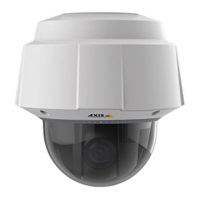
Lenses and Focusing AXIS Panorama PTZ User’s Manual
20
Focusing using the Focus Assistant
The Status Indicator, used in conjunction with the Focus Assistant, provides an immediate
visual display that will help you achieve a good basic level of focus at the point of
installation.
Focus Quality
Once set to Focus Mode, the Status Indicator displays the following colors, which
represent predefined levels of focus:
Rotational Focus Control
The lens provided with the AXIS Panorama PTZ has rotational focus control that allows
the focal length of the lens to be adjusted manually. The lens is used to establish the basic
level of focus when the image is stable, that is, when there is little or no movement. Rotate
the lens clockwise for close focus, or anti-clockwise for distant focus.
You will probably find that the Status Indicator displays green, indicating a good level of
focus, several times during the full traverse of the lens assembly. This is because several
planes of focus exist within the camera's normal field of view.
Focusing the Camera Under Stable Conditions
Before you begin:
With reference to the illustrations, follow the instructions below to achieve a good basic
level of focus under normal stable conditions:
Important!
Color Level of Focus (%) Focus Quality
Red 0 - 60 Poor
Yellow 60 - 80 Reasonable
Green 80 - 100 Good
For the focusing algorithm to work effectively, always ensure that there is minimal movement within the
camera’s field of view when focusing, as described below.
Do not press the Control Button for at least 10 seconds after powering on the unit - as this will cause
the product to return to the factory default settings.



 To Next Page