EasyManua.ls Logo

Barco ClickShare - User Manual

Barco ClickShare
43 pages
Print Icon
To Next Page IconTo Next Page
Loading...
ClickShar e
User Guide
R5900001/06
22/12/2014

Other manuals for Barco ClickShare

Questions and Answers

  • K
    Kaitlin BowenAug 30, 2025
    What to do if Barco ClickShare Digital Presenters Base Unit software doesn't start after update?
    • V
      villadebbieAug 30, 2025
      If the Base Unit software for Barco Digital Presenters does not start up correctly after a software update and seems to be in an endless loop during startup, connect a keyboard to the Base Unit. When the boot selection menu appears, use the arrow keys to select a previous version of the software and confirm by pressing Enter. Then, access the Web interface and update the software again to the latest version.
  • M
    Miss Susan DorseyAug 29, 2025
    Why are some Windows programs not showing on Barco ClickShare display?
    • A
      Anthony MosesAug 29, 2025
      If some Windows programs are not shown on the display when using Barco Digital Presenters, it may be due to the use of overlays, 3D, or hardware acceleration in the GPU. Try disabling overlays or hardware acceleration in the GPU, disabling AeroGlass in Windows 7, or upgrading the Base Unit to the latest software version.
  • T
    Taylor PrinceAug 29, 2025
    Why Barco ClickShare Base Unit not starting up correctly?
    • K
      Kelly HurstAug 29, 2025
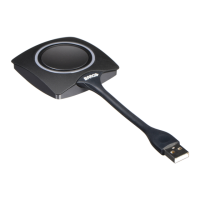
      If the Barco Digital Presenters Base Unit does not start up correctly, it might be because a USB stick, ClickShare Button, or another USB device is connected to one of its USB slots at start-up. Remove the connected USB device and restart the unit.
  • D
    David MartinSep 12, 2025
    What to do if Barco Digital Presenters ClickShare Base Unit does not start up correctly?
    • M
      Michelle FryeSep 12, 2025
      If the Barco Digital Presenters ClickShare Base Unit does not start up correctly, the configuration file might be corrupted. Browse to the Configuration tab of the Web Interface and press “Load Default Settings.” Another reason could be that the software is corrupted. Connect a keyboard to the Base Unit, and when the boot selection menu comes up, press the arrow keys to select a previous version of the software and confirm by pressing Enter. Then, browse to the Web Interface and update the software again to the latest version.
  • M
    Michael ThompsonSep 15, 2025
    What to do if I do not get a ClickShare drive when inserting the Barco Digital Presenters Button in my laptop?
    • M
      Mark HoffmanSep 16, 2025
      If you're not seeing the ClickShare drive, it could be due to a few reasons: * No automatic refresh of drives. * Windows might be assigning the ClickShare drive to a reserved drive letter. * A bad connection at the USB port on the laptop. * Some types of USB devices might be blocked as a company policy. * USB port settings on the laptop might limit the usage of high power USB devices when on battery power. To resolve this: * Refresh your view on the laptop. * Use Microsoft Windows Disk Management to assign it to a free drive letter. * Reconnect to the USB port or try another one. Reboot the laptop. * If possible, change the USB port policy on the laptop.
  • M
    Melissa CervantesSep 23, 2025
    What to do if some Windows programs are not shown on the Barco Digital Presenters display?
    • J
      Jessica FosterSep 23, 2025
      If some Windows programs aren't showing on the display, it could be due to the use of overlays, 3D, or hardware acceleration in the GPU. Try disabling overlays or hardware acceleration in the GPU, disabling AeroGlass in Windows 7, or upgrading the Base Unit to the latest software version.
  • J
    Jonathan RochaAug 27, 2025
    Why is video performance low on Barco ClickShare Digital Presenters?
    • J
      James AndersonAug 27, 2025
      If you are experiencing low video performance with Barco Digital Presenters, the issue might be related to laptop performance. Try lowering the screen resolution of the laptop, disabling hardware acceleration for video, using only a part of the display to show the video, or setting the capture mode to Fast by right-clicking the ClickShare icon in the system tray. Alternatively, the problem could be due to wireless connectivity issues. Please refer to the section addressing bad connectivity for troubleshooting steps.
  • M
    mvegaAug 27, 2025
    What to do if ClickShare drive doesn't appear after inserting Barco Digital Presenters Button?
    • C
      calvin12Aug 27, 2025
      If users do not get a ClickShare drive when inserting the Button into their laptop, the issue might be due to no automatic refresh of drives. Try refreshing your view on the laptop, or use Microsoft Windows Disk Management to assign it to a free drive letter. Another potential cause is a bad connection at the USB port on the laptop. Try reconnecting to the USB port, using another USB port, or rebooting the laptop. In some cases, certain USB devices might be blocked due to company policy, or the USB port settings on the laptop might limit the usage of high-power USB devices when on battery power. If possible, adjust the USB port policy on the laptop.
  • E
    Evan KelleyAug 26, 2025
    Why is nothing showing on the Barco Digital Presenters displays?
    • C
      carl00Aug 26, 2025
      If nothing is shown on the displays when using Barco Digital Presenters, first ensure that the displays are switched on. If they are on, check that the display cables are correctly connected to both the displays and the Base Unit. If the connections are secure, verify that the display recognizes or is able to display the Base Unit output resolution; adjust this setting via the web interface if needed. Also, check the Base Unit. It might be in standby mode; briefly push the standby button on the Base Unit or insert a button and run the ClickShare software. Finally, confirm that the Base Unit is switched on by setting the rocker switch at the back of the unit to “1.”
  • A
    Aaron WaltonAug 25, 2025
    What to do if my screen is not showing when pressing the Barco Digital Presenters Button?
    • J
      James CampbellAug 26, 2025
      If your screen is not displayed when pressing the Barco Digital Presenters Button, it could be because you are the fifth person trying to share content, and only four screens can be shown simultaneously. To resolve this, click and hold the button for 2 seconds to use the 'Show me full screen' function. Alternatively, the ClickShare software may not be running. Navigate to the ClickShare drive and launch the software.

Summary

Getting Started

Powering the Base Unit on and off

Covers powering the Base Unit on, off, and putting it into standby mode.

Basic Use

Explains the basic functionality and initial steps to use ClickShare with a display.

Advanced Use

Details advanced features like sharing multiple screens and different display modes.

Audio configuration

Explains how to configure audio settings for ClickShare and set it as a default output device.

Pairing

Describes the process of pairing ClickShare Buttons with the Base Unit.

Troubleshooting

Basic Troubleshooting

Provides solutions for common problems encountered when using ClickShare.

Barco ClickShare Specifications

General IconGeneral
Plug-and-PlayYes
Video OutputsHDMI
Supported ResolutionsUp to 4K UHD
Number of Concurrent UsersUp to 8 (depending on the specific model)
Operating System CompatibilityWindows, macOS
Security ProtocolsWPA2
Maximum Resolution3840x2160
ConnectionUSB
EncryptionAES
Supported Video FormatsH.264
Wireless TechnologyWi-Fi

Videos

How to Pair ClickShare Buttons to a Base Unit

How to update your Barco ClickShare Firmware

Related product manuals