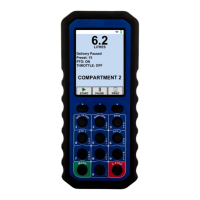
Most screens can control any necessary truck functions. You can navigate
back to your last screen by pressing the ‘Menu’ button.
FUNCTION BUTTONS
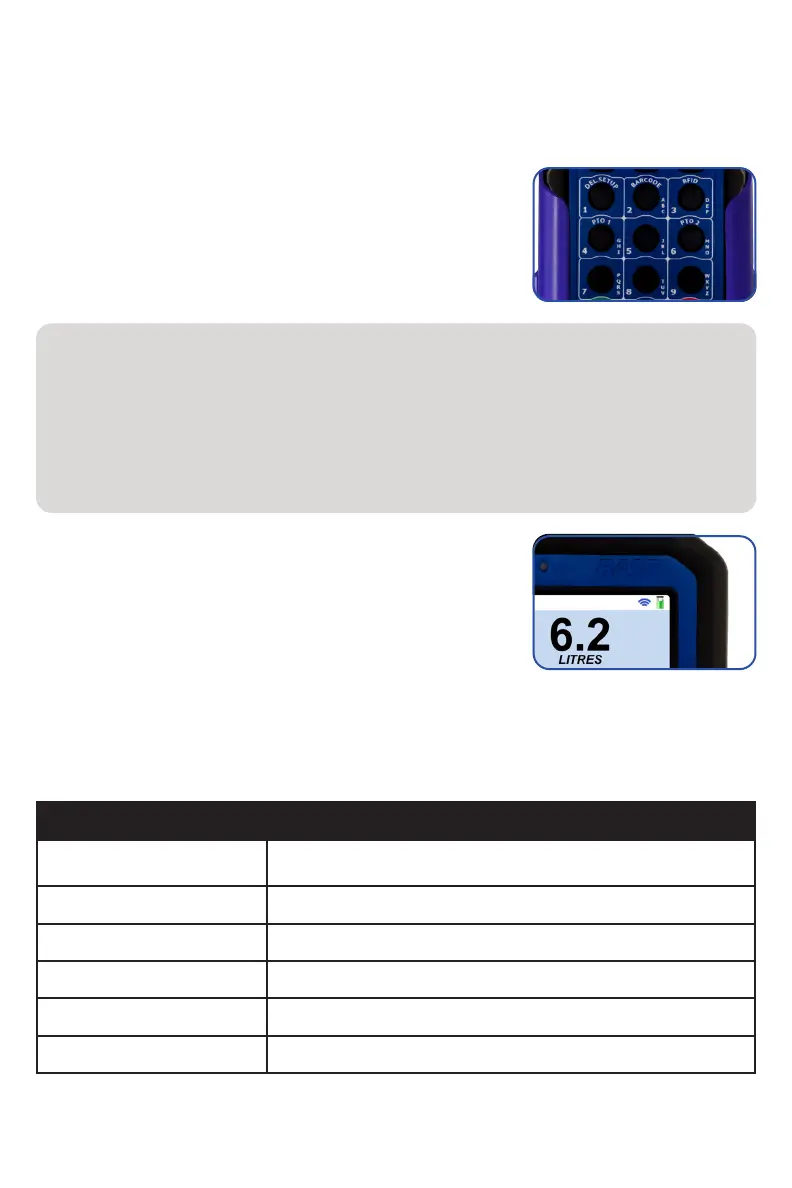
When a function is pressed, the handheld will
communicate with the truck unit to turn the channel
on or off. The text label for that function will appear
on the display while the button is being pressed and
for a short period of time after button is released.
SIGNAL INDICATOR
At the top of each screen, there is a title bar where
you can see the communication link icon and the
battery icon. If at any time the communication link is
lost, the symbol will have a red X through it.
ON-SCREEN FUNCTIONS
You are also able to access various specialty screens, such as ‘Delivery’,
‘Delivery Setup’, ‘Preset’, ‘Tote/Compartment’, ‘RFID’, ‘Barcode’ and ‘Menu’.
Please examine the chart below for descriptions:
11
UM-16-012
GENERAL FUNCTIONS
Button Screen Description
Delivery
To view the readings from the truck’s meter register for the
present volume
Delivery Setup Adjust default values for deliveries.
Preset To enter a preset volume or price
Tote/Compartment To activate a selected tote or compartment
RFID/Barcode To read RFID/Barcode tags and validate a customer tank/asset
Menu To enter main menu for different settings and diagnostics
SPECIAL FUNCTIONS
Depending on your individual handset’s configuration, you may also have
specialized functions that control other components, including:
• Query: requiring the operator to periodically press to keep the pump
system active, and
• Antenna: provides information on the handheld connection to the
antenna in real-time


 To Next Page