17
UM-16-012
COMMON SCREENS
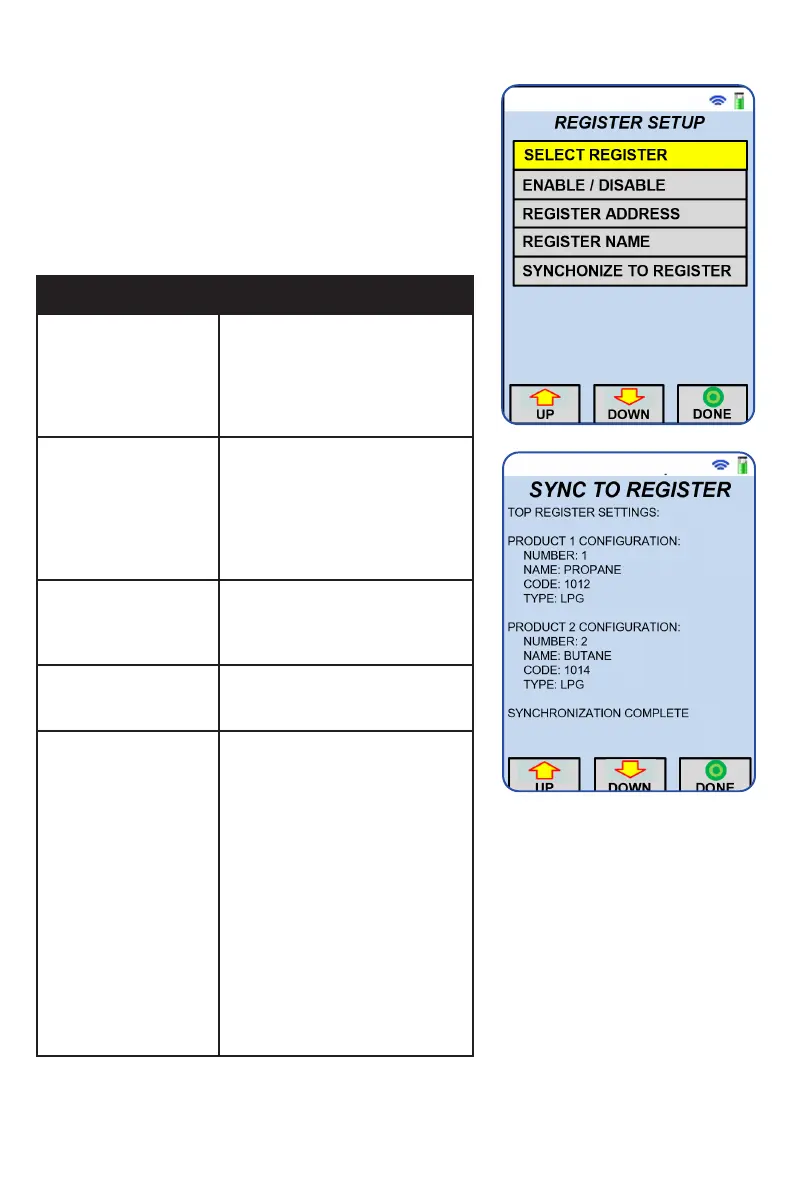
REGISTER SETUP SCREEN
In the main menu screen, navigate to the
Register Settings tile and select it to open the
register settings menu. In this menu, select the
“Register Setup” tile to enter the setup screen.
Note that in some systems, the register setup tile
is located in the main menu screen.
Item Description
Select Register Changing this value will
cause the handheld to end
communication with the
previously selected register and
initiate a connection with the
newly selected register.
Enable, Disable Control whether or not the
active register will appear in the
quick list of registers available
via the dedicated Register
button on the keypad. A register
must be enabled in order to
communicate with it.
Register Address Each register has a unique
address (1-255) which must be
used in order to communicate
with it.
Register Name The text name for the selected
register. This can be modified
as desired.
Synchronize To
Register
In this screen, the
ProControl 3 automatically
retrieves all the product
information from the register.
If no information is displayed on
the Register Synchronization
screen after 5 seconds, check to
make sure that the ProControl
3 receiver is powered up and
that the wireless connection
between the ProControl 3
handheld and receiver is active
as indicated by the wireless
signal icon in the upper right-
hand corner of the screen.)
When the register information is
loaded into the ProControl 3, the
user can return to the Delivery
screen by pressing the Menu button
repeatedly to backtrack through
the screen sequence.
This register synchronization only
needs to occur when the product
details on the register/truck are
changed or if the Delivery Screen
shows the “Product Mismatch”
error.


 To Next Page