2.3 FUNCTION SETTINGS
2.3.1 Function selection and
change
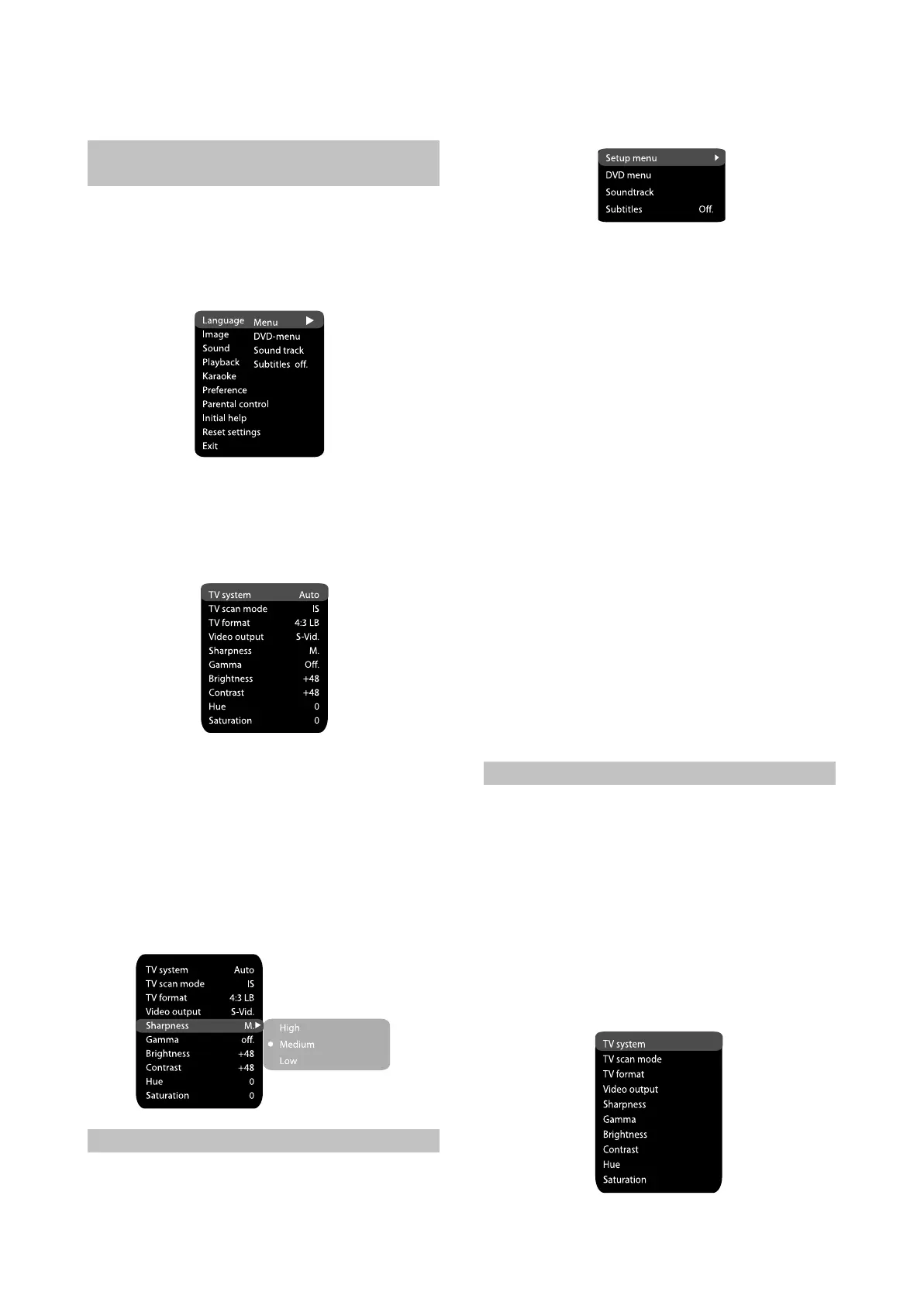
Press the SETUP key to show the setup
menu. You will see the following image on the
screen, as shown on the figure: Select the
desired menu item using the jog Dial; Press OK
confirmation.
1.For example, if you wish to change the image
sellings, you have to select the lmage item and
press the OK or GIGHT key of the cursor
joystick.
2.Using the jog Dial, select the desired item and
press OK or RIGHT key of the cursor joystick.
Fox example, select the Sharpness item.
Settings will appear on the screen. Then select
the desired sharpness level and press OK for
confirmation.
3.Press LEFT key of the cursor joystick for exit to
previous menu level.
4.Press SETUP to exit setup menu.
2.3.2 Language settings
1.Menu: interface language setup
Options: Russian, English, Ukrainian.#
# Default option: English
2.DVD-menu: Selection of disc menu language.
3.Soundtrack selection of translation language
Options: Russian, English, Estonian,
Lithuanian, Kazakh, Romanian, Belarusian,
Ukrainian, Chinese.
Default: English.
Selection of other languages: Select the
OTHERS item using the jog Dial and press OK.
Enter the language code using the number
buttons and press OK.
If the language you select is not recorded on
the DVD disc, another available language will
be used.
4.Subtitles: Selection of subtitles language
Options: Off, Urssian, English, Estonian,
Lithuanian, Kazakh, Romanian, Ukrainian and
Chinese.
Default option: Off.
Selection of other languages: Select the
OTHERS item using the jog Dial and press OK.
Enter the language code using numeric
buttons and press OK.
If the language you selected is not relcoded on
the DVD disc, another available language will
be displayed.
2.3.3 Image settings menu
1.TV system: TV system selection.
Options:Auto, PAL, NTSC.
Default option Auto.
2.TV scan mode: scan mode selection
Options: Progressive, interlaced.
Default option: interlaced
Progressive scan is transferred only via a
component video output.
Before switching to progressive scan, make
sure that your TV set supports this operation
mode.
#
#
#
#
#
#
#
#
#
#
#
#
#
#
- 8 -


 To Next Page