EasyManua.ls Logo

BECSY UC200 - User Manual

BECSY UC200
48 pages
Print Icon
To Next Page IconTo Next Page
Loading...
Universal Remote Control
User Manual
UC200/UC500

Questions and Answers

Summary

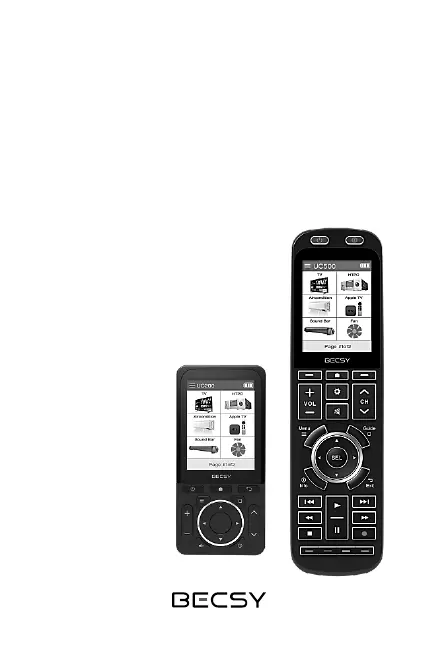
UC200 Remote Control Components

UC200 Component Identification

Details the physical components and labeled parts of the UC200 remote control, from A to O.

UC500 Remote Control Components

UC500 Component Identification

Details the physical components and labeled parts of the UC500 remote control, from A to P.

Understanding Remote Control Terminologies

Definition of Devices

Explains 'devices' as registered products like TV, Audio, AC, etc., on the remote.

Definition of Keys;Buttons

Defines 'keys/buttons' as function keys created for registered appliances.

Getting Started with the Multi Remote

Remote Power Operations (UC200;UC500)

Instructions for powering the UC200 and UC500 remote controls on and off.

Screen Navigation and Device Selection

Guide to navigating the remote's screen for device selection and configuration.

Navigating Remote Features

Page Change Functionality

How to switch between different pages displayed on the remote control screen.

Device Movement on Screen

Instructions on how to rearrange the order of registered devices on the screen.

Remote Control Setting Modes

Accessing Setting Modes

Steps to enter the remote control's setting modes (Basic and Expert).

Understanding Setup Modes

Basic and Expert Setup Mode Overview

Explains the functionalities and differences between Basic and Expert setup modes.

Switching Between Setup Modes

Instructions on how to transition between Basic Setup and Expert Setup modes.

Adding Devices from Database

Initiating Database Device Addition

Steps to enter setup mode and select the 'Add Device' option.

Selecting Device Type for Database

Guide to choosing the type of device from the available database list.

Configuring Database Devices

Selecting Device Manufacturer

Instructions for choosing the brand or manufacturer of the device.

Selecting and Testing IR Codeset

Choosing the correct IR codeset and verifying device control.

Finalizing Database Device Addition

Naming the Added Database Device

Procedure for assigning a custom name to the newly added device.

Confirmation of Added Device

Verifying that the device has been successfully added to the main screen.

Adding OTT;Bluetooth Devices

Initiating OTT;Bluetooth Device Addition

Steps to enter setup mode and select 'Add Device' for OTT/Bluetooth.

Selecting OTT and Device Type

Choosing 'OTT' and then the specific device type for connection.

Configuring OTT;Bluetooth Devices

Naming and Verifying OTT;Bluetooth Devices

Assigning a name and confirming the addition of OTT/Bluetooth devices.

Initiating Bluetooth Pairing Process

Steps to select a device and initiate the pairing process for Bluetooth devices.

Bluetooth Pairing Procedures

Bluetooth Pairing Confirmation Steps

Ensuring the pairing screen is active and proceeding with the connection.

Chromecast Settings for Remote Pairing

Navigating Chromecast settings to find and select remote accessories.

Completing Bluetooth Device Pairing

Selecting Remote Pairing Option on Chromecast

Selecting the option to pair a remote control or accessory.

Automatic Pairing Initiation via UC500 Screen

How the UC500 device screen starts the pairing process automatically.

Post-Pairing Device Management

UC500 Device Registration Confirmation

Confirmation that the UC500 device is registered to Chromecast.

Understanding Post-Pairing Screens

Understanding the pairing progress and device selection screens after successful pairing.

Using Chromecast Device Interface

Chromecast Device Interface Modes

Overview of the Main UI, Media UI, and mouse control modes for Chromecast.

LCD Screen Mouse Control Instructions

Using the LCD screen for mouse movement and controlling the center wheel button.

Chromecast Device Navigation

Mouse Click and Keyboard Navigation Methods

Using arrow keys for mouse clicks and scrolling for keyboard navigation.

Keyboard Screen Navigation and Key Usage

Methods for moving between keyboard layouts and using special keys like Ctrl/Alt.

Chromecast Device Screen Indicators

English Uppercase;Lowercase Conversion

How to switch between uppercase and lowercase letters using the LCD screen.

Interpreting Connection Status Indicator

Understanding the red title color as an indicator of device disconnection.

Navigating OTT;Bluetooth Device Screens

Screen Switching via Channel Keys

Using channel UP/DOWN keys to navigate between basic, mouse, and keyboard screens.

Deleting Non-Bluetooth Devices

Initiating Device Deletion Process

Steps to enter setup mode and select the 'Delete Device' option.

Selecting and Confirming Device Deletion

Choosing the device to delete and confirming the deletion action.

Deleting Bluetooth Devices

Bluetooth Device Deletion Confirmation Prompt

Confirmation prompt displayed when deleting Bluetooth devices.

Example: Deleting a Chromecast Device

Example steps for deleting a Chromecast device via Chromecast settings.

Finalizing Bluetooth Device Removal

Disconnecting UC500 from Chromecast (Dont Save)

Procedure to select 'Don't Save' after choosing the UC500 device for deletion.

Verifying Bluetooth Device Removal

Finalizing Bluetooth Device Removal from Menu

Verifying that the UC500 device is no longer listed in the remote accessories menu.

Adding Custom Keys

Initiating Key Addition Process

Steps to enter setup mode and select the 'Add Key' option.

Naming and Verifying Added Key

Naming a new key and confirming its creation for a selected device.

Deleting Custom Keys

Initiating Key Deletion Process

Steps to enter setup mode and select the 'Delete Key' option.

Selecting and Confirming Key Deletion

Choosing the key to delete and confirming the deletion action.

IR Learning Functionality

Introduction to IR Learning Functionality

Using IR learning to register unregistered functions or remote controls.

Preparing for IR Signal Learning

Positioning remotes for IR learning and entering the setup mode.

Performing IR Learning

Selecting Device and Button for IR Learning

Choosing the device and specific button for which to learn IR signals.

Initiating IR Signal Capture Readiness

Understanding the 'READY' indicator and preparing to capture IR signals.

Completing IR Signal Learning

Capturing and Confirming IR Signals

Pressing keys to learn signals and observing the 'SUCCESS' confirmation.

Repeating IR Learning if Unsuccessful

Guidance on repeating the learning process if it's not completed successfully.

Copying Remote Control Keys

Initiating Key Copying Process

Steps to enter setup mode and select the 'Copy Key' option.

Selecting Source and Target for Key Copying

Choosing the source device/button and the target device for copying.

Finalizing Key Copying

Selecting Target Position for Copied Key

Choosing the specific slot or button on the target device for the copied key.

Moving Registered Devices

Initiating Device Movement Process

Steps to enter setup mode and select the 'Move Device' option.

Selecting Source and Destination for Device Movement

Choosing the device to move and its new desired location.

Renaming Devices

Initiating Device Renaming Process

Steps to enter setup mode and select the 'Edit Device Name' option.

Renaming Device and Changing Associated Icon

Procedure to change the device name and optionally its icon.

Customizing Device Icons

Selecting Device Icon for Renaming

Choosing a new icon for the device from the provided selection.

Moving Keys Between Devices

Initiating Key Movement Process

Steps to enter setup mode and select the 'Move Key' option.

Selecting Source and Target for Key Movement

Choosing the source button and the target button for key data movement.

Confirming Key Movement

Confirming Key Movement Operation

Finalizing the key movement by pressing the OK button.

Renaming Custom Keys

Initiating Key Renaming Process

Steps to enter setup mode and select the 'Edit Key Name' option.

Renaming Screen Soft Buttons

Procedure to rename soft buttons on the remote control screen.

Remote Control Preferences

Accessing Preference Settings Menu

Steps to enter setup mode and navigate to the Preference menu.

Overview of Preference Settings Options

Details on Macro, Timer, Display, Sound, and other preference settings.

Managing Preference Settings

Sound, Other, and Unpair Device Settings

Settings for sound (key beep), other functions, and unpairing Bluetooth devices.

Utilizing Setup Assistance

Accessing built-in guidelines for remote control assistance.

Expert Setup Mode Management

Managing Expert Setup Mode

Instructions on enabling or disabling the Expert Setup mode for advanced configurations.

Troubleshooting Bluetooth Pairing Issues

Troubleshooting Duplicate Bluetooth Device Names

Resolving issues related to duplicate Bluetooth device names.

Troubleshooting Bluetooth Pairing Timeouts

Addressing problems when the Bluetooth pairing standby time expires.

Troubleshooting Bluetooth Connection Errors

Troubleshooting Existing Device Connection Errors

Resolving errors when connecting to already registered devices during pairing.

Troubleshooting Unknown Host Connection Failures

Resolving connection issues with unknown Bluetooth hosts and pairing information.

Troubleshooting Bluetooth Device Limits

Troubleshooting Maximum Bluetooth Device Limit

Addressing the limit of 8 Bluetooth devices and how to manage it.

Product Specifications

Product Warranty Information

After-Sales Service and Warranty Policy Details

Details on free after-sales service, repair fees, and warranty period.

Customer Contact and Support Information

Provides customer center phone numbers, address, and website for support.

Product Safety Guidelines

General Product Usage and Handling Safety

Important safety instructions for product usage, handling, and environmental considerations.

Battery Safety Guidelines

Battery Handling, Disposal, and Recycling Precautions

Safety precautions for handling, disposing, and recycling batteries.

BECSY UC200 Specifications

General IconGeneral
BrandBECSY
ModelUC200
CategoryRemote Control
LanguageEnglish

Related product manuals