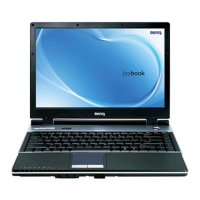
Using your Joybook22
• The touchpad is a pressure sensitive device that requires
proper care to avoid damage.
• Do not rest heavy objects on the touchpad or its buttons.
• Do not scratch the touchpad with sharp-pointed objects or
your fingernails.
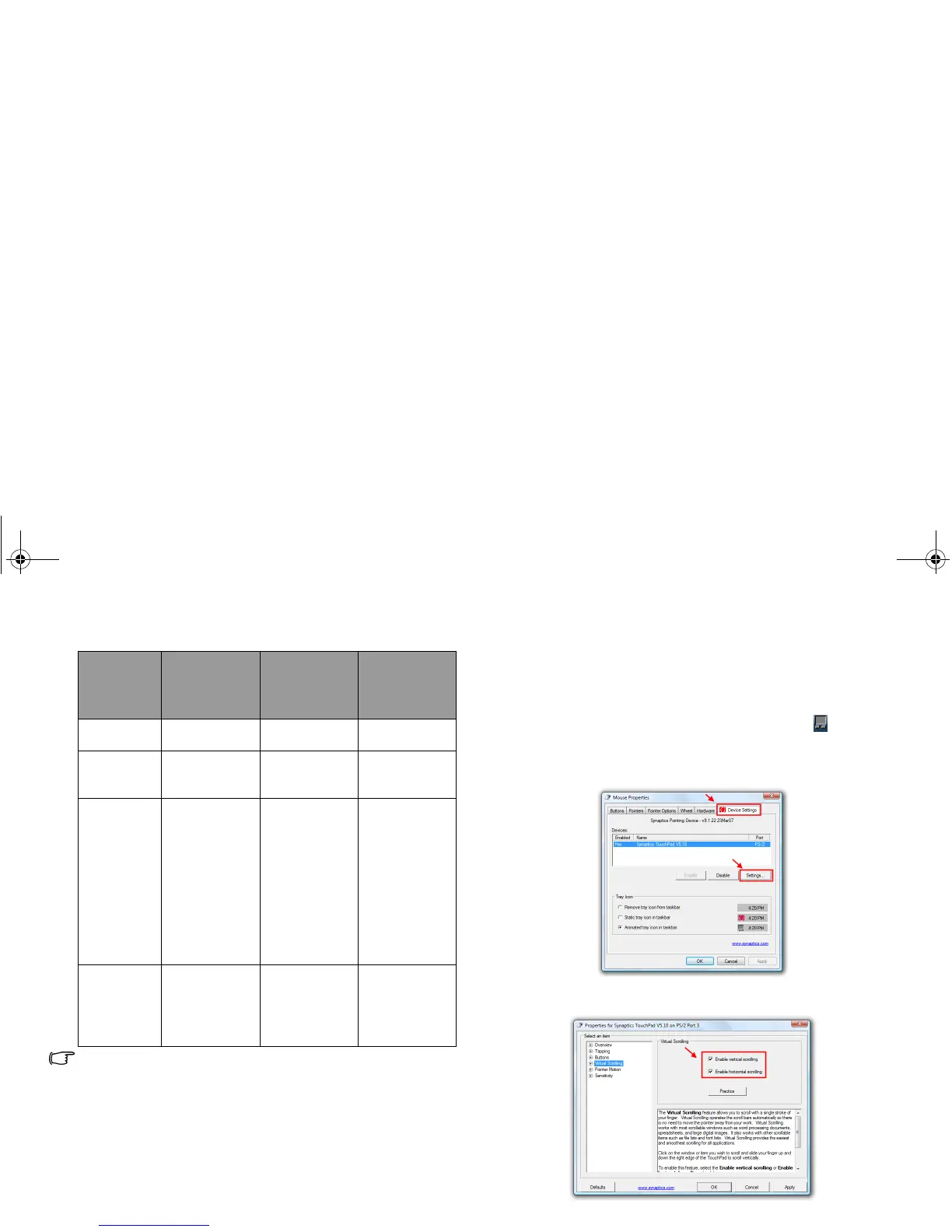
Enabling the virtual scrolling feature
The virtual scrolling feature on your touchpad is disabled by
default. If you want to use the virtual scrolling feature on your
touchpad, you can enable it by following the steps below.
1. Double-click the Synaptics Pointing Device icon in the
notification area.
2. In the Mouse Properties window that appears, double-click
Settings under the Device Settings tab.
3. Click Virtual Scrolling, and then select Enable vertical
scrolling and Enable horizontal scrolling checkboxes.
Function Left
touchpad
button
Right
touchpad
button
Touchpad
Select Click once. Tap once.
Execute Click twice
quickly.
Tap twice
quickly.
Drag Click once
and hold the
item, and
then use
your finger
on the
touchpad to
drag.
Tap twice
quickly and
hold the
item, and
then move
your finger
on the
touchpad to
drag.
Display
the
context
menu
Click once.
JB_R56_en.book Page 22 Tuesday, July 3, 2007 10:01 AM


 To Next Page