Using your Joybook 31
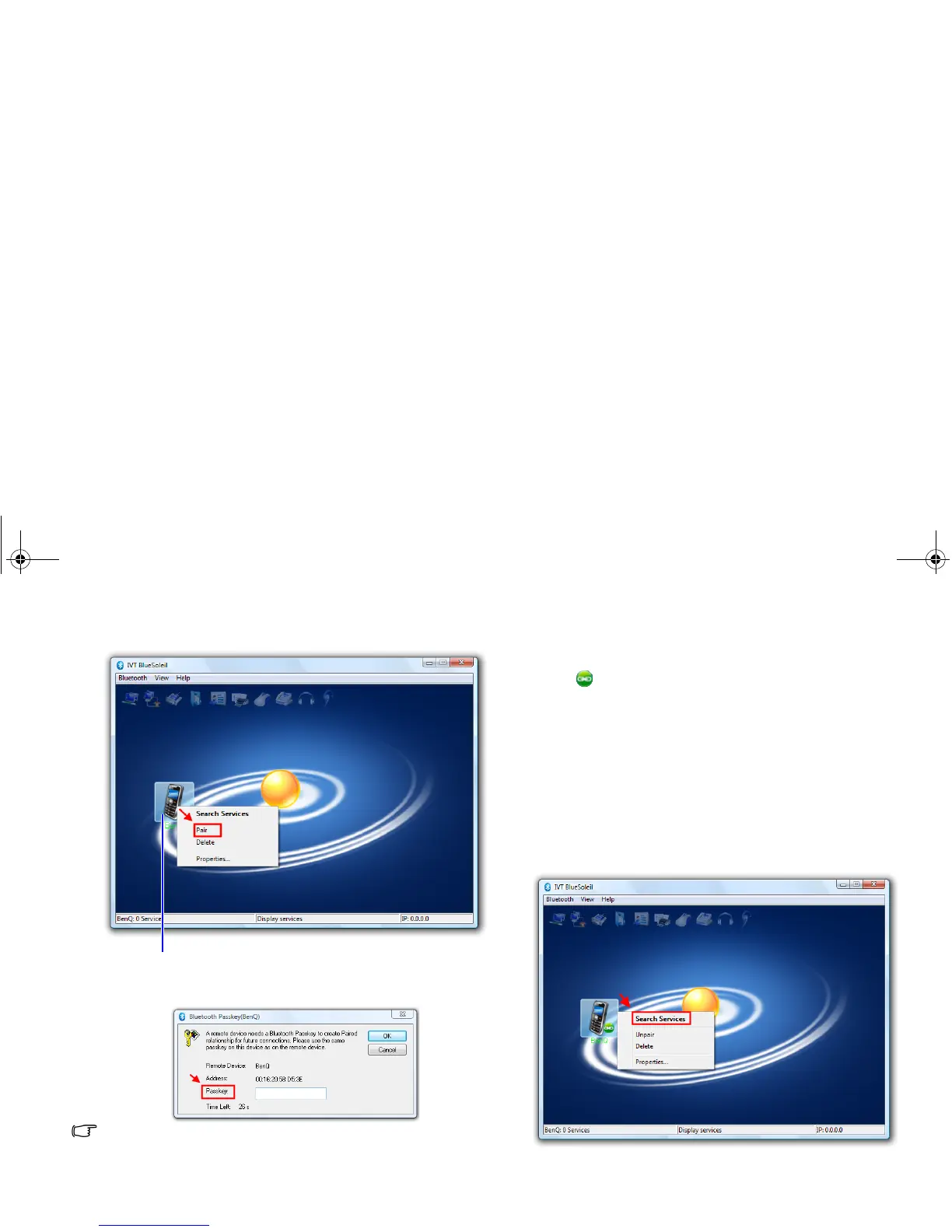
5. Right-click your Bluetooth device icon and select Pair.
6. In the Enter Bluetooth Passkey dialog box, enter the same
passkey on both your Joybook and Bluetooth device.
To protect and prevent data from unauthorized access, a
Bluetooth passkey is required before communication. Once a
Bluetooth device is paired with your Joybook by exchanging
passkeys, passkeys will no longer be required for further
connections between your Joybook and the device.
7. After the Bluetooth device is successfully paired with your
Joybook, your Bluetooth device icon will have a green paired
mark on it.
Sending a file to a Bluetooth device
If your Bluetooth device is capable of sending and receiving
data, such as a mobile handset, you can use the Bluetooth
connectivity to transfer data wirelessly between your Bluetooth
device and Joybook.
1. After your Joybook is paired with and connected to a
Bluetooth device, right-click your Bluetooth device icon and
select Search Services.
The supported services icons will be highlighted.
Bluetooth device icon
JB_R56_en.book Page 31 Tuesday, July 3, 2007 10:01 AM


 To Next Page