Basic OSD menu - without input signals connected
As there’s no input signal to your projector, only the submenus of Settings under Basic OSD menu -
with input signals connected are available. Menu options that are not available will become grayed out.
To access the OSD menu, press MENU on the projector or remote control.
•
Use the arrow keys ( / / / ) on the projector or remote control to move through the menu
items.
•
Use OK on the projector or remote control to confirm the selected menu item.
•
Use BACK on the projector or remote control to save your changes and exit.
To switch from the Basic OSD menu to the Advanced OSD menu, see page
28.
Submenus and Descriptions
Activate to help correct the projected picture’s color when the projection surface is
not white. You may choose a color similar to that of the projection surface from these
options: Light Yellow, Pink, Light Green, or Blue.
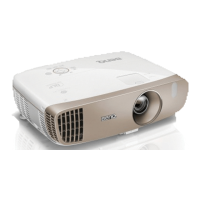
The projector can be installed on a ceiling or behind a screen, or with one or more
mirrors. See
Choosing a location for details.
Enable this function to display the grid test pattern, which helps you adjust the image
size and focus so as to check if the projected image is free of distortion.
Sets whether the projector searches automatically for input sources. Select On to
enable the projector to scan for input sources until it acquires a signal. If the function
is set to Off, the projector selects the last used input source.
Switches to the Advanced OSD menu.
Selects an input source type for the HDMI signal. You can also manually select the
source type. The different source types carry different standards for the brightness
level.
HDMI Format is only available when the HDMI signal is selected.
Activate this function only after a new lamp is installed. When you select Reset, a
"Reset Successfully" message is displayed to notify that the lamp time has been
reset to "0".
Returns all settings to the factory preset values.
The following settings will still remain: Keystone, Rename User Mode, L/R
Switch, Language, Projector Position, Menu Type, Source Rename, Reset Lamp
Timer, Test Pattern, High Altitude Mode, Password, Key Lock, and ISF.
Displays the following information about your projector.
• Source: Displays the current signal source.
• Picture Mode: Displays the current Picture Mode.
• Resolution: Displays the native resolution of the input source.
• Color System: Displays input system format.
• Lamp Usage Time: Displays the number of hours the lamp has been used.
• 3D Format: Displays the current 3D mode.
3D Format is only available when 3D Mode is enabled.
• Firmware Version: Displays the firmware version of your projector.
Some information is given only when certain input sources are in use.


 To Next Page