24 Making the documents
Selecting the cover supply
To select the cover supply, follow the procedure below.
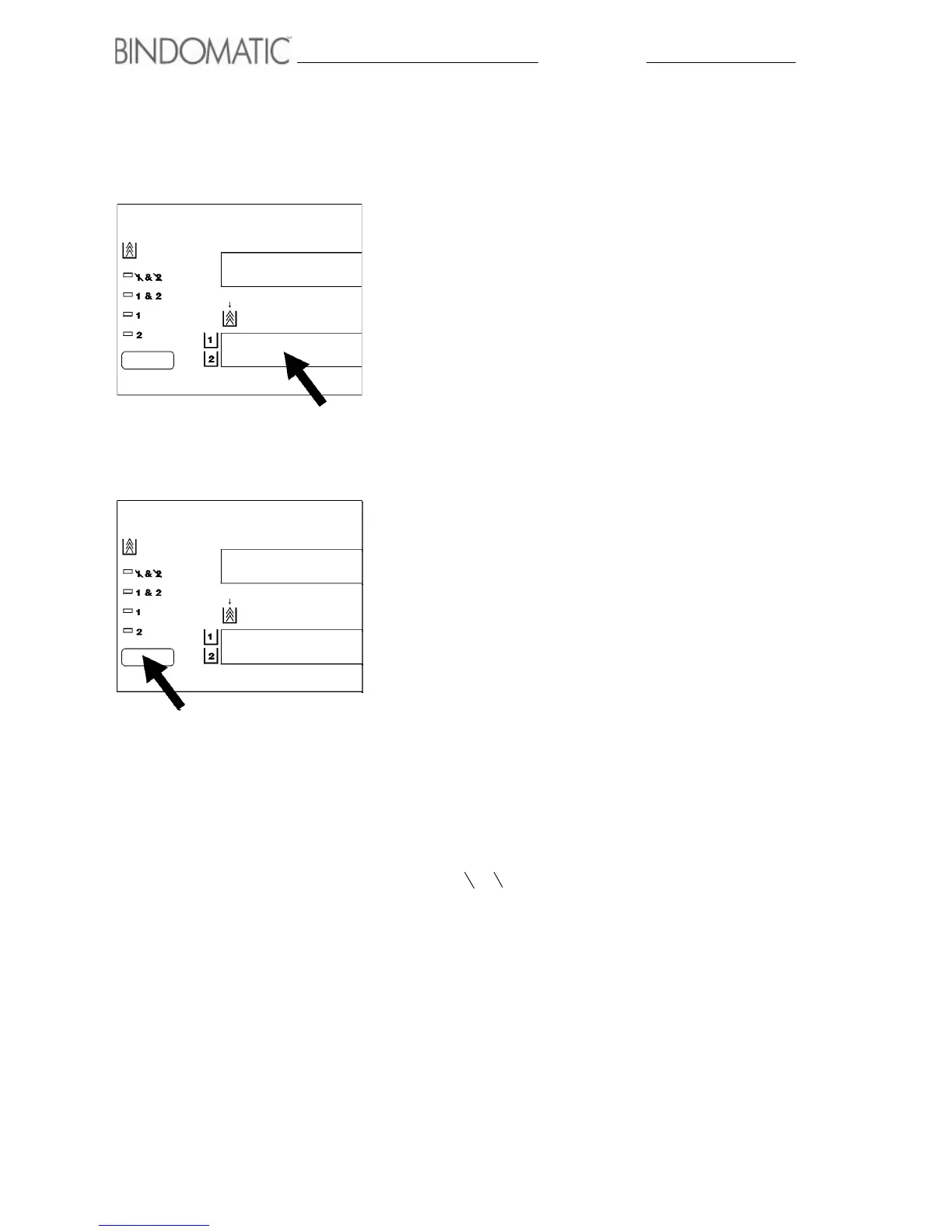
1. Check the Cover Supply Contents Display on the Control
Panel of the 301 DFS.
• Determine the type, color and spine width of the covers
in Cover Tray 1 and Cover Tray 2.
2. Press and release the Cover Supply Select button on the
Control Panel of the 301 DFS until the green light to the
left of the desired selection lights.
• Use 1 to select Cover Tray 1.
• Use 2 to select Cover Tray 2.
• Use 1 & 2 to select Cover Tray 1 and Cover Tray 2.
This selection is applicable when you are running a
large job and both Cover Tray 1 and Cover Tray 2 have
the same covers loaded. The 301 DFS will feed from
Cover Tray 1 first. When Cover Tray 1 empties, the 301
DFS will automatically begin feeding from Cover Tray
2. It will repeat the process of switching from the full to
the empty tray until the job completes. This ensures
that you will not lose any valuable production time
while you replace an empty cassette.
NOTE: When using Cover Tray 1 and Cover Tray 2
together, you must have the identical covers in both
cover trays. This means that the cover size, cover color
and cover type must be the same.
• Use 1 & 2 (None) to disable Cover Tray 1 and Cover
Tray 2. This selection is applicable to off-line mode
only. When neither Cover Tray has the correct covers,
you can bypass the Cover Trays feature entirely and
add the covers manually using the Manual Feeder. The
301 DFS will use only the covers that you insert
manually with your copy sets.



 To Next Page