User’s Guide
For the AX-12 and AX-S1, you can set or reset the ID as needed. The AX-12s that
come with the Bioloid already have their IDs set in sequential order, but the AX-
12s that come directly from the factory have their IDs set to 1. If you have a
problem with one of these units and have to order a new one, you have to reset
the IDs accordingly. To reset the ID, refer to the“Management Mode,”in User’s
Guide or 3-3. Changing Dynamixel ’ s ID in QuickStart and “ Help Files\ID
changing .wmv “ video clip.
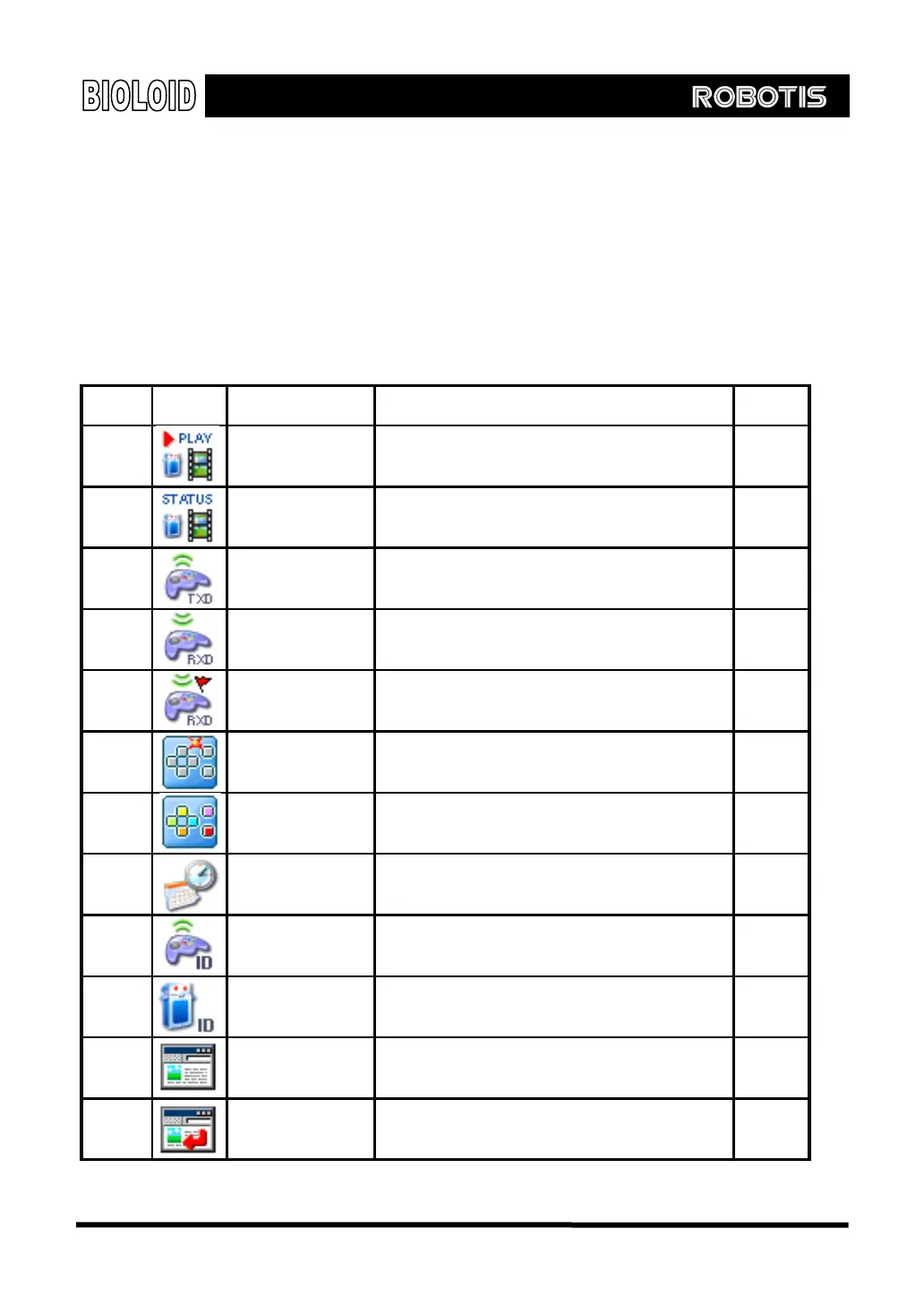
CM-5 input output items and their addresses
Address Icon Name Function
input/ou
tput
24
Start robot
motion
The motion will start when the page
number is loaded
input/ou
tput
25
Playing robot
motion
During motion play:1, otherwise:0
input/ou
tput
26
Wireless data to
be sent
Wireless data to be sent
input/ou
tput
28
Received
wireless data
Received wireless data input
30
New wireless
data
Arrival of new wireless data [When
received: 1 will change to 0 after the
received data is read
input
31 AUX LED
Loading 1 will turn it on and loading 0 will
turn it off
input/ou
tput
32 CM-5 button
The value changes depending on the five
buttons on the CM-5 pressed
input
33 Timer
When a value is loaded, the value
decreases by 1 every 0.1 seconds
input/ou
tput
34
Wireless ID of
another robot
The wireless ID of the robot that you want
to communicate with
input/ou
tput
36
Wireless ID of my
robot
The wireless ID of my robot [cannot be
changed
input
37 Print screen
If you load a value here, it will be displayed
on the screen
output
38
Change lines
after printing
screen
If you load a value here, it will be displayed
on the screen and the line on the screen
will change
output
28



 To Next Page