BP-007 User’s Manual
- 13 -
2.8 Network Settings
Please use Birch network setting software NetFinder to set the IP address for Birch Ethernet interface
network printers, which can be found in the CD or downloaded from www.birch.com.tw
.
Caution: The network printing function needs the operation system of Windows2000 or above.
2.8.1 Connecting Printer
Power on the printer, connect with the Ethernet cable which has been connected to LAN, and look into
the information of Ethernet LED indicator to ensure the printer has entered into the normal connection.
2.8.2 Setting IP Address
1. Run NetFinder Software
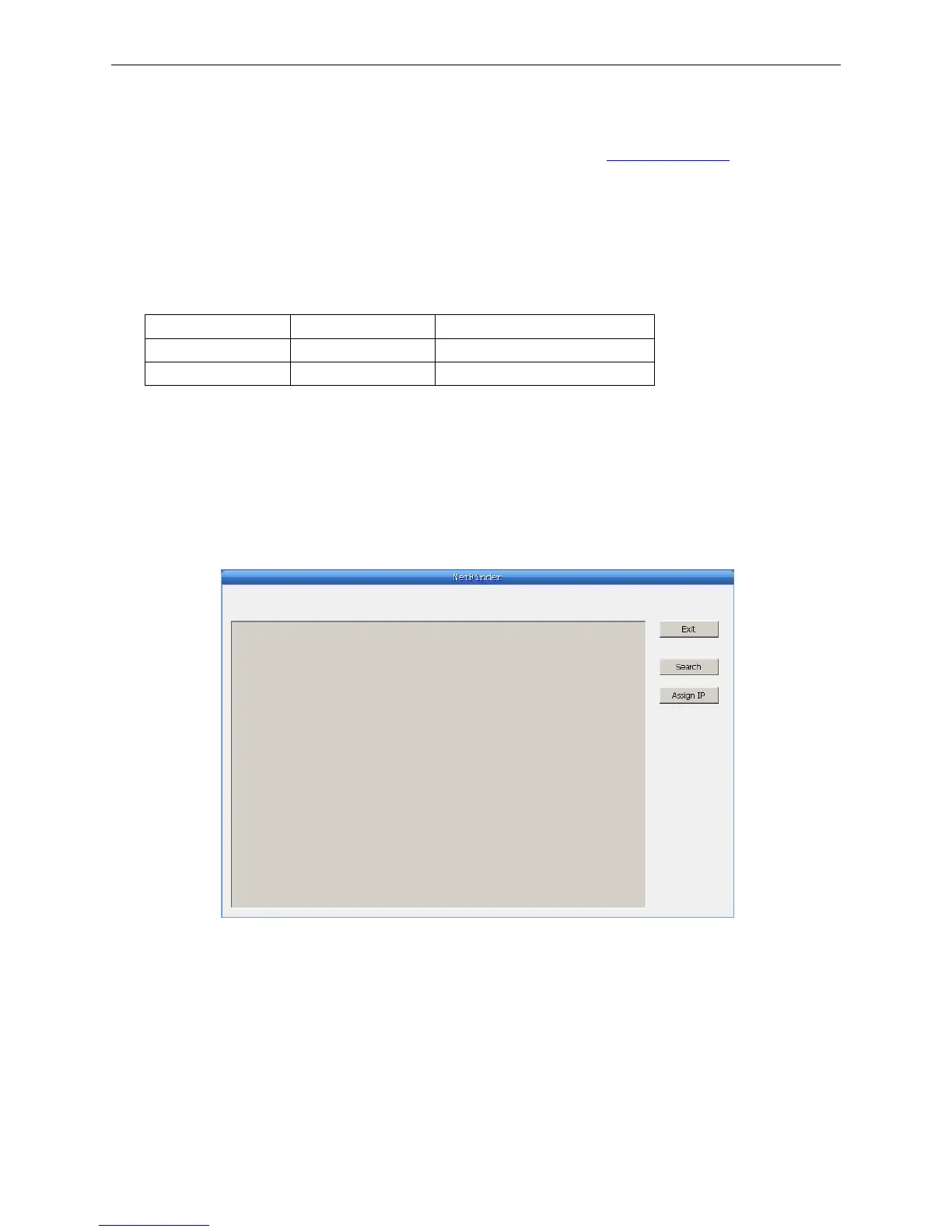
Double click NetFinder.exe in the PC which connects the printer in the same LAN. The figure of the
software is shown as follows:
Button description:
Exit — Exit from the software
Search — Search printers in the same LAN
Assign IP — Modify the IP address and other settings for the specified printer.
2. Search printer
Click “Search” button in the main interface, the dialog box appearing will begin searching
automatically and show appearance, listing a printer in the main interface if found. The time is
Yellow LED Green LED Description
ON Blink Connecting to network
OFF OFF Not connecting to network


 To Next Page