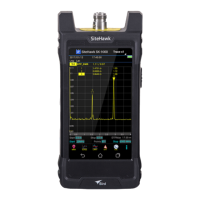
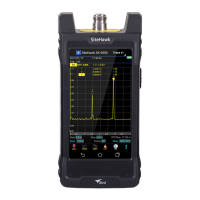
Digital Power Meter Model 5000-XT
10
Resetting the 5000-XT
Pressing and holding down the 5 button for two seconds will reset the unit.
The unit will return to default settings and pop-up the language selection menu.
Upgrading the Firmware
Note: Before performing this procedure, go to the 500-XT product
page at www.birdrf.com and download the current firmware.
1. Power on the 5000-XT
2. Connect the USB from the 5000-XT to the PC and wait for the drive to
appear.
Note: This could take 30 seconds
3. Create a folder named “FIRMWARE”.
Note: The folder name is case sensitive. If there is already a
folder, use the existing folder, but delete any firmware versions
already in that folder.
4. Place the updated firmware file into the folder.
Note: This file can be named anything as long as the file extension
is .bin.
5. Eject and disconnect the 5000-XT from the PC.
6. Press the Menu key.
7. Select Setup on the Main Menu.
8. Select Update Firmware on the Setup Menu. The Update Firmware file list
will display.
9. Select the newly downloaded firmware file from the list.
10. Select ACCEPT when asked “Update System Firmware?”
Note: The file will be checked. If file is corrupt, it will notify as
such.
11. The following screens will be displayed:
a. “Loading” screen
b. “Erasing Flash” screen with a progress bar
c. “Writing Flash” screen with a progress bar.
d. “Update Success” screen.
12. Select OK when prompted after this message: “The system will now
power down.”.



 To Next Page