en | 105
en
6.5.2 Selecting titles
f Tap the desired main category Y.
The corresponding list items are displayed.
Note:
To scroll through the main categories,
touch the tab row.
f Tap the desired subcategory, if applicable
Z.
Notes:
f To scroll through list items, touch
the list area and swipe up or down.
f A subcategory can contain further
subcategories.
To return to a parent category, tap
up
[.
f Tap the desired title \.
Playback begins.
Note:
To display the respective media dis-
play, tap
W.
6.5.3
Closing the browser without
selecting a title
f Tap W.
The current media display is displayed.
7 Navigation
Note:
This function is only available if the
device is equipped with a navigation
system.
If your device is not equipped with a
navigation system you may be able to
retrofit the navigation function (see the
section entitled “Retrofitting the navi-
gation function” (page 121)). Please
contact your Suzuki dealer regarding
this.
Road safety
f The usage of the navigation system
does not absolve the driver of the
responsibility of a correct and vigi-
lant attitude. The relevant traffic
regulations must always be fol-
lowed. If a navigation instruction
contradicts traffic regulations, the
traffic regulations always apply.
f The route guidance provided by the
device may not be completely accu-
rate. Ensure that all driving manoeu-
vres are legal and safe in order to
avoid accidents.
f Some areas – one-way streets,
entrances and other pedestrian
zones, where vehicle entry is pro-
hibited – may not be marked on the
map. If a navigation instruction
contradicts traffic regulations, the
traffic regulations always apply.
Note:
This navigation system calculates the
current vehicle position using satellite
signals, various vehicle signals, map
data, etc. However, an accurate posi-
tion may not be shown depending on
satellite condition, Road configuration,
vehicle condition or other circum-
stances.
7.1
Starting navigation
Note:
Ensure that the SD card containing the
navigation system’s map data is
inserted in the SD card slot 3.
The navigation function is only avail-
able when the SD card containing the
map data is inserted.
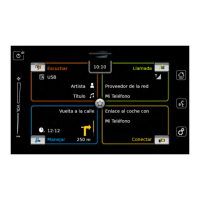
To open the map view,
f tap the Drive area in the Home menu.
To open the Destinations menu,
f tap the direct-select button in the Home
menu.
Playing media | Navigation


 To Next Page