en | 113
en
7.7.9 Selecting a point of interest
from the map
You can select a point of interest from the map
or search for points of interest near a location on
the map. Then you can view the details of a point
of interest and set it as your destination, if
desired.
To view details of a particular point of interest,
f tap the symbol of the point of interest on the
map.
The details view of the location is displayed (see
the section entitled “Location details view”
(page 109)).
Note:
If you tap a point on the map where
several symbols overlap, a list of the
corresponding points of interest is
displayed. Select the desired point of
interest from the list.
To search for points of interest near a location
on the map,
f tap the location on the map.
f Tap POIs around.
The available point of interest categories are
displayed. Continue reading the section entitled
“Selecting a point of interest and starting route
guidance” (page 108).
7.8 Route guidance settings in the
Route menu
7.8.1 Opening the Route menu
Note:
The Route menu is only available when
a route guidance session is active.
f Tap in the Home menu.
or:
f Tap in the map view.
or:
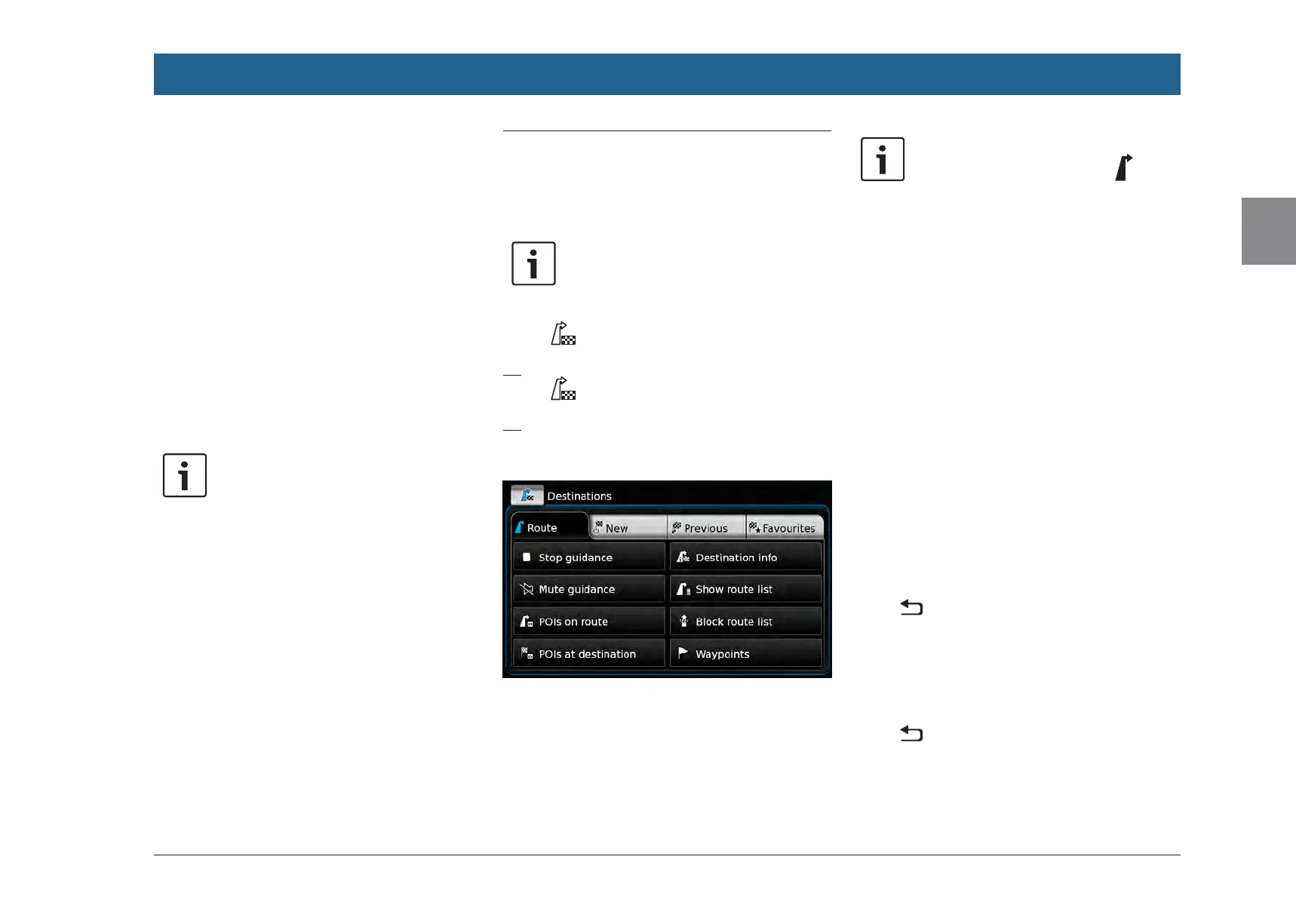
f Tap the Route tab in the Destinations menu.
The Route menu is displayed:
For the available settings and options, please
refer to the following sections.
Note:
In the Destinations menu, tap to
return to the map view.
7.8.2
Cancelling route guidance
f In the Route menu, tap Stop guidance.
The currently active route guidance session is
cancelled and the map of the area around the
vehicle is displayed.
7.8.3
Muting navigation announce-
ments
f In the Route menu, tap Mute guidance or
Unmute guidance to activate or cancel mute
respectively.
7.8.4
Displaying destination infor-
mation
f In the Route menu, tap Destination info.
Your current destination is displayed in the
details view (see the section entitled “Location
details view” (page 109)).
f Tap to return to the Destinations menu.
7.8.5
Displaying the route list
f In the Route menu, tap Show route list.
The route sections up ahead on your journey are
displayed.
f Tap to return to the Destinations menu.
7.8.6
Displaying the list of way-
points
f In the Route menu, tap Waypoints.
Navigation


 To Next Page