39
Getting Started
Printing a Label
BMP
®
51 User’s Manual
To turn autosize on (if not already on):
1. Press Font .
2. Choose Size>Auto.
3. Press Enter .
Autosize remains on for the entire area or label, until a different font size is selected. However,
after being turned off, any previous text entered using autosize retains the size generated by
autosize.
Printing a Label
To print a label:
1. Press Print .
After printing, to cut the label:
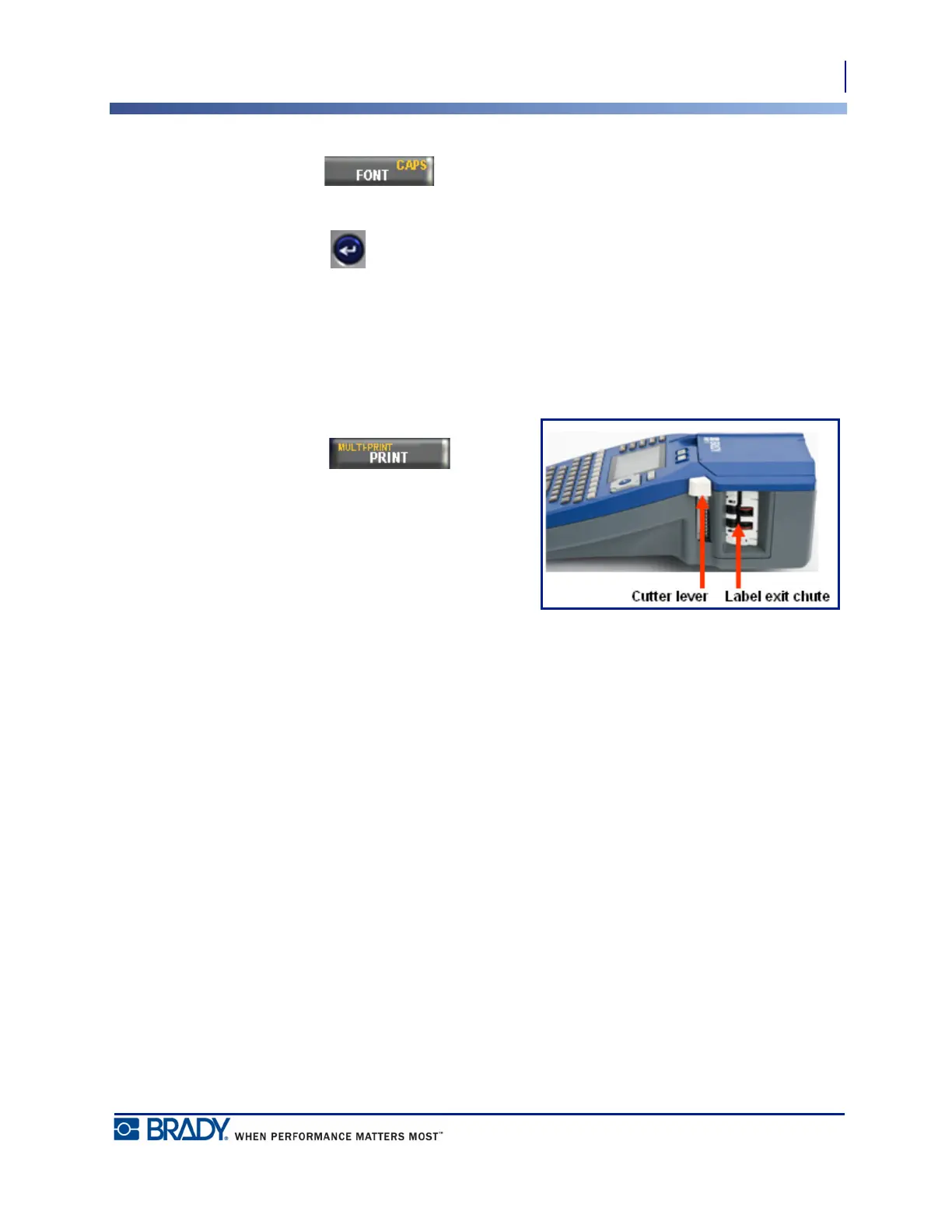
2. Push the cutter lever down as far as it will
go.
The label exit chute contains rubber grips that
hold the label in place after cutting so it will
not fall off.
3. Gently pull the label away from the label exit chute.
Printing from the BMP
®
51 printer occurs in the background, meaning you can continue to edit
or create new labels while a label is printing.



 To Next Page