BilgMon488 Instruction Manual vAD 32(38)
BRANNSTROM SWEDEN AB
www.brannstrom.se
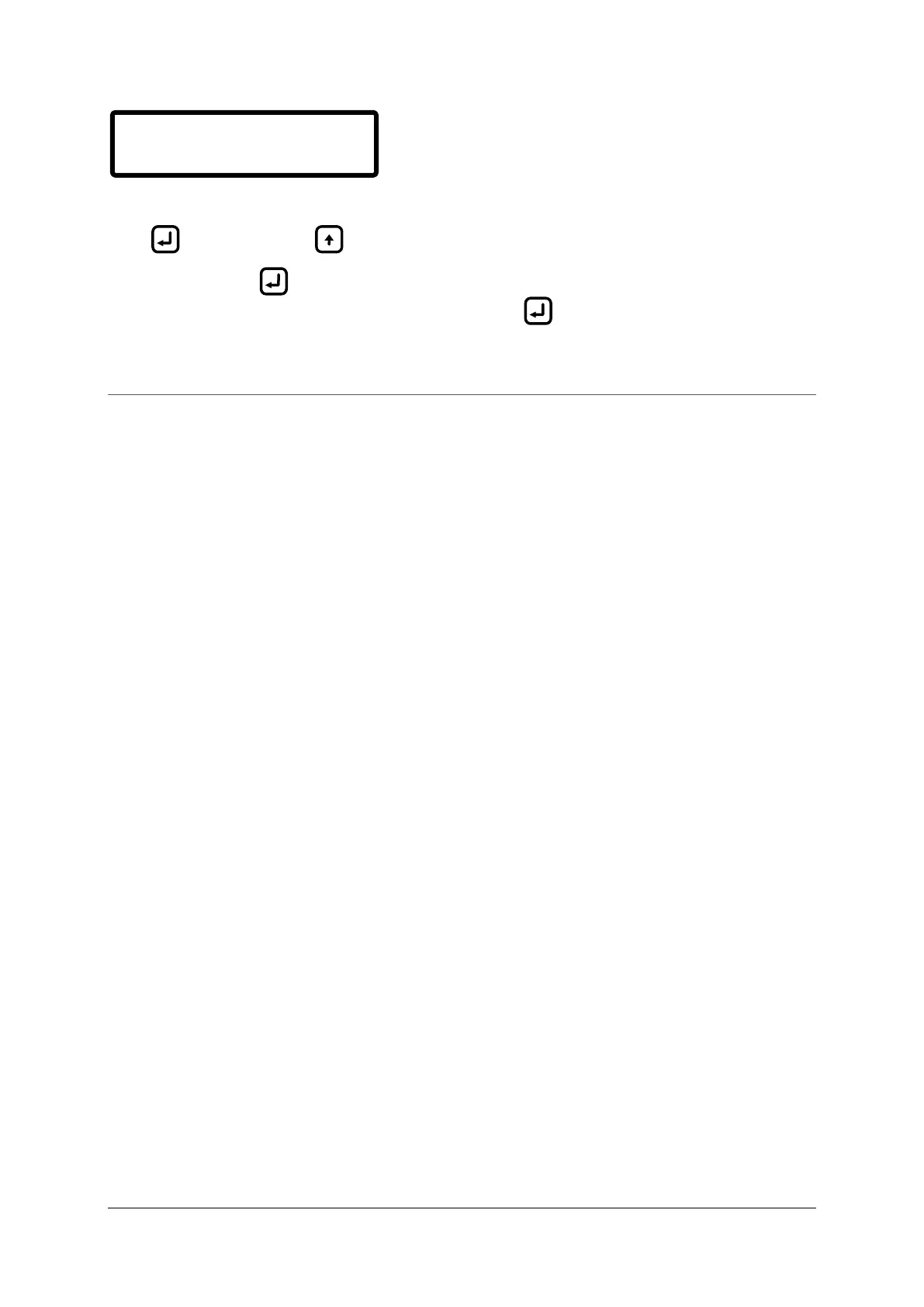
Verify that display is showing the correct UTC date and time.
Press if UTC is correct or to go back to Set UTC time menu.
NOTE: After pressing the RTC recovery menu is left and user is returned to main menu. Make
sure that the UTC date and time is correct before pressing .
17 LOG DATA DOWNLOAD VIA USB
Apart from inspecting the log via the LCD (see 10.9 Log) there is a possibility to download the log via
a USB-connection to a personal computer running Windows operating system.
NOTE: This procedure requires the “Bilgmon488 log data download kit” consisting of a CD with
software and a USB cable.
17.1 RUNNING THE SOFTWARE
Insert the CD and the BM488 log receiver program should start automatically after a short period of
time. If not, doubleclick ”BM488_log_receiver.exe” in the ”dist”-library of the CD to start the log
receiver.
17.2 INSTALLING THE VCP DRIVER
The first time you connect your bilge alarm to your PC using the supplied USB-cable you will be asked
for a driver for the newfound hardware. Simply point to the CD and the operating system will find
the driver for you. To install the driver manually, doubleclick the ”CDM#.##.##.exe” in the root
directory of the CD.
The VCP (Virtual Com Port) – driver has to be installed for the connected bilge alarm to show up in
the log receiver software. Note that the VCP-driver installation is only necessary once per PC.
For the latest version of the VCP driver please visit:
http://www.ftdichip.com/Drivers/VCP.htm
17.3 DOWNLOAD PROCEDURE
The following steps will guide you through the process of downloading data from the log of your
bilge alarm. Instructions prerequisite that the CD is inserted in your computer, that the VCP-driver is
installed and that the ”BM488_log_receiver.exe”-program is started.
140703 13:00:45
UTC ok? NO
YES


 To Next Page