- 10 -
Accessing USB Storage
When a USB storage device is connected to the router’s USB port, the files on the storage
device can be shared with all of the computers on the network.
The router is a DLNA server, which means that music, photo, and video files stored on the
connected USB storage device can be automatically accessed through a DLNA-compliant
device.
NOTE: The USB storage device must be formatted for NTFS or FAT.
There are three ways to access the files on the USB storage device: from the Router GUI, by
browsing the computer’s network, or through a DLNA-compatible device (media files only).
Via the Router GUI
1. Ensure that the computer has a working wired or wireless connection to the router.
2. Connect an external USB hard drive or USB flash drive to the USB port on the back of
the router.
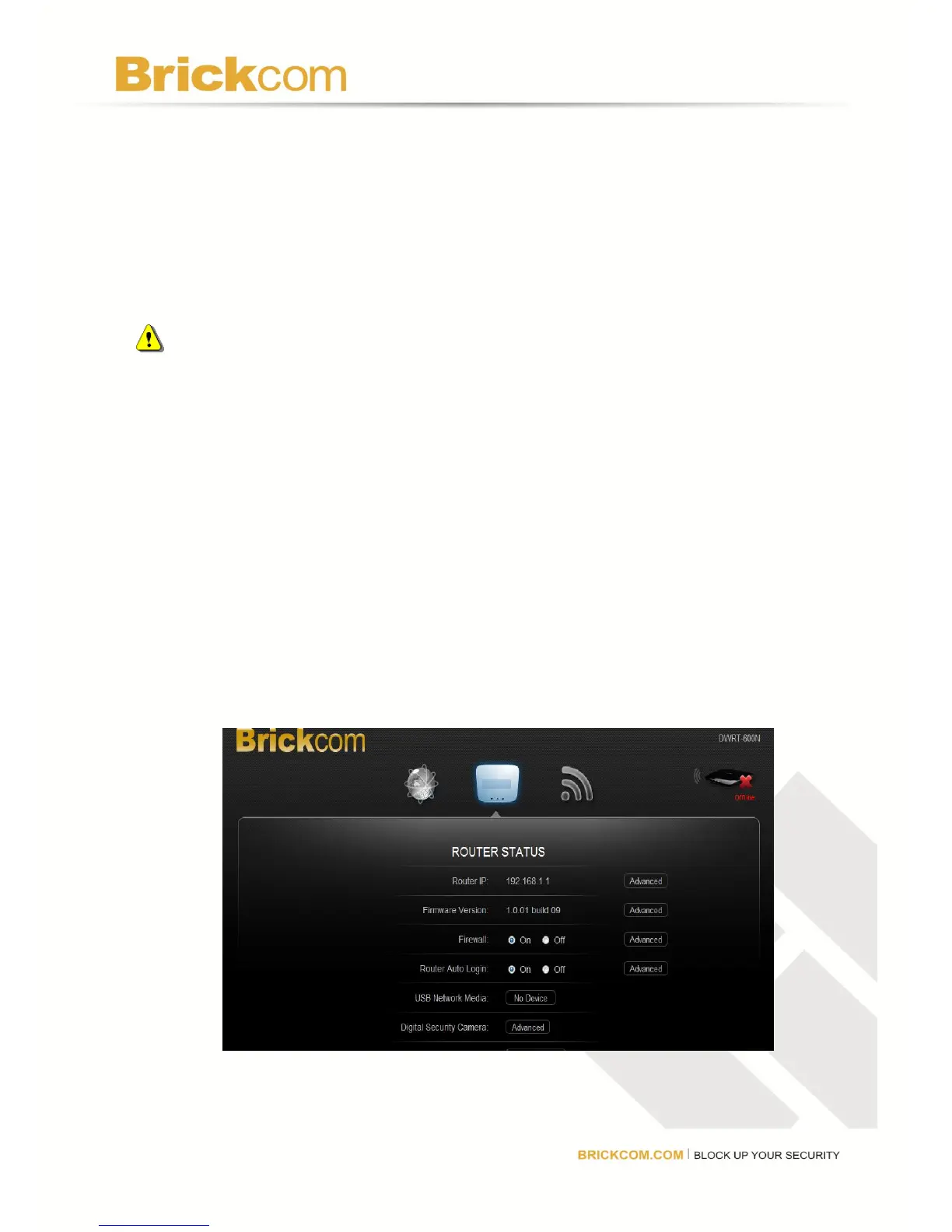
3. Enter http://Brickcom (or 192.168.1.1) in the browser window and press Enter. The
Router GUI will automatically start and the name of the USB device will be displayed in
the USB Network Media field.
4. Click the name of the device to begin browsing the files stored on it.



 To Next Page