- 16 -
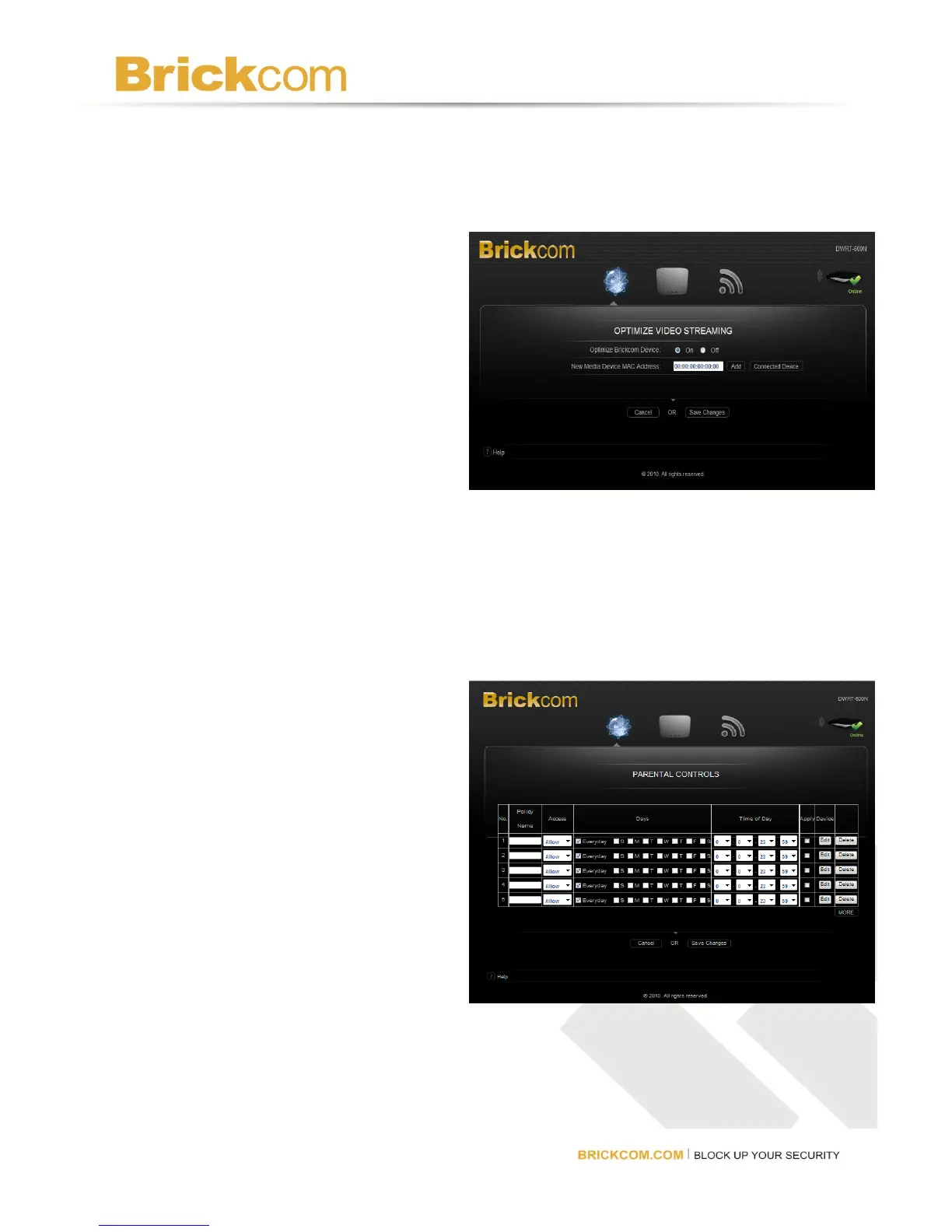
Optimize Video Streaming
Select On to enable automatic optimized video streaming of Brickcom IP cameras. To add
other non-Brickcom devices to the list:
1. Enter their MAC address in the
New Media Device MAC
Address field and then click
Add.
2. Click Connected Device and
selecting the device from the list.
Click Save Changes to keep any
changes made to the router settings or
click Cancel to cancel changes.
Parental Controls
The router allows users to control when the computer or device can access the Internet.
Select On to enable parental control settings or Off to disable parental settings. To set policy
and access time:
1. Click Advanced. A new menu
will be displayed showing the
advanced options available for
the Parental Controls.
2. Enter a unique policy name.
3. Choose whether to Deny or
Allow Internet for this policy.
4. Check Everyday or individual
days to deny or allow Internet
access.
5. Select the start time and end
time using the drop down box.
The hour is in 24 hour format (e.g. 13:00 equals 1:00pm).
6. Check the Apply checkbox to enable the Parental Control policy.
7. Click Edit and select from a list of computers to block or allow access.



 To Next Page