- 12 -
Changing Advanced Router Settings
After setting up the router, use a web browser to login to the router’s home page and make
any desired changes to the router’s settings. Use the router home page to:
View settings and router status
Set up a firewall to work with specific applications (port forwarding)
Set up and modify security features
Set up a user name and password
Reset the router
Update the router’s firmware
Caution: These are advanced settings that should only be modified by those experienced
in setting up and modifying wired and/or wireless networks.
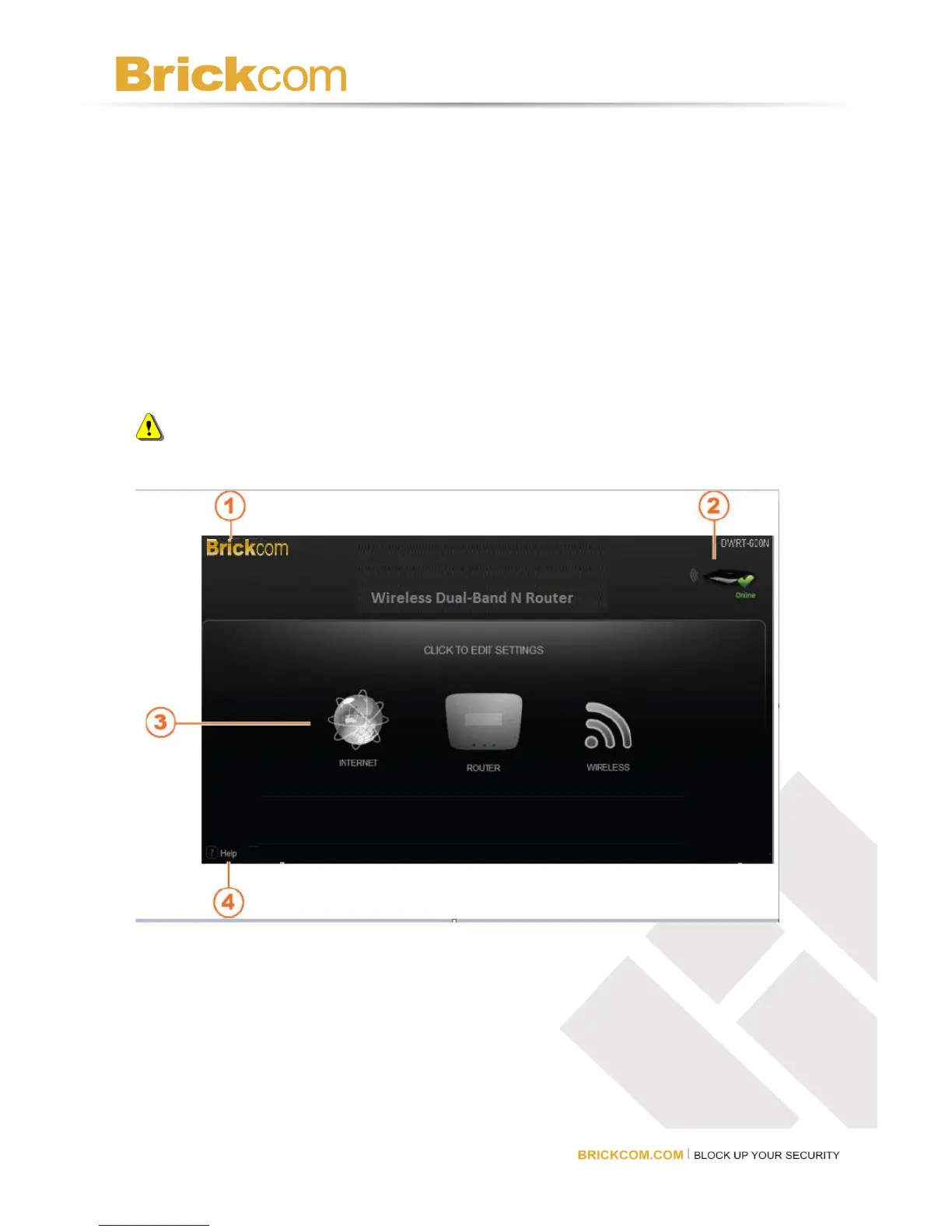
1. Brickcom—Click to go back to the Home page.
2. Internet Status— A green check indicates a working Internet connection. A red X will
appear when there is no working Internet connection.
3. Settings—Click an icon to open its menu and adjust settings.
4. Help—Click to open the User Manual.



 To Next Page