- 25 -
Router Auto Login
The router is set to automatically login to the GUI. Select Off to prevent the router from
automatically logging in and then click Advanced to set a user name and password. A new
menu will be displayed showing the advanced options available for the Router Auto Login
setting. Click Save Changes to keep any changes made to the router settings or click Cancel
to cancel changes.
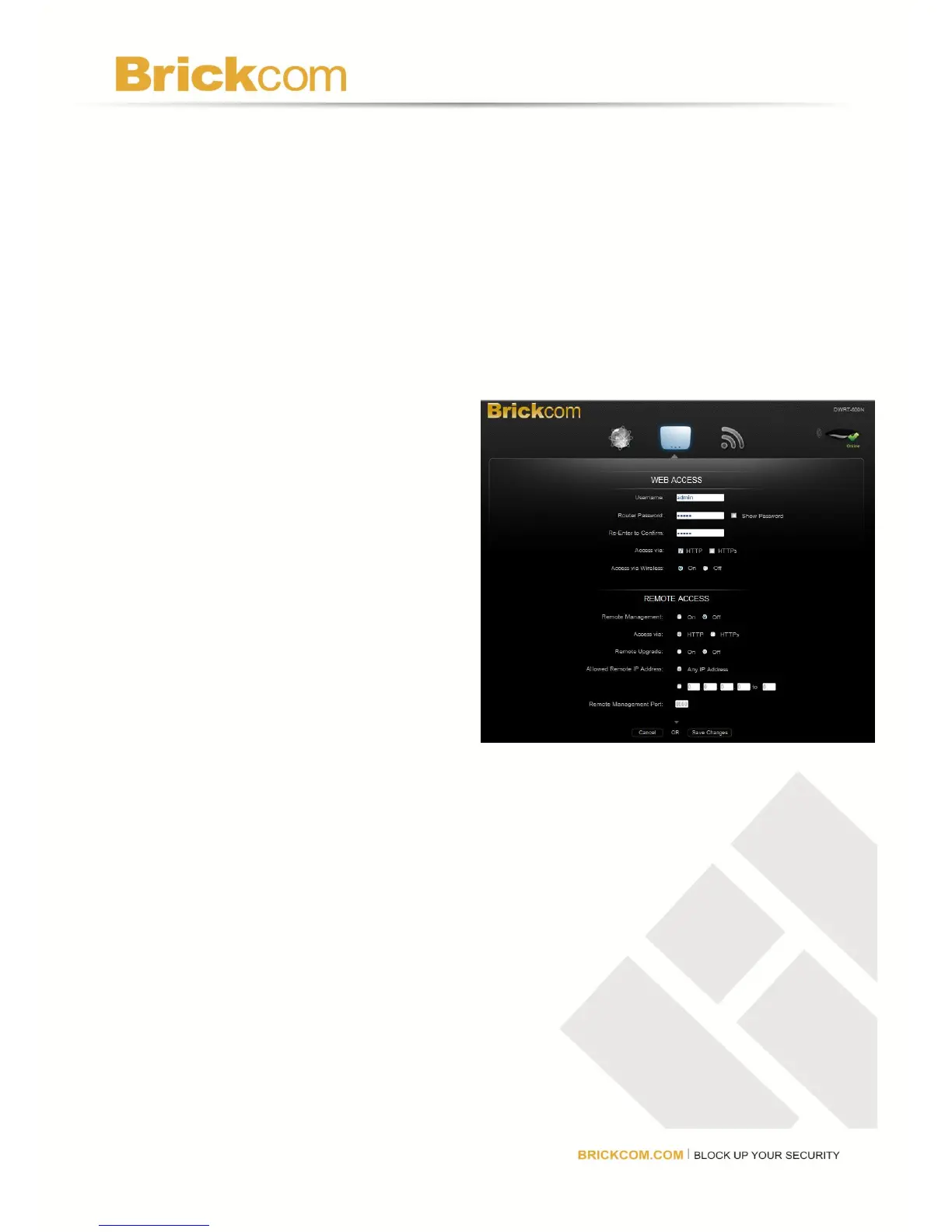
WEB ACCESS
Username and Router Password:
Create a user name and password that
must be entered before the GUI will open.
Re-enter the password for confirmation.
Select the Show Password checkbox to
see the password instead. The user will
now be prompted to enter the username
and password each time the GUI opens.
If the user forgets the username or
password, press and *hold the reset
button on the back of the router for 10
seconds to restore the router to default
settings.
Access via: HTTP is the standard
communications protocol used on the Internet and is the default option. Select HTTPS to
encrypt data for increased security.
Access via Wireless: Select On to allow access to the GUI via a wireless connection. Select
Off to disable access, especially if using the router in a public domain and guests have access
to the wireless connection.
REMOTE ACCESS
Remote Management: To access the router remotely from the Internet, select On. This is set
to Off by default.
Access Via: Select HTTP or HTTPS communications protocols for remote access from the
Internet.
Remote Upgrade: Select On to be able to upgrade the firmware remotely from the Internet.



 To Next Page