- 20 -
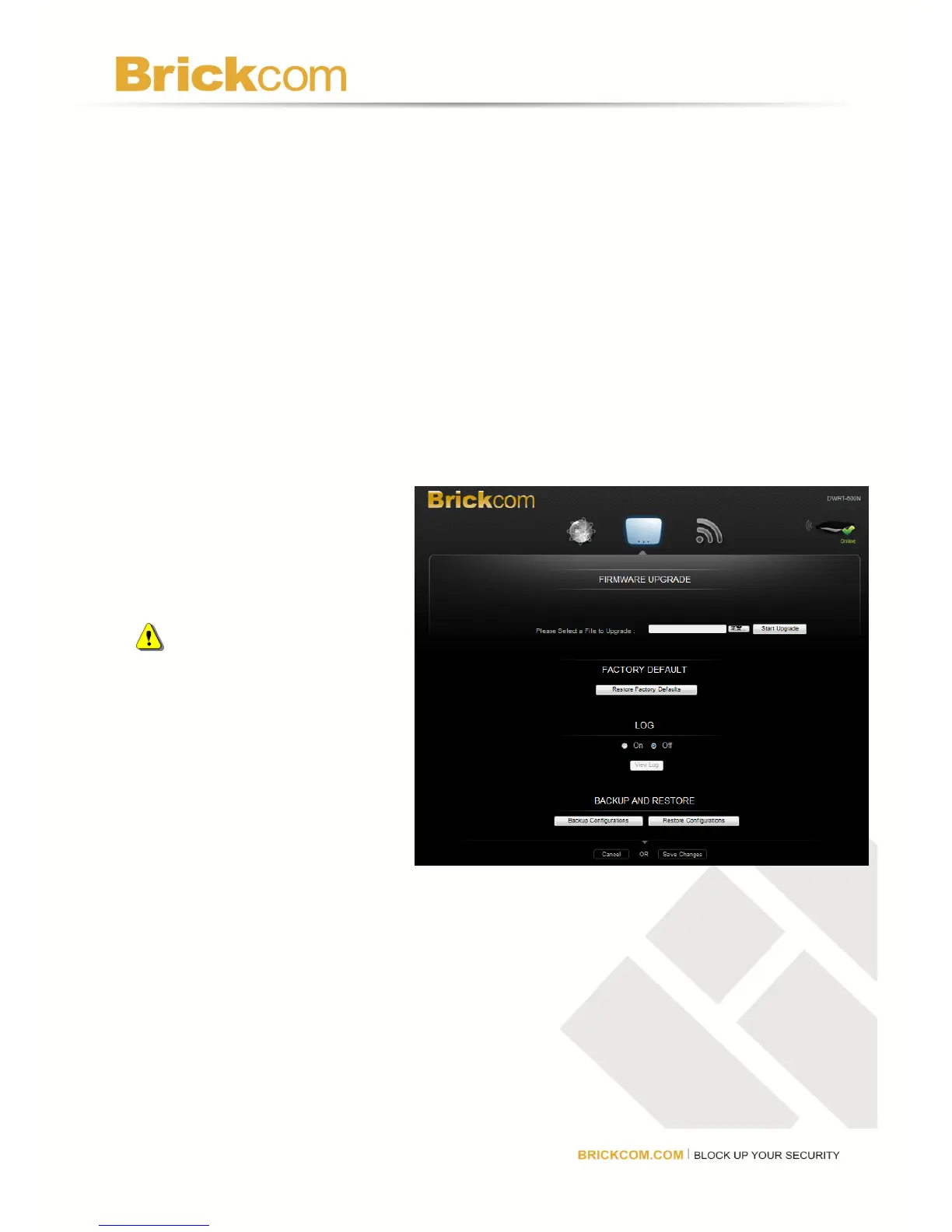
Firmware Version
The router’s current firmware version is displayed here. To makes changes, click Advanced.
A new menu will be displayed showing the advanced options available for the Firmware
Version. Click Save Changes to keep any changes made to the router settings or click
Cancel to cancel changes.
Firmware Upgrade
1. Click Check Latest Firmware. If new firmware is available, a link will be displayed
above the button.
2. Click the link to download the firmware to the computer.
3. Click Browse and locate
the firmware file
downloaded to the
computer.
4. Click Start Upgrade.
Caution: Do not upgrade the
router’s firmware
unless you are
experiencing
problems with your
router or the new
firmware has a
feature you want to
use.
Factory Default
Select this option to return the router to factory default settings. All settings that have been
changed, including the login username and password, will be replaced by the factory default
settings.



 To Next Page