- 4 -
Setting Up the Brickcom Router
Equipment needed:
Brickcom Router, Power Adapter, and Ethernet cable (included)
High-speed Internet connection and access to Internet modem (Users should contact
their local provider assistance if needed)
Additional Ethernet cable (usually provided with the Internet modem)
A computer Internet browser (such as Internet Explorer, Firefox, or Safari)
Step by Step Setup
1. Unplug the power cable from the high-speed Internet modem.
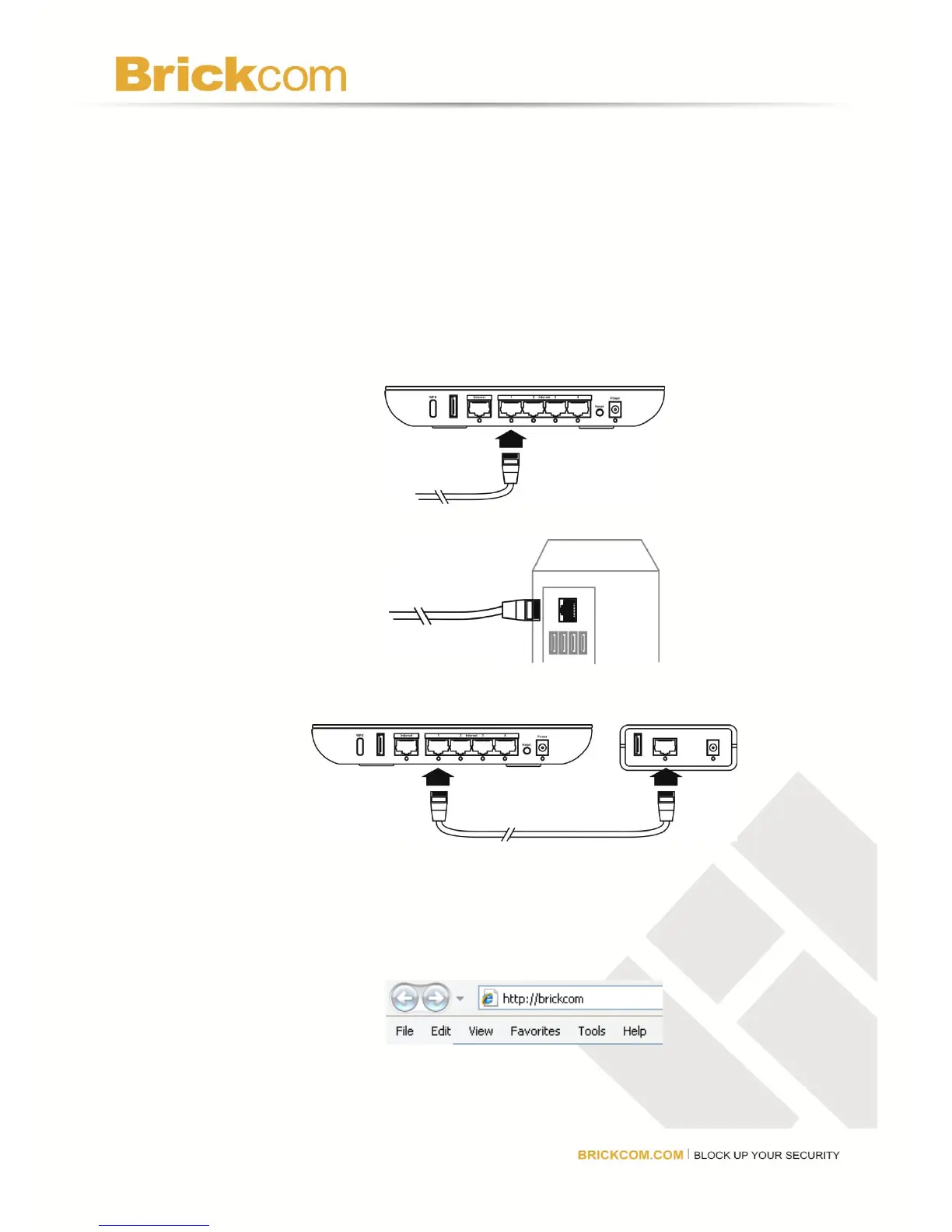
2. Connect one end of one of the Ethernet cables to the router’s number 1 port.
3. Connect the other end to the Ethernet port to a computer.
4. Connect the other Ethernet cable from the high-speed Internet modem into the Internet
port on the router.
5. Plug the power back into the high-speed Internet modem. Wait 30 seconds and plug
the power adapter into the router. The router will automatically turn on.
6. Wait 30 seconds for the router to fully connect and open an Internet browser window
(such as Internet Explorer, Firefox, or Safari). Enter http://Brickcom (or 192.168.1.1)
in the browser window and press Enter. The router’s web GUI will be displayed.
7. From here, click an icon (INTERNET, ROUTER, or WIRELESS) to open its menu and
adjust settings.



 To Next Page