26
8
Choose your connection method.
Local Printer with USB cable
See “For USB interface cable users” (→
P.26).
Network Shared Printer (Simple network
configuration)
Check the LAN cable is connected to the
printer.
See “For network interface cable users
(Simple network configuration)” (→ P.27).
Network Shared Printer (Manual network
configuration)
Check the LAN cable is connected to the
printer.
See “For network interface cable users
(Manual network configuration)” (→ P.28).
QFor USB interface cable users
9
For Mac OS
®
X 10.3.9
Click [Add] and choose “USB” at the top
of the screen.
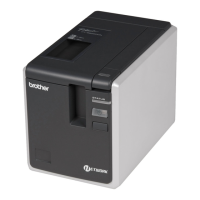
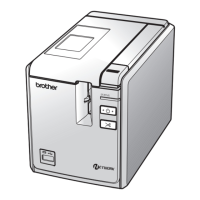
Choose “PT-9800PCN” from the list and
click [Add] again to add the printer to the
“Printer Setup Utility”.
For Mac OS
®
X 10.4.x - 10.6
Click [Add] / .
Choose “PT-9800PCN/Brother PT-
9800PCN” from the list and click [Add] to
add the printer to the “Printer Setup
Utility”/“Print & Fax”.
0
When the screen returns to the “Printer
List” / “Print & Fax” screen, check that
the “PT-9800PCN/Brother PT-9800PCN”
is added, and close the “Printer List” /
“Print & Fax” screen.
Now you can use the printer.
Note
O For Mac OS
®
X 10.4.x, click [Add] and
add the printer with the BRPTUSB
connection. (If you do so, an error dialog
appears when an printing error occurs.)
Set the appropriate printer name.
Note
O For details on software, see the P-touch
Editor Help.





 To Next Page