EasyManua.ls Logo

Brother MFC-240C - User Manual

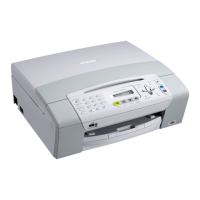
Brother MFC-240C
149 pages
Print Icon
To Next Page IconTo Next Page
Loading...
USER’S GUIDE
MFC-240C
Version B

Table of Contents

Other manuals for Brother MFC-240C

Questions and Answers

  • M
    Michael MorganSep 12, 2025
    How to improve fax send quality on Brother Fax Machine?
    • J
      Jacob RiveraSep 12, 2025
      To improve fax send quality on your Brother Fax Machine, try changing your resolution to Fine or S.Fine. Make a copy to check your machine's scanner operation. If the copy quality is not good, clean the scanner.
  • P
    Paul LeeAug 25, 2025
    Why is my Brother MFC-240C All in One Printer not printing?
    • H
      houstonjamesAug 25, 2025
      If your Brother All in One Printer isn't printing, there might be several reasons. Ensure the interface cable is correctly connected to both the printer and your computer. Also, verify that the printer is plugged in and not in Power Save mode. Check if any ink cartridges are empty. Look for any error messages on the LCD. Confirm that the correct printer driver is installed and selected. Finally, ensure the printer is online by checking that ‘Use Printer Offline’ is unchecked in the printer settings.
  • D
    Denise BookerAug 25, 2025
    How to fix poor print quality on Brother MFC-240C?
    • M
      Mr. Daniel White DDSAug 26, 2025
      To improve the print quality on your Brother All in One Printer, first, check the print quality settings. Ensure that the Printer Driver or Paper Type setting matches the paper you're using. Make sure your ink cartridges are fresh, considering that ink can clog if the expiration date has passed, the cartridge has been in the machine for over six months, or the cartridge wasn't stored properly. Using the recommended paper types can also help. The ideal environment for your printer is between 20° C to 33° C (68° F to 91° F).
  • D
    Debra GlassSep 23, 2025
    What to do if printed pages are not stacked neatly by Brother All in One Printer?
    • S
      Sally MayerSep 23, 2025
      If printed pages are not stacked neatly by your Brother All in One Printer, make sure you are using the paper support flap.
  • J
    Jason LopezSep 12, 2025
    Why is Colour Enhancement not working on Brother Fax Machine?
    • D
      Denise GoldenSep 12, 2025
      If Colour Enhancement is not working properly on your Brother Fax Machine, ensure the image data is full color (at least 24 bit) in your application. It will not work with image data that is not full color (such as 256 color).
  • A
    Antonio FrazierSep 16, 2025
    How to fix wrinkled printouts on Brother MFC-240C All in One Printer?
    • J
      Jennifer HartSep 16, 2025
      If the printouts from your Brother All in One Printer are wrinkled, in the printer driver Basic tab, click the Settings, and uncheck the Bi-Directional Printing.
  • M
    Melissa PhillipsSep 5, 2025
    Why are printed text or images skewed on my Brother Fax Machine?
    • C
      cory45Sep 5, 2025
      If the printed text or images are skewed on your Brother Fax Machine: * Make sure the paper is loaded properly in the paper tray and the paper side guide is adjusted correctly. * Make sure the Jam Clear Cover is set properly.
  • J
    jsmithSep 6, 2025
    Why is my Brother Fax Machine feeding multiple pages at once?
    • X
      xroblesSep 6, 2025
      If your Brother Fax Machine is feeding multiple pages, verify: * Make sure the paper is loaded properly in the paper tray. * Check that more than two types of paper are not loaded in the paper tray at any one time.
  • J
    John AvilaSep 18, 2025
    What causes stacked characters on Brother All in One Printer?
    • G
      Gregory CochranSep 18, 2025
      If characters and lines are stacked when printing with your Brother All in One Printer, check the printing alignment.
  • J
    Jacob PhillipsAug 30, 2025
    How to troubleshoot vertical black lines when receiving on Brother MFC-240C?
    • A
      Anna SmithAug 30, 2025
      If you see vertical black lines when receiving faxes on your Brother All in One Printer, ask the sender to make a copy to see if the problem is with their sending machine. You can also try receiving from another fax machine. The sender's scanner may be dirty.

Summary

Brother One Year Limited Warranty and Replacement Service (USA only)

What is covered

Details what the product, consumables, and accessories warranty includes.

What is NOT covered

Lists exclusions from the product warranty coverage.

Control panel overview

2 Loading documents and paper

Loading documents

Instructions for loading documents into the ADF and scanner glass.

3 General setup

4 Security features

TX Lock

Prevents unauthorized access to the machine's operations.

5 Sending a fax

Entering Fax mode

How to activate the fax function on the machine.

6 Receiving a Fax

Receive modes

Explains different modes for automatic fax reception.

7 Telephone Services and External devices

10 Making copies

11 PhotoCapture Center

12 PictBridge

B Troubleshooting and Routine Maintenance

Cleaning the print head

Procedure for cleaning the print head to resolve print quality issues.

Checking the print quality

Steps to print and check the quality for nozzle clogs.

Packing and shipping the machine

Instructions for properly packing and shipping the machine to avoid damage or warranty issues.

Brother MFC-240C Specifications

General IconGeneral
Package weight10700 g
PictBridgeYes
Scan speed4 sec/page
Scan file formatsBMP, JPG, PDF, PNG, TIFF
Dimensions (WxDxH)398 x 370 x 180 mm
All-in-one functionsFax, Scan
Color all-in-one functionscopy, fax, print, scan
Compatible operating systemsWindows 98SE/Me/2000/XP/2003/Vista Mac OS Linux
FaxingColor faxing
Fax memory170 pages
Modem speed14.4 Kbit/s
Fax coding methodsJPEG, MH, MMR (Fax coding method), MR
Fax speed dialing (max numbers)40
Copier resize25 - 400 %
Maximum copy resolution1200 x 1200 DPI
Maximum number of copies99 copies
Copy speed (black, normal quality, A4)18 cpm
Copy speed (color, normal quality, A4)16 cpm
Compatible memory cardsCF, MMC, MS Pro, SD, xD
Scanner typeFlatbed scanner
Grayscale levels256
Maximum scan area216 x 297 mm
Maximum scan resolution19200 x 19200 DPI
Optical scanning resolution600 x 2400 DPI
Bundled softwarePhotocapture Centre Brother MFL-Pro Suite Brother ControlCentre3 ScanSoft Paperport SE + OCR Brother ControlCentre 2 (Mac) NewSoft Presto! PageManager 7 (Mac)
Standard interfacesUSB 2.0
DisplayLCD
Market positioningHome & office
Total input capacity100 sheets
Total output capacity50 sheets
Auto document feeder (ADF) input capacity10 sheets
Digital senderNo
Number of print cartridges4
Print technologyInkjet
Maximum resolution6000 x 1200 DPI
Print speed (black, normal quality, A4/US Letter)25 ppm
Print speed (color, normal quality, A4/US Letter)20 ppm
Maximum print size210 x 297 mm
Paper tray media typesGlossy paper, Photo paper, Plain paper, Transparencies
Non-ISO print media sizesExecutive (184 x 267mm), index card, Letter (media size)
ISO A-series sizes (A0...A9)A4, A5, A6
Maximum ISO A-series paper sizeA4

Related product manuals