
 To Next Page
C
Carmen RileySep 15, 2025
What to do if Brother All in One Printer does not print from Adobe® Illustrator®?
- WWyatt MorrisSep 15, 2025
Try to reduce the print resolution on your Brother All in One Printer.

What to do if Brother All in One Printer does not print from Adobe® Illustrator®?
Try to reduce the print resolution on your Brother All in One Printer.
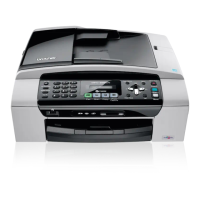
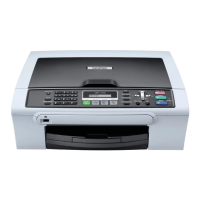
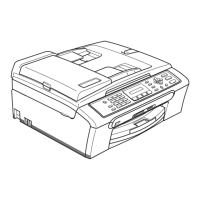
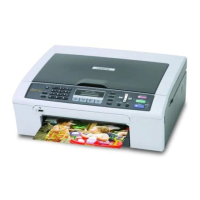
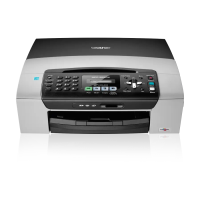
Why is my Brother MFC MFC-295CN printing blank pages?
Clean the print head on your Brother All in One Printer. Make sure you are using Brother Original Innobella™ ink.
How to improve poor print quality on Brother All in One Printer?
Check the print quality settings on your Brother All in One Printer. Make sure the Printer Driver or Paper Type setting matches the paper you are using. Ensure your ink cartridges are fresh; Brother Original cartridges are usable for up to two years if stored in their original packaging. Ensure you are using Brother Original Innobella™ ink and try using the recommended paper types. The recommended environment for your machine is between 20 °C to 33 °C.
Why I cannot send a fax from my Brother All in One Printer?
Check the line cord connection on your Brother All in One Printer. Make sure that the Fax key is illuminated. Ask the receiving party to confirm that their machine has paper. Print the Transmission Verification Report to check for any errors.
What to do when sending a fax call to Brother All in One Printer?
If you answered at the Brother All in One Printer, press Mono Start and hang up at once. If you answered on an external or extension telephone, press your Remote Activation Code (default setting is l 5 1 (l 9 1 for New Zealand)). When your machine answers, hang up.
How to ensure printed pages are stacked neatly from Brother MFC MFC-295CN?
Make sure you are using the paper support flap on your Brother All in One Printer.
Why are the printouts wrinkled from my Brother All in One Printer?
In the printer driver Advanced tab, click Colour Settings, and uncheck Bi-Directional Printing for Windows® or Bi-Directional Printing for Macintosh on your Brother All in One Printer. Make sure you are using Brother Original Innobella™ ink.
How to improve poor fax send quality on Brother MFC MFC-295CN All in One Printer?
Try changing your resolution to Fine or S.Fine on your Brother All in One Printer. Make a copy to check your machine's scanner operation. If the copy quality is not good, clean the scanner.
How to troubleshoot 'Cannot receive a fax' on Brother All in One Printer?
Check the line cord connection of your Brother All in One Printer. Make sure the machine is in the correct receiving mode for your setup. If you often have interference on the telephone line, try changing the menu setting of Compatibility to Basic(for VoIP).
How to fix dirty or smudged prints from Brother MFC MFC-295CN?
Make sure you are using the recommended types of paper for your Brother All in One Printer. Ensure you are using Brother Original Innobella™ ink. If you are using photo paper, make sure that you have set the correct paper type; if printing from your PC, set the Media Type in the Basic tab of the printer driver.
Step-by-step guide on how to load paper and other print media.
Guides for loading documents into the ADF and using the scanner glass.
Description of TX Lock feature and its purpose.
Step-by-step guide to setting up and modifying the TX Lock password.
Instructions on how to enable or disable the TX Lock feature.
Covers entering fax mode, faxing from ADF, scanner glass, and letter size.
Guide to choosing and setting up various receive modes like Fax Only, Fax/Tel, Manual.
Details on Fax Only, Fax/Tel, and Manual receive modes.
Connecting TADs, recording OGM, PABX connections, and extension telephone operation.
Covers manual dialling, speed dialling, searching, and fax redial.
Covers entering copy mode, making single/multiple copies, and stopping.
Guides for printing photos and scanning documents without a PC.
Step-by-step instructions for printing photos and index sheets.
Guides on PictBridge connection, requirements, and camera setup.
Guidelines for selecting a location and general safe operating practices.
Covers electrical safety, handling plugs, power cords, and cleaning.
Safety directives covering power, servicing, and environmental factors.
Addresses issues with print output, paper feed, and fax reception.
Explains error messages and guides on routine cleaning and print head care.
Step-by-step instructions for clearing document and paper jams from the ADF and printer.
 General
| Print Technology | Inkjet |
|---|---|
| Automatic Document Feeder | Yes |
| Display | LCD |
| Duplex Printing | Manual |
| Media Card Support | Yes |
| Scanner Type | Flatbed |
| Optical Resolution | 1200 x 2400 dpi |
| Fax Type | Color |
| Max Fax Transmission Speed | 33.6 kbps |
| Standard Media Capacity | 100 sheets |
| Output Trays Capacity | 50 sheets |
| Paper Capacity | 100 sheets |
| Weight | 15.4 lbs |
| Max Print Resolution | 6000 x 1200 dpi |
| Max Document Size | 8.5 x 14 inches |
| Connectivity | USB |
| Functions | Print, Scan, Copy, Fax |
| Monthly Duty Cycle (max) | 2500 pages |
| Media Type | Envelopes, plain paper, photo paper |
| Ink Cartridge Configuration | 4 individual cartridges |