Home > Troubleshooting > Error and Maintenance Messages > Transfer Your Faxes or Fax Journal
Report > Transfer Faxes to Another Fax Machine
Transfer Faxes to Another Fax Machine
If you have not set up your Station ID, you cannot enter Fax Transfer mode.
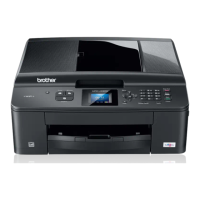
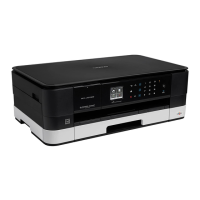
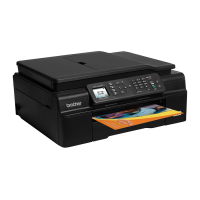
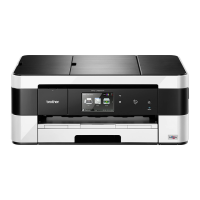
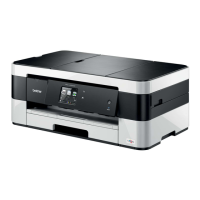
>> MFC-J4340DW
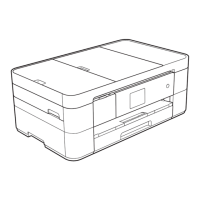
>> MFC-J4440DW/MFC-J4540DW
MFC-J4340DW
1. Press Stop/Exit to clear the error temporarily.
2. Press Settings.
3. Press a or b to make your selections:
a. Select [Service]. Press OK.
b. Select [Data Transfer]. Press OK.
c. Select [Fax Transfer]. Press OK.
4. Do one of the following:
• If the LCD displays [No Data], there are no faxes left in the machine's memory.
Press c, and then press Stop/Exit.
• Enter the fax number where faxes will be forwarded.
5. Press Mono Start.
MFC-J4440DW/MFC-J4540DW
1. Press to clear the error temporarily.
2. Press
[Settings] > [All Settings] > [Service] > [Data Transfer] > [Fax Transfer].
3. Do one of the following:
• If the touchscreen displays [No Data], there are no faxes left in the machine’s memory.
Press [Close], and then press .
• Enter the fax number where faxes will be forwarded.
4. Press [Fax Start].
Related Information
• Transfer Your Faxes or Fax Journal Report
Related Topics:
• Set Your Station ID
453


 To Next Page
 Loading...