Home > Store or Manage Templates (P-touch Library) > Print Templates Using P-touch Library (Windows)
Print Templates Using P-touch Library (Windows)
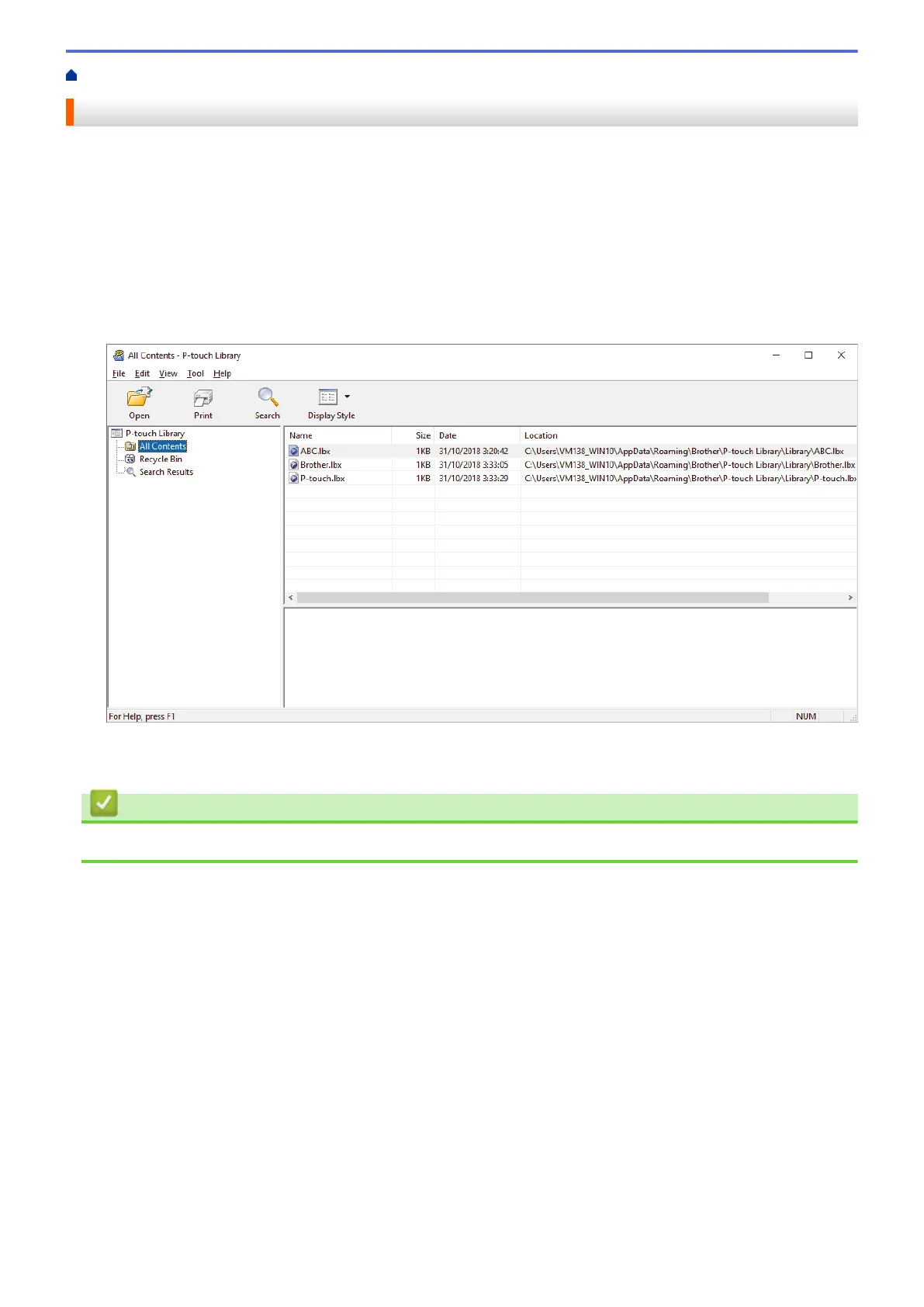
1. Start the P-touch Library.
• Windows 10/Windows Server 2016:
Click Start > Brother P-touch > P-touch Library 2.3.
• Windows 8/Windows 8.1/Windows Server 2012/Windows Server 2012 R2:
Click the P-touch Library 2.3 icon on the Apps screen.
• Windows 7/Windows Server 2008/Windows Server 2008 R2:
Click Start > All Programs > Brother P-touch > P-touch Tools > P-touch Library 2.3.
The main window appears.
2. Select the template you want to print, and then click Print.
The connected printer prints the template.
Related Information
• Store or Manage Templates (P-touch Library)
65


 To Next Page
 Loading...