Home > Update > Update P-touch Editor (Windows)
Update P-touch Editor (Windows)
Before updating P-touch Editor, install the printer driver.
1. Start the P-touch Update Software.
• Windows 10/Windows Server 2016:
Click Start > Brother P-touch > P-touch Update Software, or double-click the P-touch Update
Software icon on the desktop.
• Windows 8/Windows 8.1/Windows Server 2012/Windows Server 2012 R2:
Click the P-touch Update Software icon on the Apps screen, or double-click the P-touch Update
Software icon on the desktop.
• Windows 7/Windows Server 2008/Windows Server 2008 R2:
Click Start > All Programs > Brother P-touch > P-touch Update Software, or double-click the P-touch
Update Software icon on the desktop.
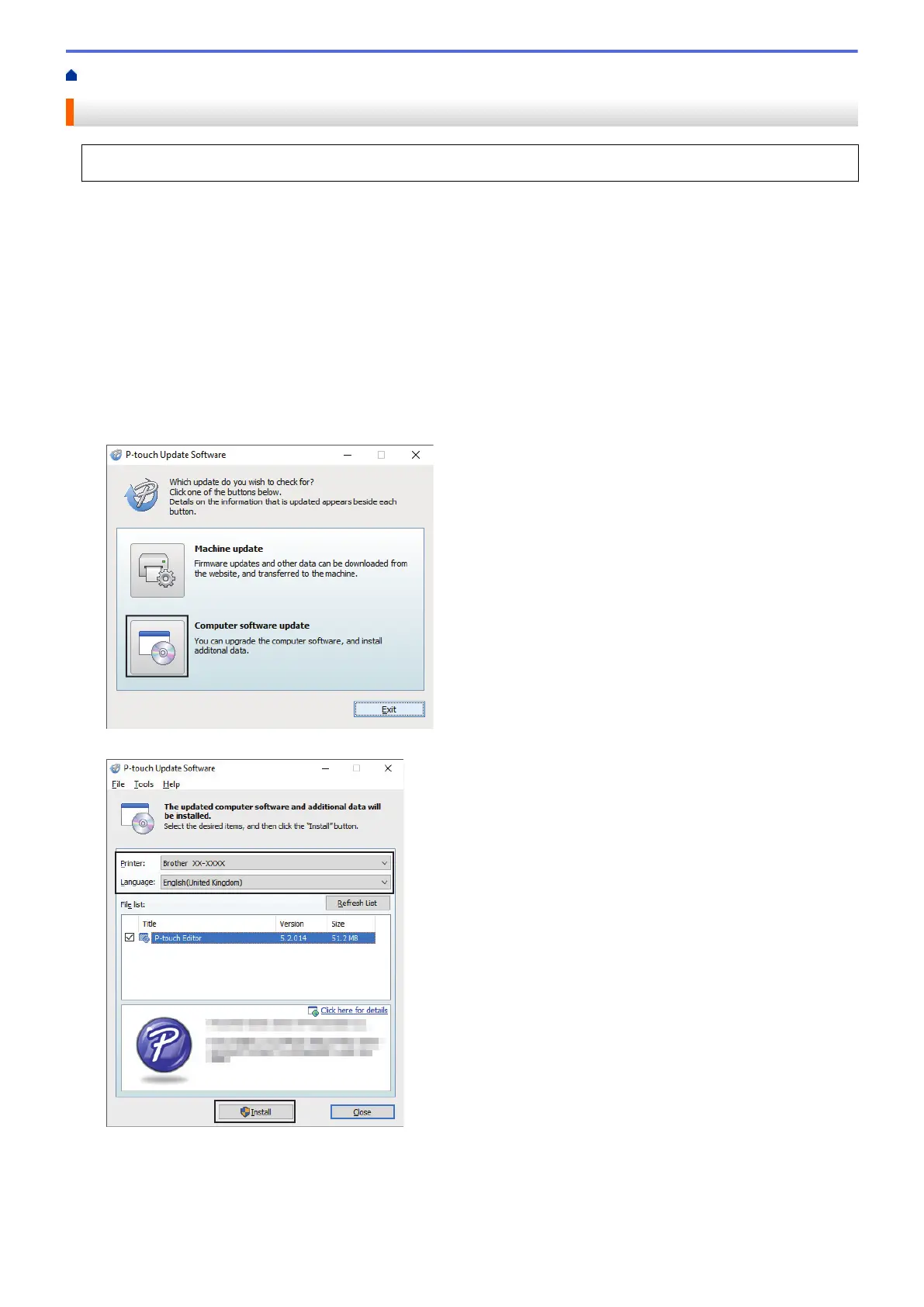
2. Click the Computer software update icon.
3. Select the Printer and Language options, select the check box next to P-touch Editor, and then click Install.
When finished, a confirmation dialog appears.
71


 To Next Page
 Loading...