Setup
26 ©2022 CAE 905K560252 v1.2
CAELuna
Step 6: Launch Maestro
To launch Maestro, tap the Maestro icon on the tablet desktop screen.
The Maestro App Icon
The Maestro app opens.
For more information about using Maestro, see the Maestro for Luna User Guide.
Step 7: Set up TouchPro Monitor (Optional)
To set up the TouchPro monitor, see the TouchPro Getting Started Guide provided with the TouchPro
monitor.
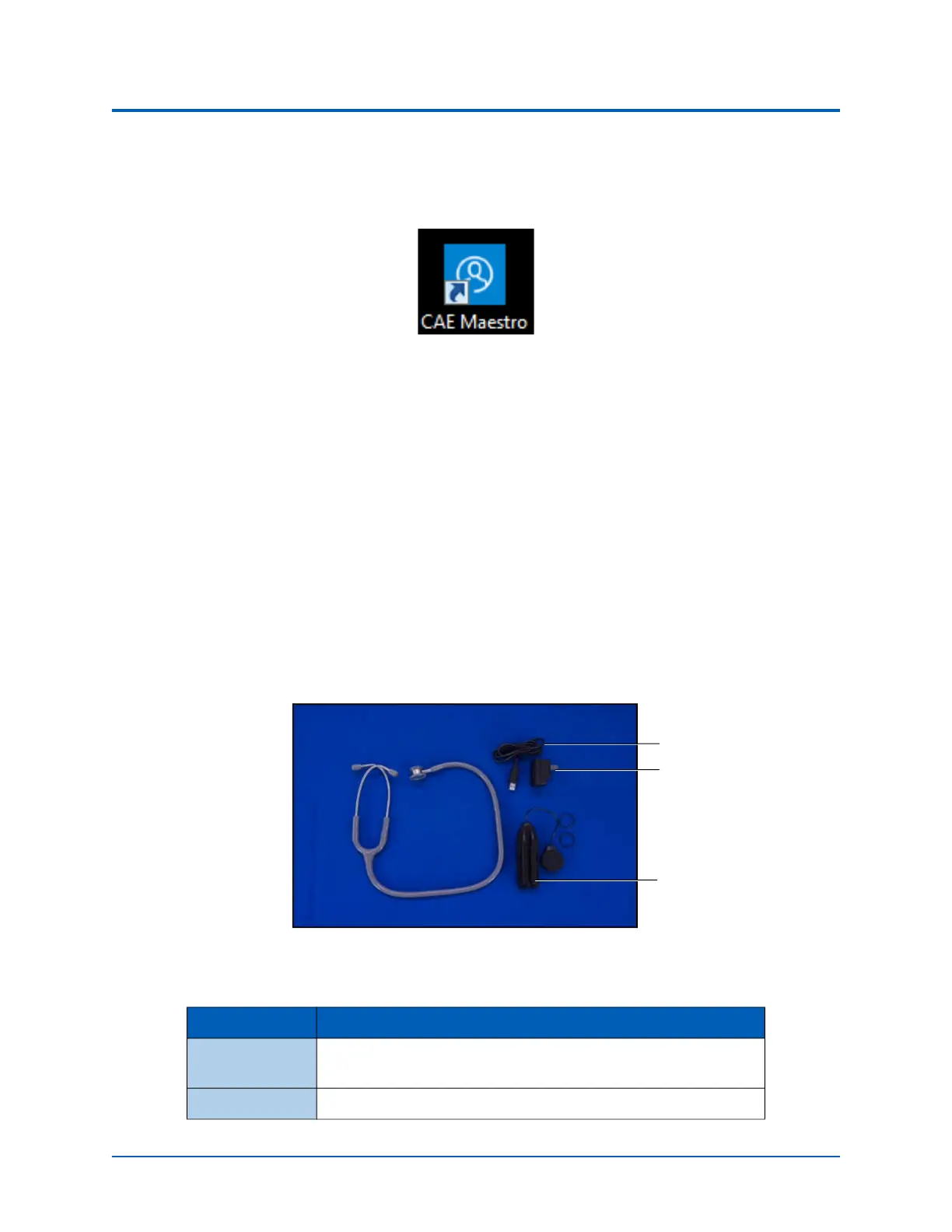
Step 8: Charge the StethoSym
To charge the StethoSym, connect the power supply adapter to the USB cable and plug the micro-USB
end of the cable into the stethosym module. Plug the power supply adapter into a grounded power
outlet.
StethoSym Components
Refer to the table below for charging status light information.
Light Color Power Status
Orange Unit is charging. Orange light turns off when the unit is fully
charged.
Green Unit is on and fully charged.
Power adapter
StethoSym
module
USB cable



 To Next Page