Installation
5
To install the 1902 operating software, autorun the 1902
Support CDROM supplied with the hardware. This should be
completely automatic under any version of Windows. It will
install Try1902, a diagnostic and calibration program. It will
also install the 1902 Control Panel, which can be opened by the
user to run the 1902 in stand-alone mode.
Once the software is installed, you can run Try1902 to check
that the 1902 is, to the first order, working, and has not been
damaged in transit. Before it is run, the 1902 must be powered
up and connected to your computer.
With mains power off, insert the DC power cable and the
RS232 cable into the back of the 1902. The power cable will
only plug-in one way, and the RS232 cable is reversible end-
for-end. Make a note of which physical com port the RS232
goes into (most likely Com1; many computers only have one
com port.) Some computers, especially laptops, have no com
port at all; in this case, use a USB–RS232 adaptor (see
page 13).
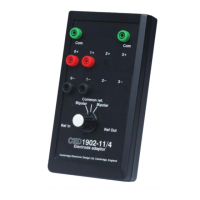
Switch 1902 power on at the mains. Observe on the front panel
that the green
Power LED comes on. Open Try1902 by
selecting
Start, Programs, 1902 Support, Try1902.
First of all, you must set the com port and the 1902 channel
dropdown lists. These identify the com port being used, and the
channel number to which the 1902 is set. As soon as they
correspond to the 1902 present, it will be identified and
reported. In multiple installations, where all 1902s share the
same com port, the 1902 identified will change as the channel
number is changed. The numbers will correspond to the 1902
unit numbers (0, 1, 2, etc.) In single installations the channel
number will be 0, unless specified otherwise.
This is the most basic test, simply checking that the 1902 will
accept and return data. Press
Communications test to start the
test;
Stop testing stops the test and reports the number of passes
(repetitions) done, and errors found, if any.
Installing the
1902 software
Confidence
check – Try1902
Com port and
channel number


 To Next Page