17
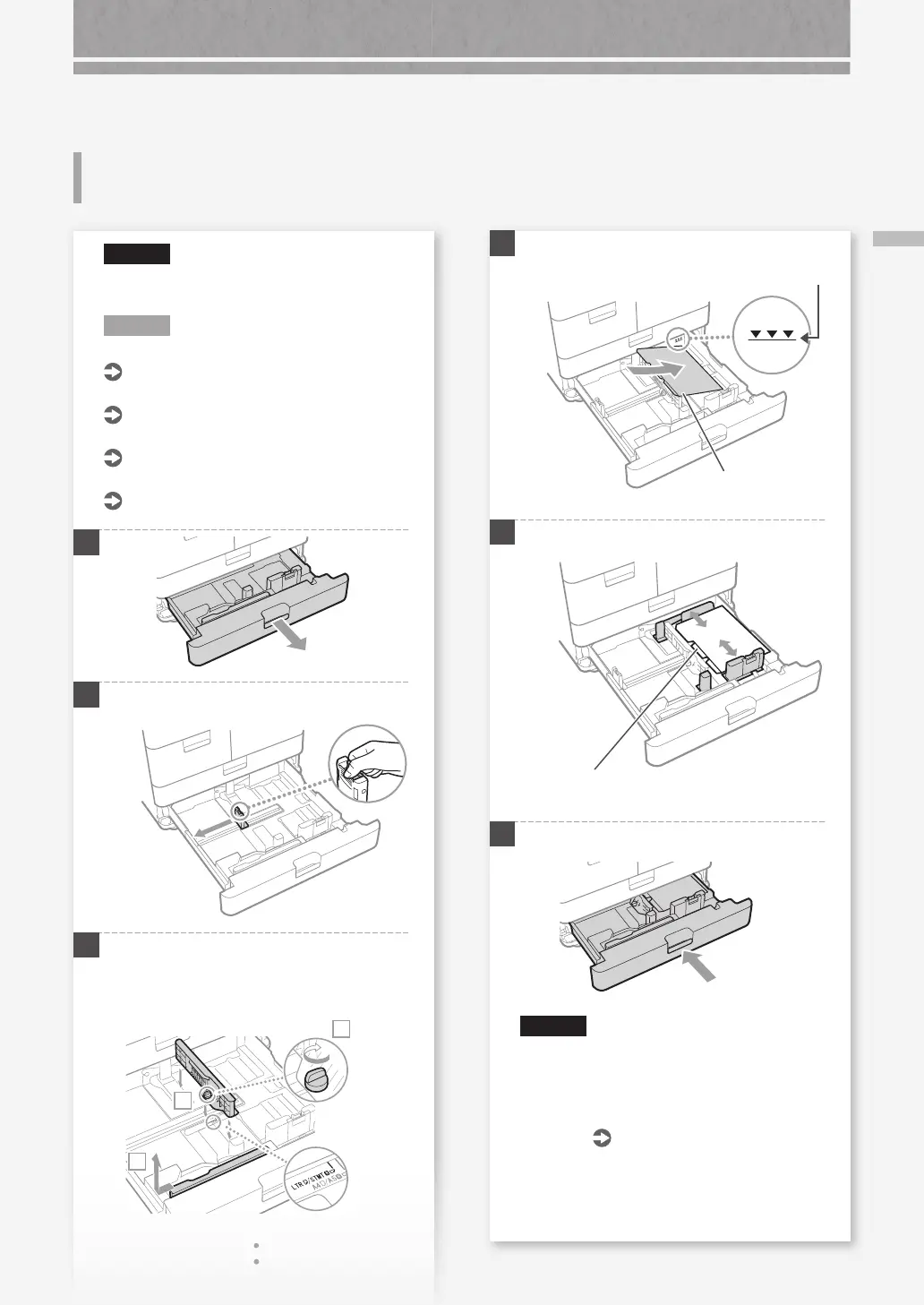
Loading Tab Paper
Loading Tab Paper
4
Load the tab paper.
Make sure that this line is not exceeded.
The print side face down
5
Adjust the slide guide to the tab paper.
Ensure that the index tab is on the left side.
6
Place the paper drawer back into the machine.
CAUTION!
Be careful not to get your ngers caught between
the paper drawer and the machine.
When you have loaded a different type of paper
than the preset one, be sure to change the paper
type setting.
P.
10
CAUTION!
You cannot load tab paper in the paper deck or the
optional paper deck unit.
N O T E
When loading paper in the Multi-Purpose Tray.
User's Guide
When loading paper in the POD Deck Lite.
User's Guide
When loading paper in the Multi-drawer Paper Deck.
User's Guide
When loading paper in the Document Insertion.
User's Guide
1
2
Move the slide guide to the leftmost position.
3
Set the Tab Feeding Attachment in position.
1.
Remove the Tab Feeding Attachment.
2.
Place the removed kit in position for LTR paper size.
3.
Turn the knob to secure the kit.
1
2
3






 To Next Page