27
In Two-Sided Printing, the Print Direction Diers between the Front and Back Sides of the Paper
In Two-Sided Printing, the Print Direction Diers between the Front
and Back Sides of the Paper
Make settings for two-sided printing.
1.
In the application's print setting screen, select the print direction.
2.
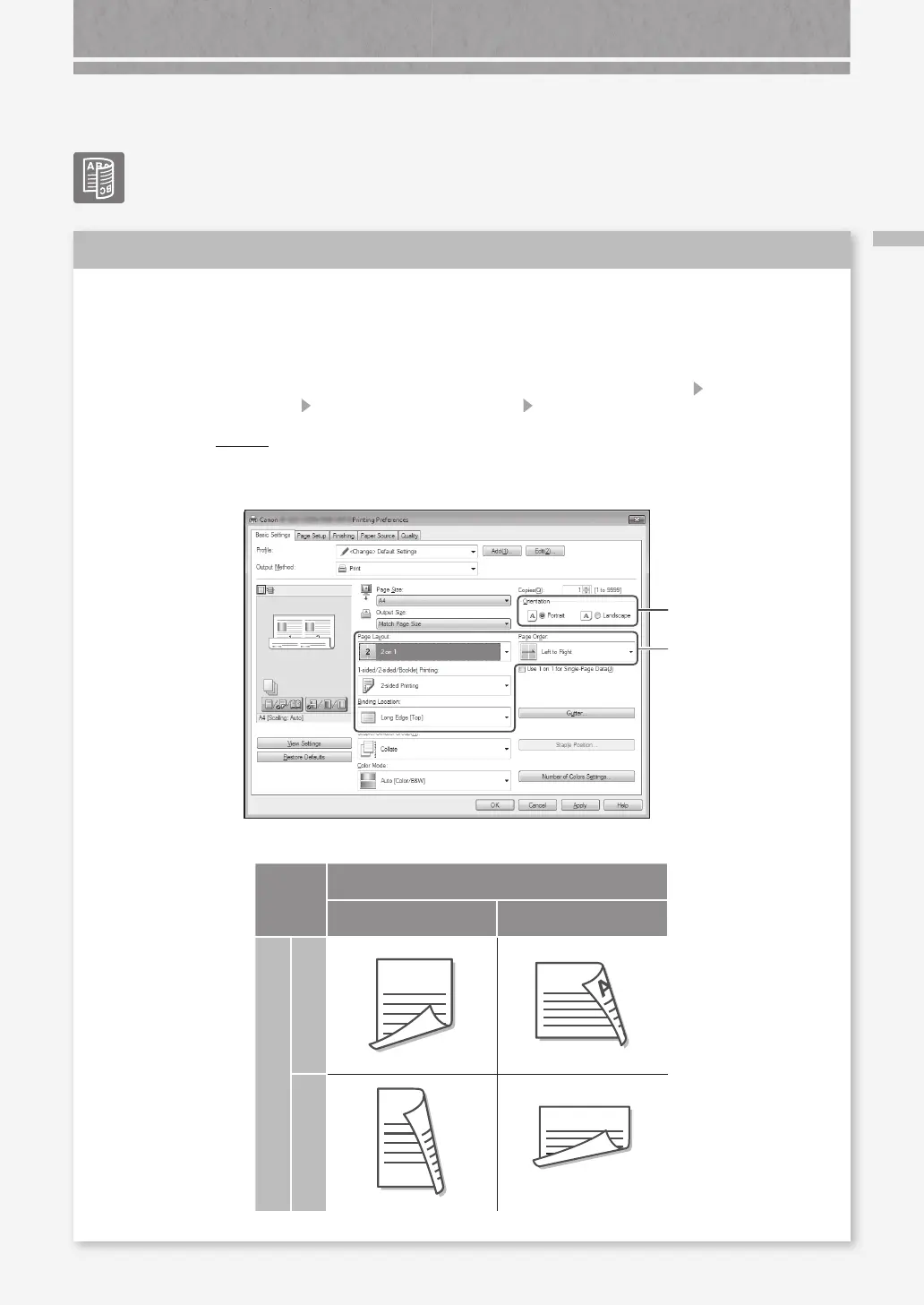
In the [Printing Preferences] screen of the driver, set [Orientation] for the direction
selected in step 1.
3.
While viewing the preview image, make settings in the order of: [Page Layout]
[Page Order]*
[1-sided/2-sided/Booklet Printing] [Binding Location].
POIN T
*: [Page Order] is only displayed when you set [Page Layout] to [2 on 1] or other
option for printing multiple pages on one physical.
2
3
Orientation
Portrait Landscape
Binding Location
Short Edge
A B C
A B C
Long Edge
A B
A B C
Solution






 To Next Page