29
Scanned Documents Cannot Be E-Mailed
Scanned Documents Cannot Be
E-Mailed
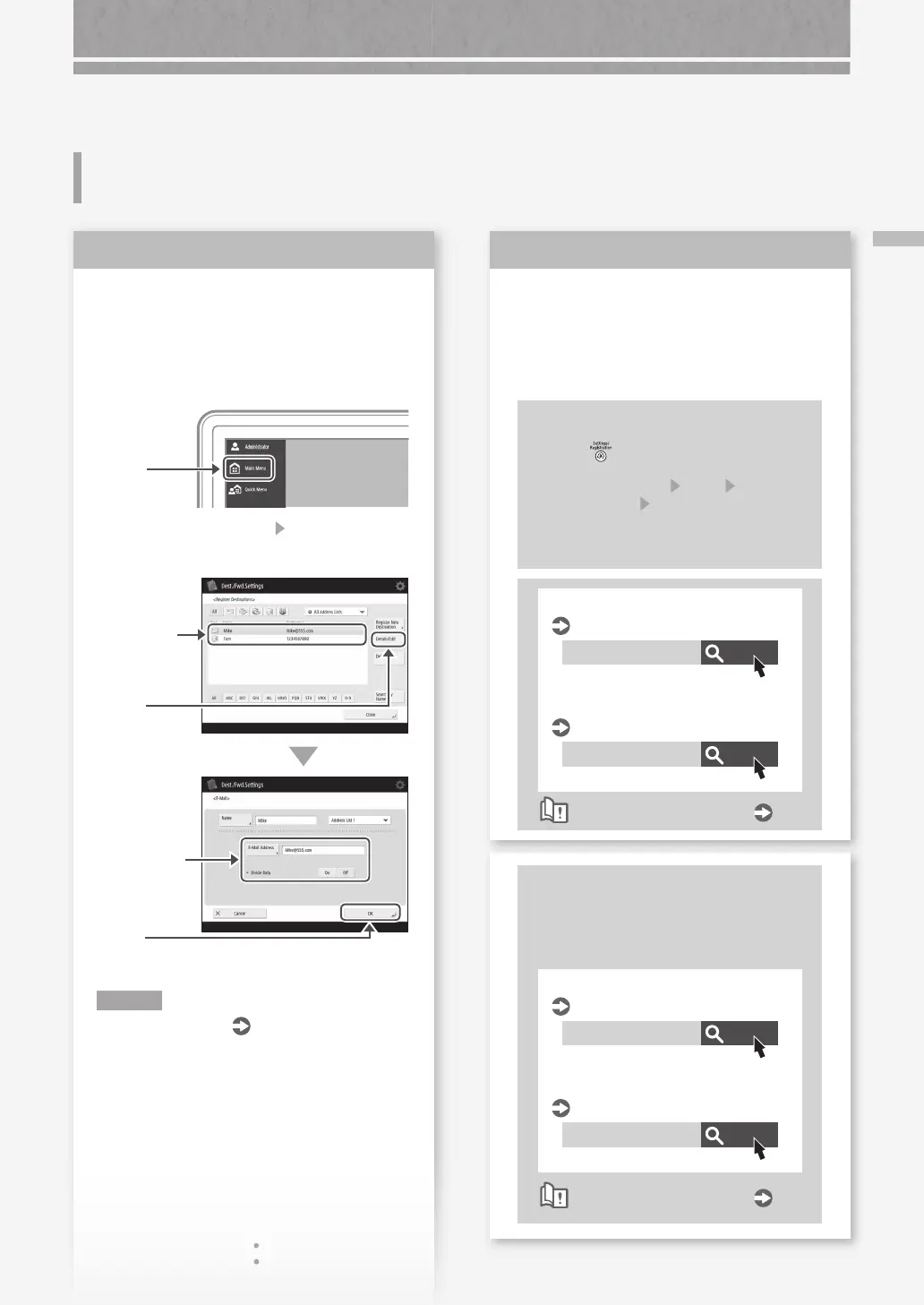
Check the information of the
destination.
If any update has been done, change the
information registered to the address book/one-
touch buttons.
1.
Press
2.
Press [Dest./Fwd. Settings] [Register
Destinations] on the touch panel display.
Example: Address book
4.
Press
3.
Select the
destination.
5.
Change the
registered
information.
6.
Press
N O T E
For more information
"To change registered
information" on the right
Solution
1
If e-mailing of documents is
not possible at all, make correct
communication settings for the SMTP/
DNS server. For the setting procedures,
see the User's Guide.
To specify the port number for SMTP
TX/POP RX
1.
Press
2.
On the touch panel display, press
[Function Settings]
[Send] [E-Mail/
I-Fax Settings]
[Specify Port Number for
SMTP TX/POP RX].
3.
Specify the port number.
4.
Press [OK].
Search
10H3-017
Search
10H3-00X
E-mail/I-fax communication settings
User's Guide
Configuring DNS
User's Guide
How to use the search number
P.51
Solution
2
To change registered information
When the information registered to the
address book/one-touch buttons, edit and
re-register it.
Search
10H3-039
Search
10H3-03C
Editing the address book
User's Guide
Editing the one-touch buttons
User's Guide
How to use the search number
P.51



 To Next Page