Sending Documents
4-10
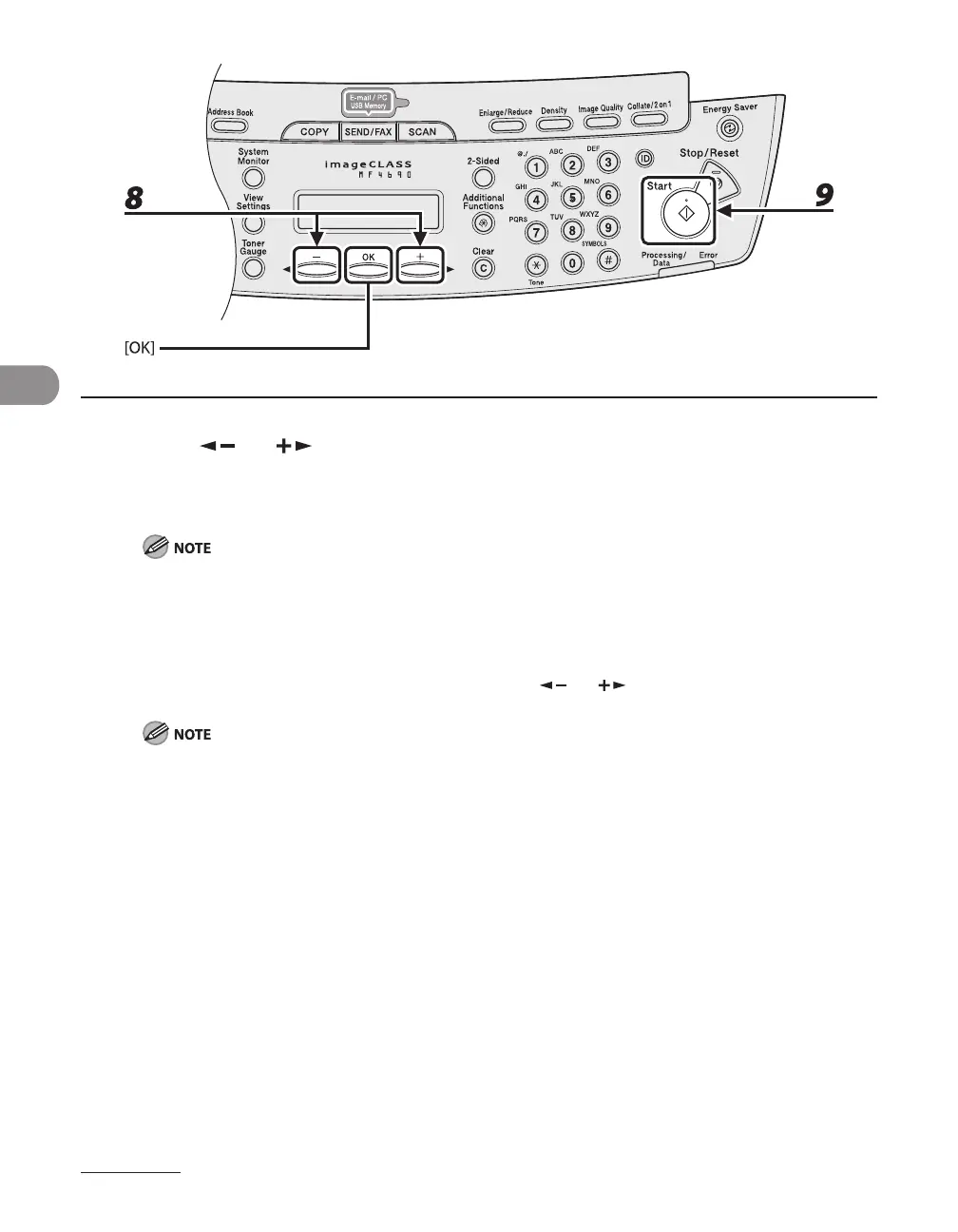
8 Press [ ] or [ ] to select the original type, then press [OK].
<TEXT/PHOTO>: For documents that contain text and photos.
<TEXT>: For text documents.
<PHOTO>: For documents that contain fine text or photos.
If you have selected <PDF (COMPACT)> as the file format in step 5, the original type is automatically set
to <TEXT/PHOTO>. Skip to step 9.
9 Press [Start].
When you set the documents on the platen glass, press [ ] or [ ] to select the document size, then
press [Start] for each document. When scanning is complete, press [OK] to start sending.
When <TIME OUT> is set to <ON> in <TX SETTINGS> in <FAX SETTINGS> in <TX/RX SETTINGS>, and if
you have specified the destination by any other method than using numeric keys, the machine starts
scanning automatically without pressing [Start], after the preset time for this setting is elapsed.
You can set the document’s name, a subject line, message body text, and reply-to address, and e-mail
priority common to all sending jobs. For instructions, see Chapter 4, “Sending and Receiving,” in the
Reference Guide.
–
–









 To Next Page