0258-0FF
IMPORTANT
When removing USB memory devices
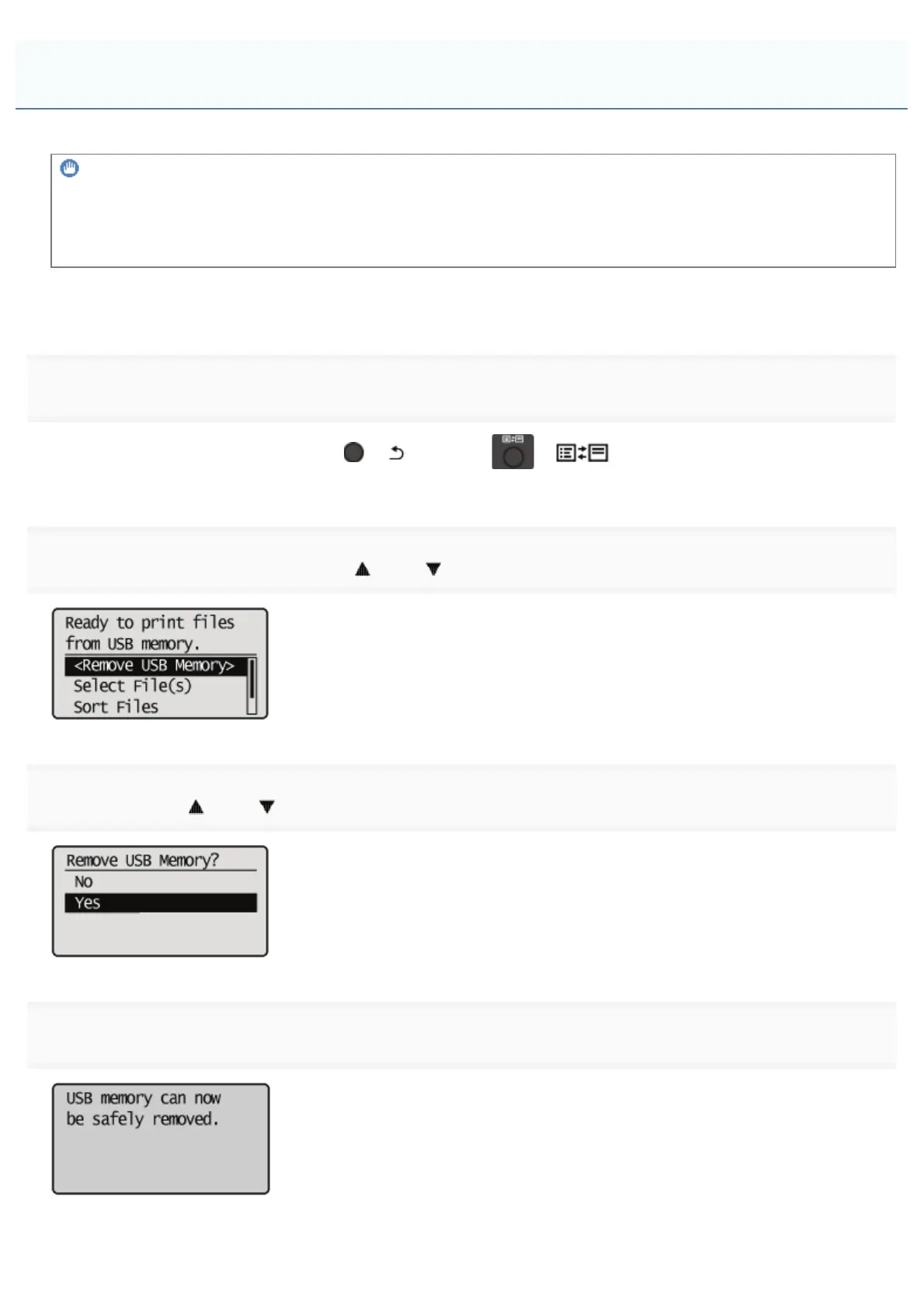
Always use the following procedure when removing USB memory devices.
Using other methods to remove USB memory devices may result in damage to the device and the printer.
The following procedure is explained when the "USB Direct Print Mode Screen" is displayed. Remove the USB memory
device using the same procedure even when the "Printer Setup Screen" is displayed.
1
Display the "USB Direct Print Mode Screen" or the "Printer Setup Screen."
When other screens are displayed, press [
] ( : Back) or [ ] ( : Application) until the "USB Direct Print
Mode Screen" or the "Printer Setup Screen" is displayed.
2
Select [<Remove USB Memory>] with [ ] and [ ], and then press [OK].
3
Select [Yes] with [ ] and [ ], and then press [OK].
4
When the following message is displayed, remove the USB memory device from the printer.
Remove the USB Memory Device
㻟㻞㻝㻌㻛㻌㻥㻥㻤



 To Next Page