21
1
Basic Network Settings
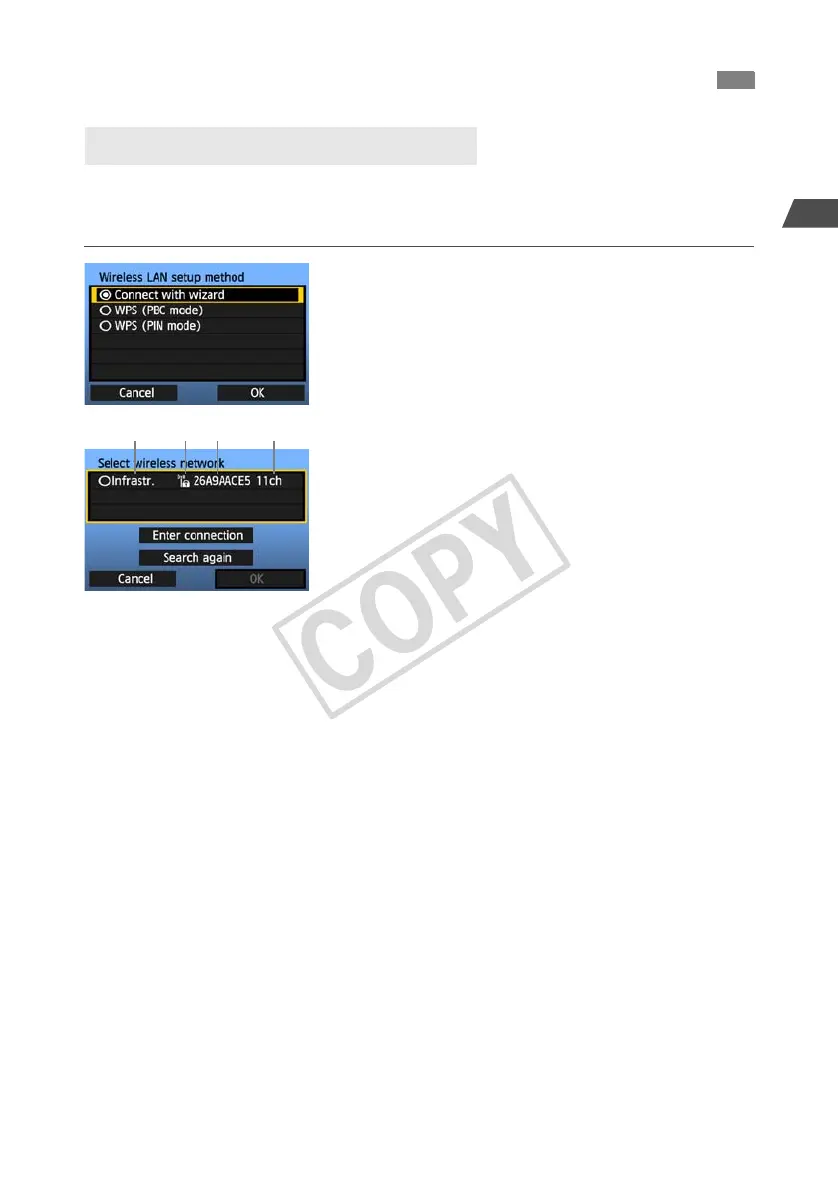
When you select [Connect with wizard], active wireless LAN devices in your area are listed,
accompanied by information about them. Select the SSID (or ESS-ID) of your desired wireless
LAN device.
1
Select [Connect with wizard].
Turn the <5> dial to select [Connect with
wizard], and then press <0>.
2
Select the wireless LAN device.
To select the wireless LAN device, press <0>.
Turn the <5> dial to select the wireless LAN
device, and then press <0>.
Select [OK] and press <0> to go to the next
screen.
1 Indicates whether the device is in infrastructure or ad hoc mode
2 An icon is displayed if the wireless LAN device is encrypting communication
3 Indicates the first 9 characters of the SSID
4 Indicates the channel used
Encryption by Wireless LAN Devices
If the wireless LAN device is encrypting communication, select the corresponding method in
[Authentication] and [Encryption].
[Authentication]: Open system, Shared key, WPA-PSK, or WPA2-PSK
[Encryption]: WEP, TKIP, or AES
[Enter connection] and [Search again]
To configure settings for the wireless LAN device manually, select [Enter connection] and
press <0>. Complete the settings for the items displayed, one after another.
To search for wireless LAN devices again, select [Search again] and press <0>.
Using the Wizard to Establish a Connection
Selecting the Wireless Network


 To Next Page