31
Configuring FTP Transfer Settings
2
FTP Settings and Image Transfer
5
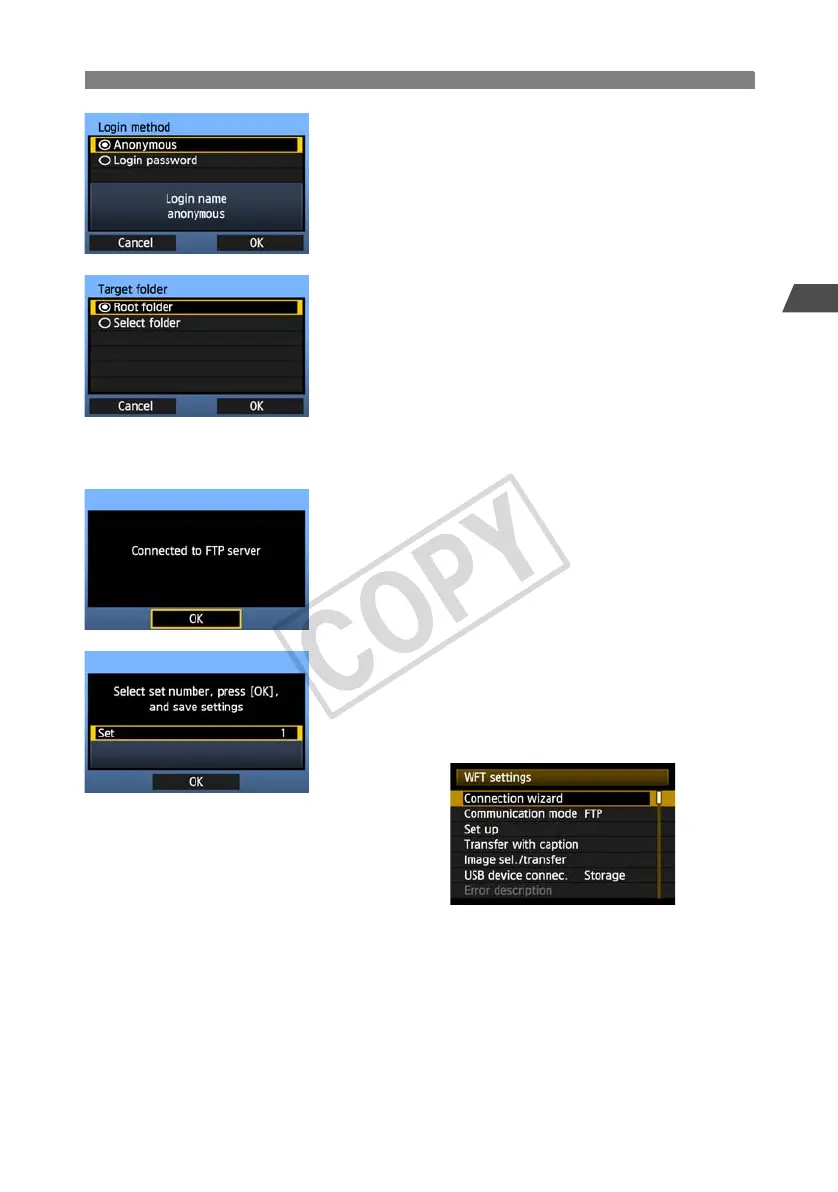
Complete the [Login method] settings.
Turn the <5> dial to select [OK], and then press
<0> to go to the next screen.
6
Complete the [Target folder] settings.
Select [Root folder] to have images saved in the
root folder as specified in FTP server settings.
(p.41)
Select [Select folder] to specify a subfolder in the
root folder. If no folder exists, a folder will be
created automatically.
Turn the <5> dial to select [OK], and then press
<0> to connect to the FTP server.
7
On the confirmation screen displayed next, select
[OK] and press <0>.
X The <
LAN
> lamp is lit in green.
8
Press <0>. Turn the <5> dial to select the set
number, and then press <0>.
Turn the <5> dial to select [OK], and then press
<0>. After the connection wizard is closed, the
display reverts to the menu screen.
Settings information is stored on the camera. It is
not stored on the transmitter.
The FTP network settings are now complete.


 To Next Page